

Files and sharing
All steps on this page take place in the Files app in the browser.
Upload a file
- Open the Files app and go to the target folder.
- Click + and choose Upload.
- Select the file.
- Wait until the upload has finished.
You can also drag files from your computer's file manager into the file list, several at a time.
Create a folder
- Open the Files app.
- Click + and choose Folder.
- Enter the folder name. The suggested name is New folder.
- Click Create or press Enter.
The file list
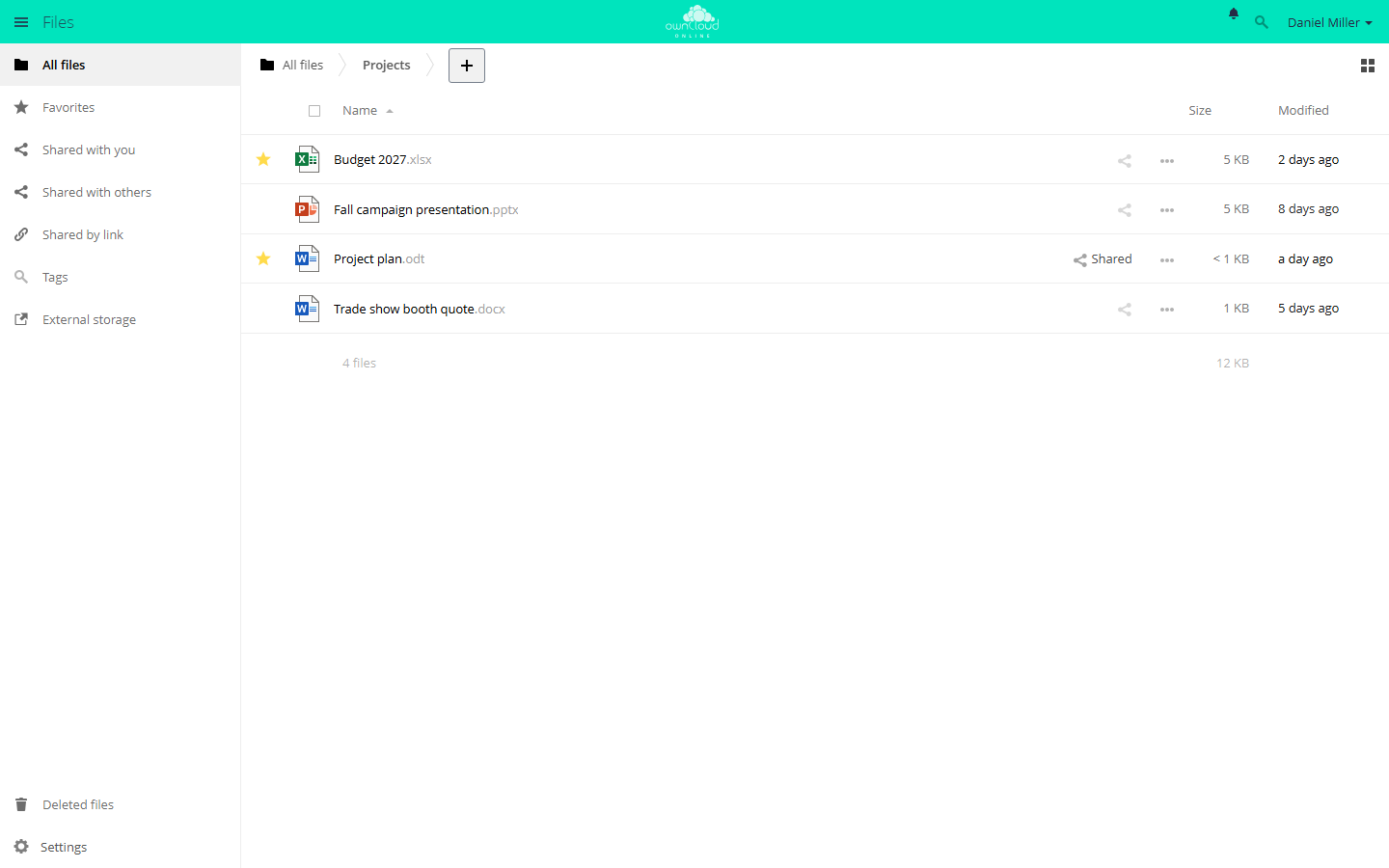
A star in front of the name marks a favorite, and Shared appears next to files you have shared. The … menu of a row holds more actions, including Details, Rename, Download, and Delete.
Share with people and groups
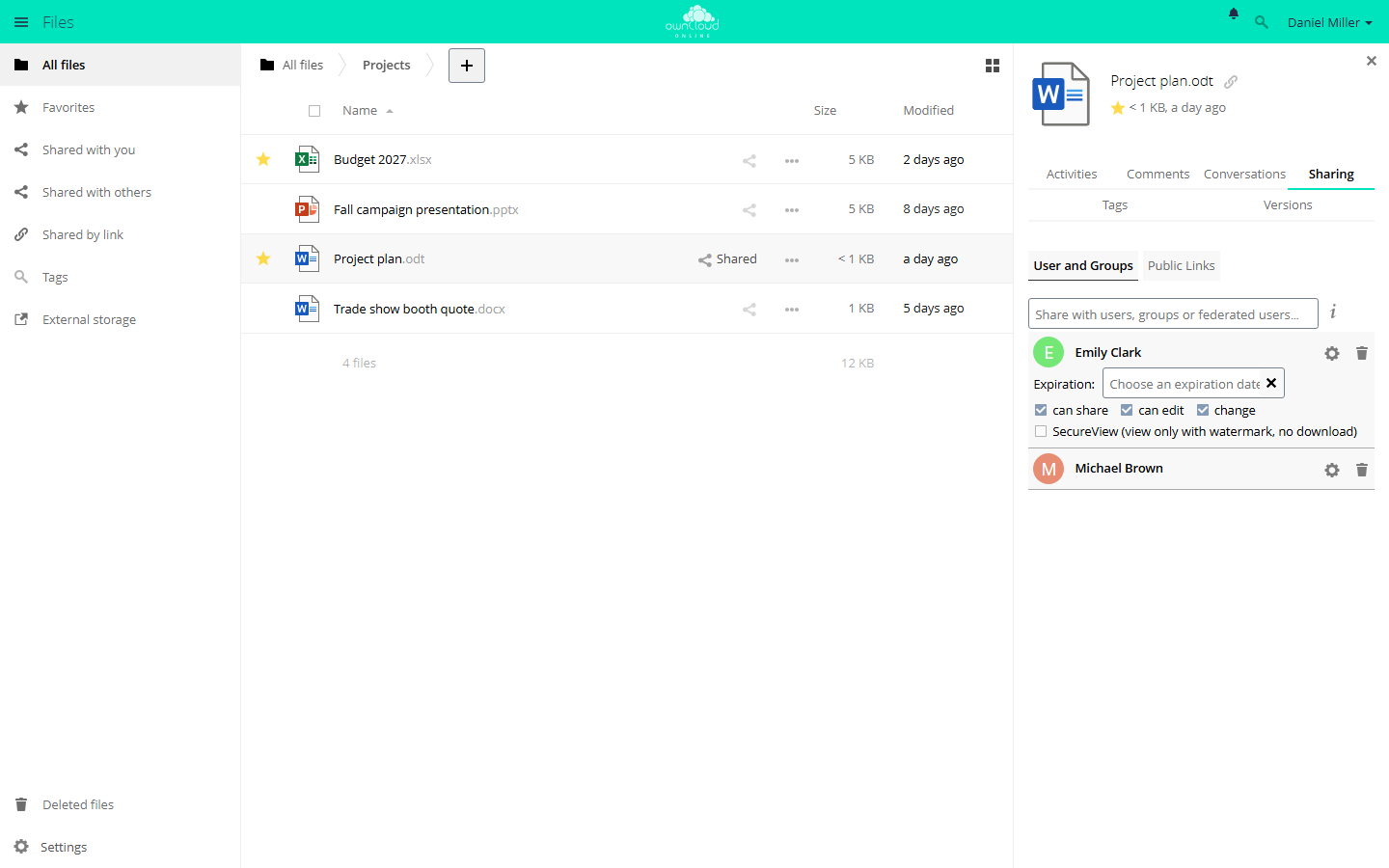
- In the file list, click the share icon next to the folder or file. The sidebar opens on the right with the Sharing tab.
- Under User and Groups, type the name of a person or group in the Share with users, groups or federated users… field and select the match.
- Click the gear icon next to the name and set the permissions and the expiration date.
| Setting | Effect |
|---|---|
| can share | The person can reshare the item with others. |
| can edit | The person can change the contents. For folders, create, change, and delete control the individual permissions; for files, there is only change. |
| Expiration | The share stays valid through this date. |
Apps can add more checkboxes. The screenshot shows SecureView (view only with watermark, no download) from the Office app. The trash icon next to the name removes the share.
Items that others share with you appear under Shared with you. If automatic acceptance is turned off, new shares first show up there as Pending until you choose Accept Share or Decline Share.
Public links
A public link shares a file or folder with people who don't have an account.
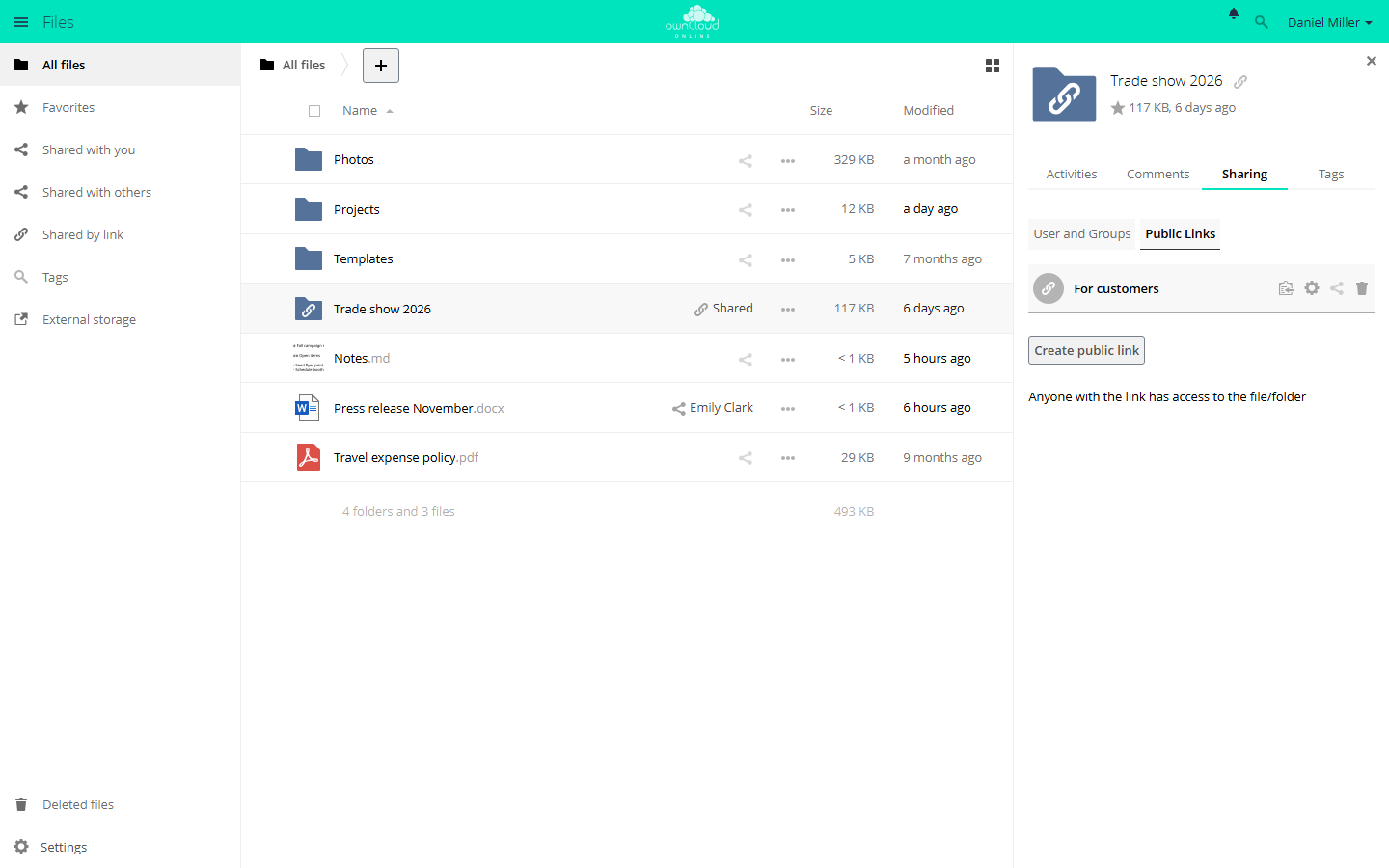
- Click the share icon next to the folder or file and choose Public Links in the sidebar.
- Click Create public link.
- In the dialog, enter a name under Link name, choose the permissions, and set a Password and an Expiration date.
- Click Share. To change the link later, click the gear icon, adjust the settings, and click Save.
- Copy the link with the Copy to clipboard icon and pass it on.
A folder can have several links, each with its own settings, for example one for viewing and one for uploads. These permissions are available for folders:
| Option | Recipients can |
|---|---|
| Download / View | View and download contents |
| Download / View / Upload | View, download, and upload contents |
| Download / View / Upload / Edit | View, download, edit, delete, and upload contents |
| Upload only (File Drop) | Drop off files without seeing the contents of the folder |
For files, you get Download / View and, if allowed, Download / View / Edit. Your administrator decides which options appear.
Use a password and an expiration date for public links. Without a password, anyone who has the link can get to the contents, even if the link was forwarded. Without an expiration date, the link stays valid until you delete it. Your administrator can make both mandatory; if one is missing, the dialog then shows Password required or Expiration date is required.
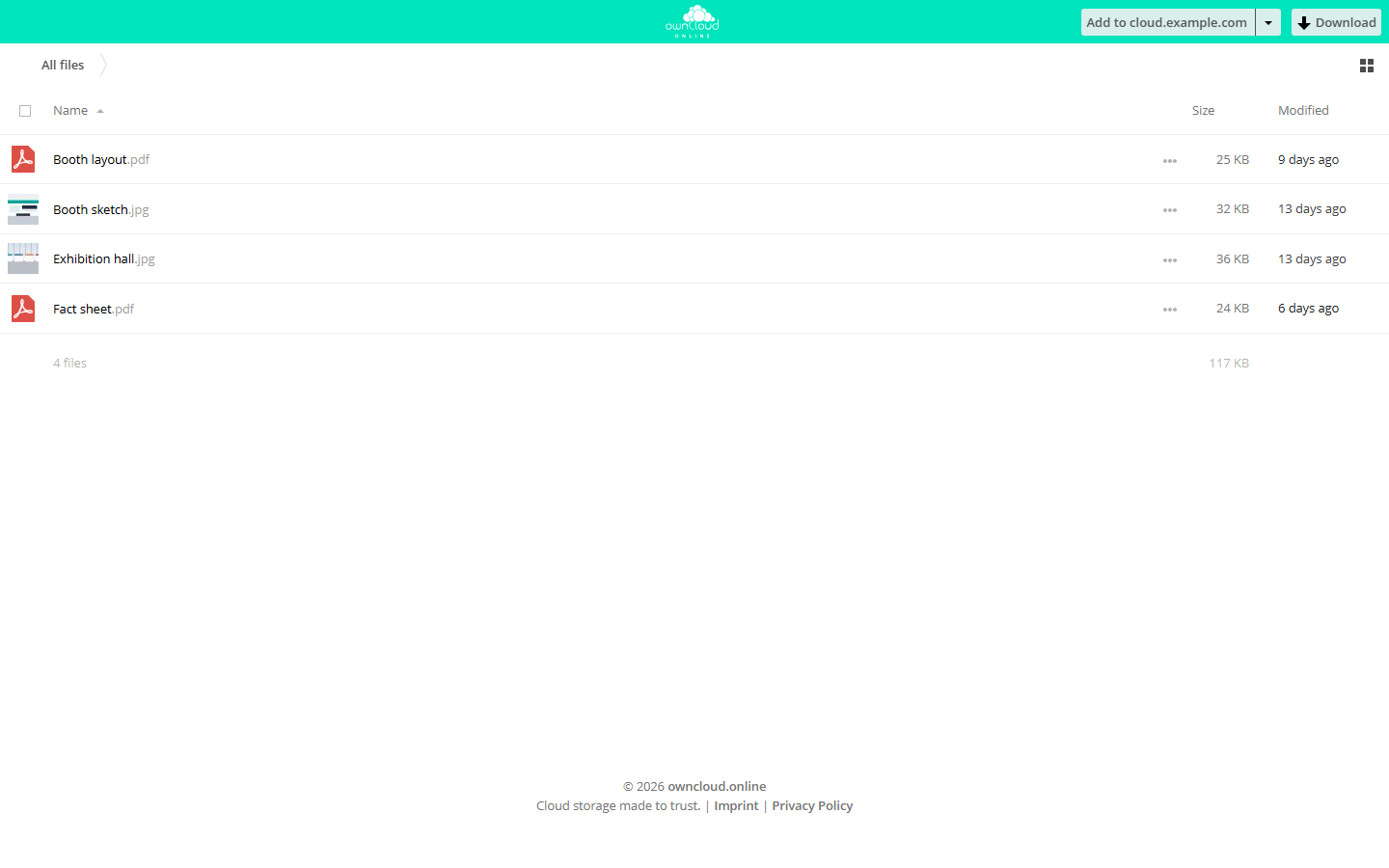
Recipients open the link in the browser, see the files without an account, and download them with the Download button. If the link is password protected, the page asks for the password first. With Upload only (File Drop), recipients only see the field Click to select files or use drag & drop to upload.
Versions and deleted files
Deleted files go to the trash bin. If the Versions app (files_versions) is
enabled, you can restore earlier versions of changed files. It is enabled by
default, and so is the trash bin.
Restore an older version
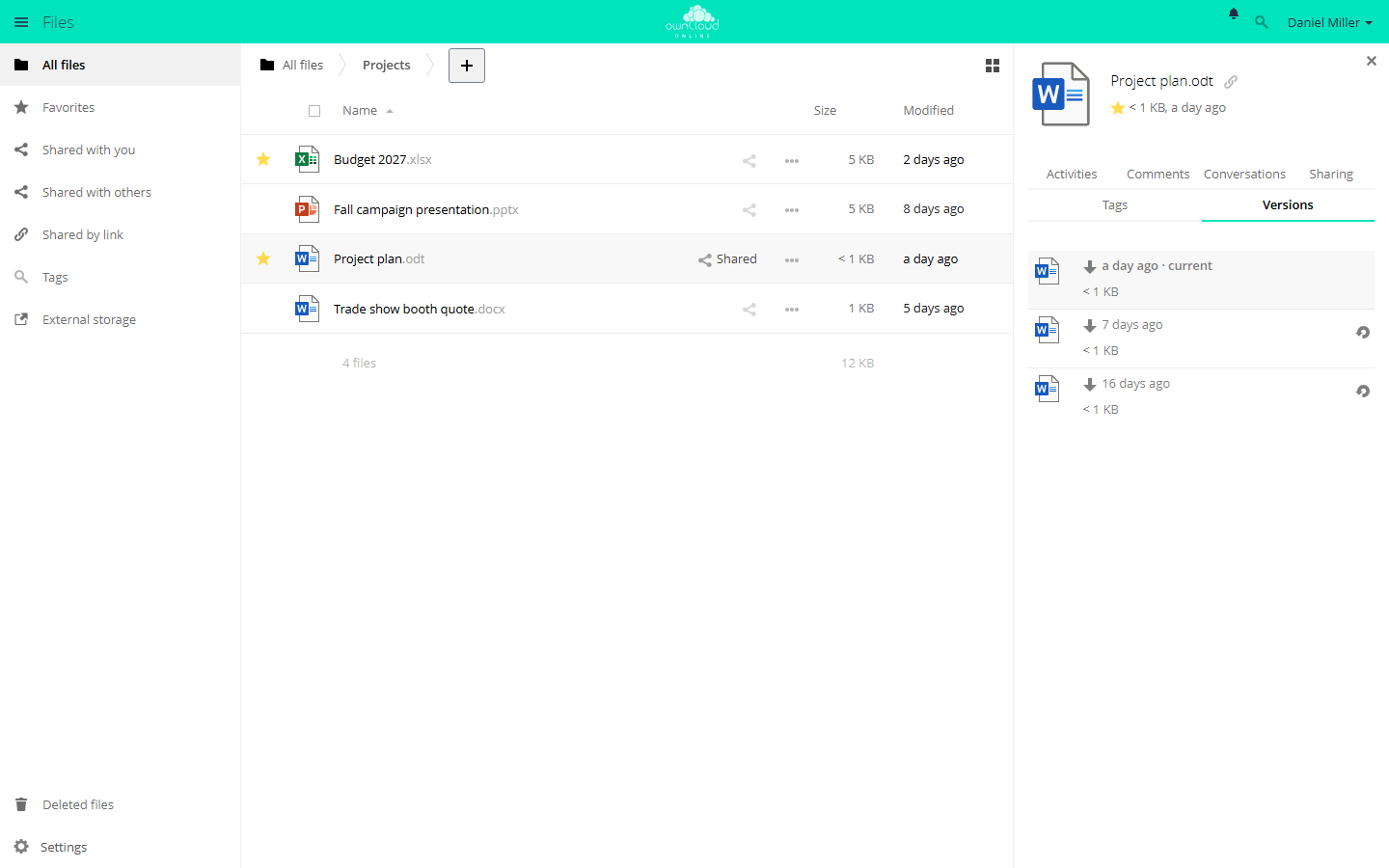
- Click … next to the file and choose Details.
- Open the Versions tab. The top row, marked current, is the file as it is now.
- Click the icon on the right of the version you want (Restore).
You don't lose the state you are replacing: owncloud.online saves it as a version first. Clicking the time of a version downloads it without changing anything. You can only restore files you are allowed to edit.
How many versions are kept depends on their age:
| Age of the version | What is kept |
|---|---|
| Up to 10 seconds | One version every 2 seconds |
| Up to 1 minute | One every 10 seconds |
| Up to 1 hour | One per minute |
| Up to 24 hours | One per hour |
| Up to 30 days | One per day |
| Older | One per week |
If your account has a storage quota, versions use at most half of the free space. When space runs low, owncloud.online deletes older versions sooner. Your administrator can set different retention times.
Restore deleted files
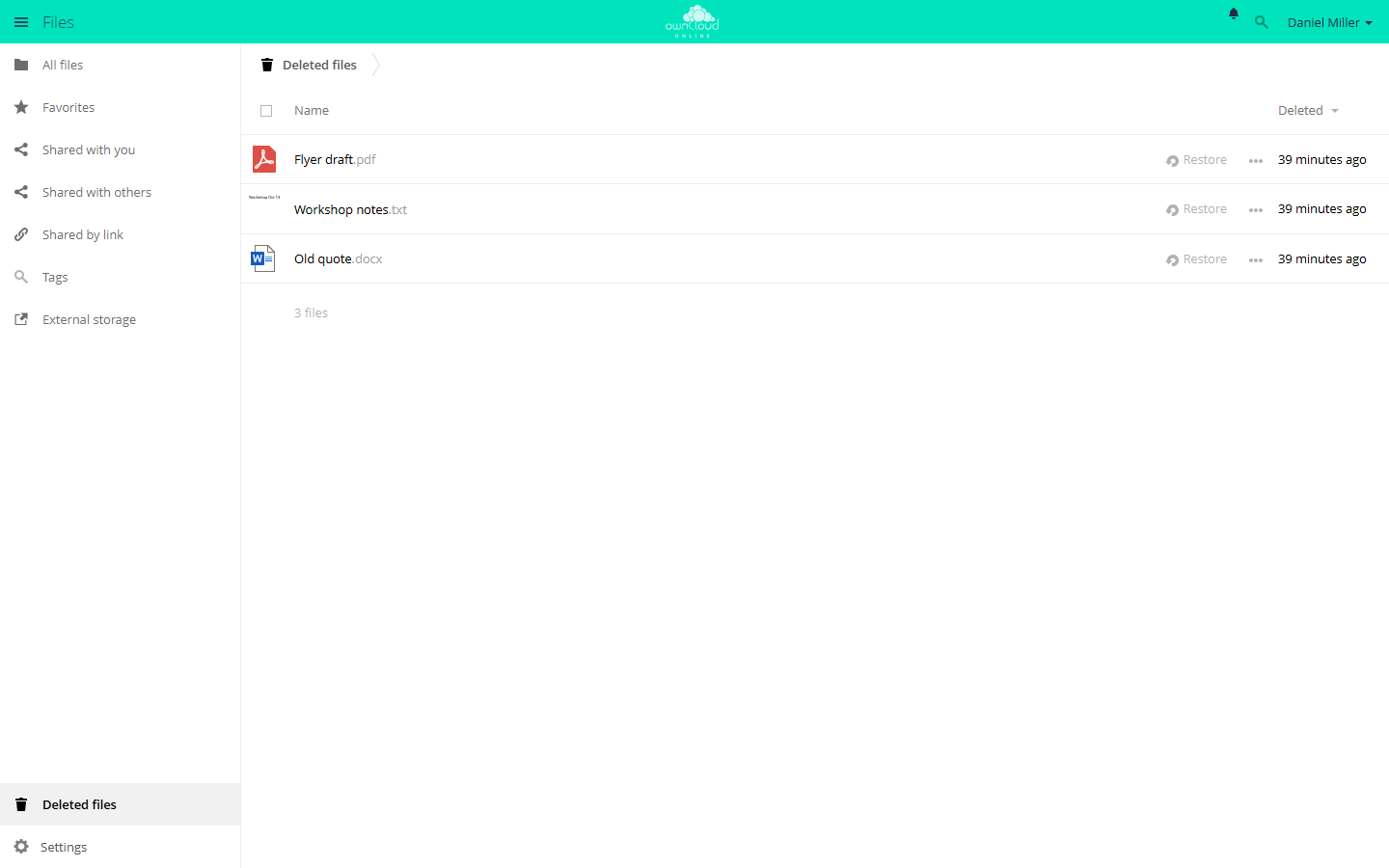
- Open Deleted files at the bottom left.
- Click Restore next to the file. It goes back to its original folder.
Files you delete in the desktop client or over WebDAV end up here too. Unless your administrator has changed the settings, deleted files stay in the trash bin for up to 30 days. When storage runs low, owncloud.online can delete them permanently before then. Your administrator can also make certain files, such as very large ones, skip the trash bin and get deleted right away.