

Installing on web hosting with Plesk
owncloud.online can also be installed in a hosting plan with the Plesk control panel. You need neither root access nor a command line: you upload a ZIP file, create a database, and finish the setup in your browser. Other control panels such as cPanel work the same way, only the menu items have different names.
When you are done, your hosting plan's home directory contains two new folders
next to httpdocs:
| Folder | Contents |
|---|---|
owncloud |
the program. The domain points to this folder. |
oco-data |
the data directory with all uploaded files. It lies outside the website and cannot be reached from the internet. |
In the examples, the domain is cloud.example.com. Use your own.
Check the requirements
Check these points before you start. Otherwise, the installation will fail at one of them later.
| Requirement | Why | Where to check |
|---|---|---|
| PHP 8.4 | Older versions do not start, PHP 8.5 is not supported | PHP Settings of the domain |
| Linux server | owncloud.online refuses hosting on Windows | ask your hosting provider |
| MySQL or MariaDB | database for accounts, shares, and the file list | Databases |
| PHP may use 512 MB of memory | previews and updates need it | PHP Settings, value memory_limit |
| Folder outside the website | for the data directory | File Manager: home directory with httpdocs in it |
| Scheduled Tasks | for the background jobs | menu item in the control panel |
| Let's Encrypt | for HTTPS | SSL/TLS Certificates |
| outgoing HTTPS connections | for apps from the Marketplace, optional | ask your hosting provider |
On start, owncloud.online also checks these PHP extensions: zip, dom, XMLWriter, XMLReader, intl, libxml, mbstring, ctype, JSON, GD, zlib, iconv, SimpleXML, hash, cURL, and PDO with the MySQL driver. Plesk usually provides them.
Limits of web hosting
Web hosting usually lacks a command line with the occ command, and Redis.
This means:
| Limit | Consequence |
|---|---|
| more than 50 accounts | The update in the browser refuses to run and asks for the occ upgrade command. |
user_ldap or user_shibboleth app installed |
the same block, regardless of the number of accounts |
| no Redis | File locking runs through the database. The settings page permanently shows a warning about it. |
| maintenance tasks | Rescanning files, transferring files between accounts, and repair steps only work with occ. |
For more than 50 accounts or an LDAP connection, plan a Linux server or a plan with SSH access from the start, see With SSH access.
1. Prepare the domain and HTTPS
- In Plesk, under Websites & Domains, add the domain or subdomain
cloud.example.comif it does not exist yet. - Under SSL/TLS Certificates, issue a free certificate from Let's Encrypt for the domain.
- In the domain's Hosting Settings, turn on Permanent SEO-safe 301 redirect from HTTP to HTTPS.
Open https://cloud.example.com. The browser shows the page without a
certificate warning.
2. Configure PHP
Open the domain's PHP Settings:
| Setting | Value |
|---|---|
| PHP version | 8.4, as an FPM application served by Apache. With the variant served by nginx, the bundled .htaccess file does not apply. |
memory_limit |
512M or more |
max_execution_time |
3600 |
open_basedir |
must include the whole home directory. The Plesk default {WEBSPACEROOT}{/}{:}{TMP}{/} does. |
Save the settings.
Background: values from .user.ini
The release includes a .user.ini file that PHP reads on every request
when it runs as an FPM application. It sets upload_max_filesize and
post_max_size to 513M, memory_limit to 512M, default_charset to
UTF-8, and output_buffering to 0. These values take precedence over
the PHP settings in Plesk, unless the hosting provider explicitly locks
them.
The 513 MB limit applies to a single request. The web interface and the desktop client upload large files in chunks and are not affected.
3. Download and verify
From https://github.com/BWTECH-github/owncloud.online/releases, download to your own computer:
owncloud-online-11.0.25.zip, about 65 MB, or the newer version offered there,SHA256SUMS.txtwith the checksums.
Check that the ZIP file arrived unchanged. On Windows, open PowerShell in your download folder and enter:
(Get-FileHash .\owncloud-online-11.0.25.zip -Algorithm SHA256).Hash -eq ((Select-String 'owncloud-online-11.0.25.zip' .\SHA256SUMS.txt).Line -split '\s+')[0]
The answer is True. On Linux, the command is
sha256sum --ignore-missing -c SHA256SUMS.txt, and the answer is
owncloud-online-11.0.25.zip: OK. On macOS,
shasum -a 256 owncloud-online-11.0.25.zip shows the checksum. Compare it with
the line for the ZIP file in SHA256SUMS.txt.
If the answer is False or the checksum differs, the file is damaged or has
been modified. Download it again and do not upload it.
4. Upload and unpack
- Open the File Manager in Plesk. It shows the home directory with the
httpdocsfolder. - Upload the ZIP file to this home directory, not to
httpdocs. Upload the ZIP file, not the unpacked files. The program consists of more than 11,000 files, and uploading them one by one takes hours. - Extract the ZIP file from its menu in the File Manager. This creates the
owncloudfolder. - Next to it, create an empty folder named
oco-data. - Delete the ZIP file.
Open the owncloud folder. It contains the apps, config, and core
folders and the .htaccess and .user.ini files, among others.
5. Create the database
Under Databases, use Add Database to create a new, empty database, for
example owncloud_online, along with a database user with its own random
password. Write down four values:
| Value | Note |
|---|---|
| Database name | sometimes with a fixed prefix, for example p123_owncloud_online |
| Database user | |
| Password | |
| Database server | usually localhost. If Plesk shows a different name or a port such as localhost:3306, write it down exactly like that. |
The database must be empty. Tables from another application cause errors during setup.
6. Point the domain to the program folder
In the Hosting Settings of cloud.example.com, set the Document root to
the owncloud folder. Save.
Open https://cloud.example.com. The owncloud.online setup wizard appears.
Finish the setup right away
Until you complete the next step, anyone who opens the address can take over the installation. Continue without a break.
7. Setup in the browser
Fill in the form:
| Field | Entry |
|---|---|
| Create an admin account: Username and Password | your future administrator account. A long password of its own that you use nowhere else. |
| Storage & database | Click to expand. |
| Data folder | The suggestion is a data folder inside the program folder, for example /var/www/vhosts/example.com/owncloud/data. Replace owncloud/data with oco-data, in this example /var/www/vhosts/example.com/oco-data. |
| Configure the database | If several databases are offered, choose MySQL/MariaDB. |
| Database user, Database password, Database name, Database host | the four values from step 5 |
Click Finish setup. Depending on the hosting provider, the setup takes up to two minutes. Do not interrupt it. Afterwards, the file view or the login page appears.
Background: what the wizard enters
The wizard writes config/config.php. For that, the config folder must
be writable, which it is in Plesk.
| Key | Value |
|---|---|
datadirectory |
the path to oco-data |
dbtype, dbname, dbuser, dbpassword, dbhost |
your database values |
trusted_domains |
the address you opened the wizard with |
overwrite.cli.url |
the same address with https:// |
passwordsalt, secret |
randomly generated |
apps_paths |
apps/ (fixed) and apps-external/ (for apps from the Marketplace) |
An almost empty data folder stays behind in the program folder. The
wizard creates it to test the protection by the .htaccess file.
8. Set up background jobs
Every 15 minutes, owncloud.online does work in the background: it cleans up deleted files and old versions, removes expired shares, and sends notifications and emails. Create a new task for it under Scheduled Tasks:
| Field | Entry |
|---|---|
| Task type | Run a PHP script |
| Script path | owncloud/cron.php, selected with the folder icon |
| PHP version | 8.4 |
| Run | every 15 minutes, in cron format */15 * * * * |
Then, in owncloud.online, select the Cron option in the Cron section under Settings → Admin → General.
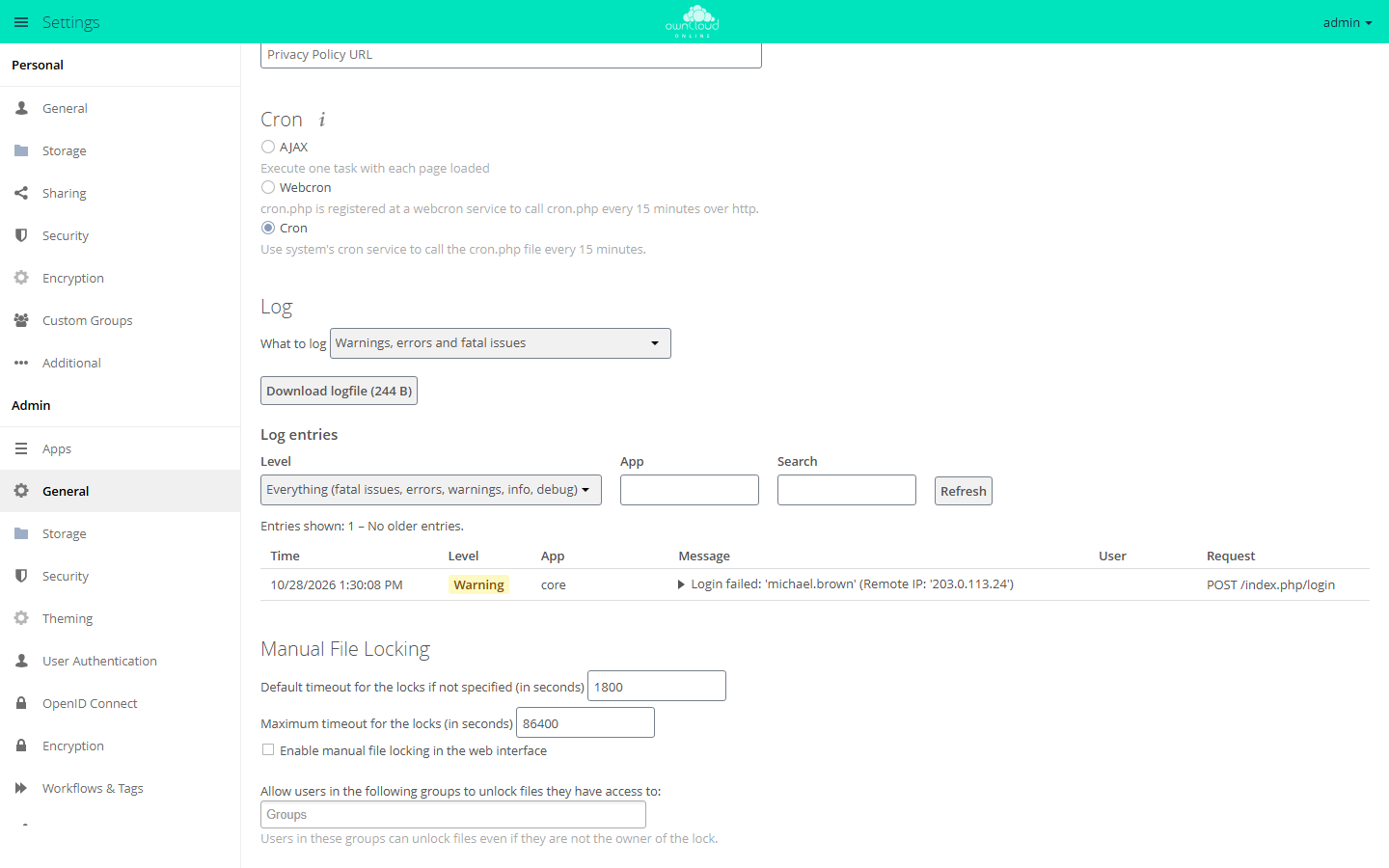
The Cron option matches a scheduled task that runs cron.php with PHP.
Within 15 minutes, the section shows "Last cron job execution: …" with a green
dot.
If your hosting provider can only fetch URLs
Some plans only offer tasks of the type Fetch a URL. In that case, enter this address, every 5 minutes if possible:
https://cloud.example.com/index.php/cron
Select the Webcron option in owncloud.online. With the Cron option, the
address only answers Background jobs are using system cron! and does
nothing. Each call processes exactly one job, which is why the short
interval matters.
The settings page names the cron.php file. Over the web, it only
redirects to the address above.
If it doesn't work
| What you see | Cause | Fix |
|---|---|---|
| "Cron was not executed yet!" stays | task missing, running with a different PHP version, or the option does not match the task | check the task and PHP version; Run a PHP script goes with Cron, Fetch a URL with Webcron |
| The task runs, but nothing happens | the hosting provider blocks the PHP function system(), which cron.php uses to start the actual run |
switch to Fetch a URL and Webcron |
| The list of jobs does not get shorter | Webcron processes only one job per call | shorten the interval or use Run a PHP script |
9. Log in and check
Open https://cloud.example.com/status.php. The answer contains
"installed":true and "maintenance":false.
Log in and open Settings → Admin → General. The page checks the setup when it opens and shows problems in the Security & setup warnings section. If it shows
Your data directory and your files are probably accessible from the Internet. The .htaccess file is not working.
the data directory is inside the program folder, and the .htaccess file
does not protect it. This warning must not stay. On a fresh installation
without data, start over: delete owncloud/config/config.php, create the
database again in Plesk, and repeat step 7 with oco-data. For what
the other messages mean, see
Security and setup warnings.
Then set up email, see Sending email. Enter the SMTP access of your mailbox there. Without it, no password reset emails and no invitations arrive.
Caching
Without a cache, owncloud.online reads all language and app files again on
every request. If your hosting provider offers the APCu PHP extension, turn it
on as a cache. To do so, open owncloud/config/config.php in the File Manager
and add this line before the last line );:
'memcache.local' => '\OC\Memcache\APCu',
If the error page Memcache \OC\Memcache\APCu not available for local cache
appears afterwards, APCu is missing. Remove the line again.
Edit config.php carefully
A typo in config/config.php makes the instance unreachable. Download the
file before every change so that you can put it back.
With SSH access
If your plan allows SSH access with a full shell, occ is available as well.
Log in and run it with the PHP from Plesk:
/opt/plesk/php/8.4/bin/php owncloud/occ status
This removes the limits of web hosting that depend on occ.
Write the commands from
the other pages of this documentation without sudo -u www-data and with
/opt/plesk/php/8.4/bin/php owncloud/occ instead of php8.4 occ.
What is different without a command line
| Task | With occ |
Replacement on web hosting |
|---|---|---|
| Check the state | occ status |
status.php in the browser |
| Update | occ upgrade |
update in the browser, up to 50 accounts |
| Turn maintenance mode on or off | occ maintenance:mode --on |
'maintenance' => true, in config/config.php |
| Change settings | occ config:system:set … |
entry in config/config.php, see Configuration (config.php) |
| Enable and disable apps | occ app:enable <app> |
Settings → Admin → Apps |
| Install apps | occ market:install <app> |
"Market" app in the web interface |
| Rescan files | occ files:scan --all |
no replacement |
| Transfer an account's files | occ files:transfer-ownership … |
no replacement |
| Repair steps | occ maintenance:repair |
no replacement |
Installing more apps
The release contains the server with the basic functions and the "Market" app. You install other apps such as Activity, Gallery, Text Editor, or Guests from the Marketplace. For administrator accounts, the app menu at the top left shows a Market entry for this. Two requirements:
- The server may reach
https://marketplace.owncloud.online. If the hosting provider blocks outgoing connections, the list stays empty. - The
owncloud/apps-externalfolder is writable, which it is in Plesk.
Without the Marketplace, you can do it by hand: download the app package,
unpack it on your own computer, upload the folder to owncloud/apps-external,
and enable the app under Settings → Admin → Apps. Details under
Managing apps.
Updating
For an update, you swap the program folder for the one from the new release. The data directory and the database stay where they are.
- Back up. Export the database under Databases and download
owncloud/config/config.phpand theoco-datafolder. - Turn on maintenance mode. In
owncloud/config/config.php, change the line'maintenance' => false,to'maintenance' => true,. If the line is missing, add it before the last line);. - Upload the new release. Download the ZIP file of the new version,
verify it as in step 3, and rename the old
owncloudfolder toowncloud-oldin Plesk. Upload the ZIP file to the home directory through the File Manager or over FTP, and extract it in the File Manager. This creates a newowncloudfolder. - Carry over your own files. Copy
owncloud-old/config/config.phptoowncloud/config/. Copy all folders exceptmarketfromowncloud-old/apps-externaltoowncloud/apps-external. - Turn off maintenance mode. In the copied
config.php, change the line back to'maintenance' => false,. - Start the update. Open
https://cloud.example.com. The page reports that owncloud.online will be updated to the new version. Click Start update.
If everything works, delete owncloud-old. If the update fails, rename the
folders back and restore the database backup. More on backups under
Backups and updates.
Troubleshooting
Most errors are logged with their cause in oco-data/owncloud.log. The request
ID on the error page leads to the matching entry, see
Server log and error messages.
| What you see | Cause | Fix |
|---|---|---|
This version of owncloud.online requires at least PHP 8.4.0 |
PHP version too old or set for a different domain | choose PHP 8.4 in the PHP Settings of this domain |
| "PHP module … not installed." | an extension is missing | have the hosting provider enable the extension |
Cannot write into "config" directory |
config belongs to a different user than PHP |
check the permissions in the File Manager |
| "Can't create or write into the data directory …" | wrong path or outside open_basedir |
copy the path from the File Manager, check open_basedir |
| "Your Data directory must be an absolute path" | the path does not start with / |
enter the full path |
| "Your Data directory is invalid" | the .ocdata file in the data directory is missing, for example after a move |
create an empty .ocdata file in oco-data |
| "You are accessing the server through an untrusted domain." | opened through an address that is not in trusted_domains, for example a preview address of the hosting provider |
add the address under trusted_domains in config/config.php |
| Blank page or error 500 without a message | PHP error | read the log, see above |
| The "Market" app shows no apps | no outgoing connection to the Marketplace | ask your hosting provider whether outgoing HTTPS is allowed |
The update in the browser asks for occ upgrade |
more than 50 accounts or user_ldap installed |
use SSH access or move to a Linux server |
.htaccess or .user.ini missing after an update |
files starting with a dot were not copied | extract the ZIP file on the server instead of uploading individual files |