

The desktop client
The desktop client keeps a folder on your computer in sync with owncloud.online: what you change locally ends up on the server, and what happens on the server comes back to your computer. It runs on Windows, macOS, and Linux. You log in through the browser, so a second factor is requested there as well, and the client itself doesn't store a password.
This page describes desktop client 7.11.1 with owncloud.online 11.0.25.
Requirements
| Item | Requirement |
|---|---|
| Instance address | Must be reachable over https. The client rejects http:// with "Invalid URL scheme. Only https is accepted." |
| Server version | 10.0.0 or later. 11.0.25 meets this; with older versions, the client warns "Unsupported Server Version" |
| Login method | The instance must offer OAuth2, that is, the oauth2 or openidconnect app must be enabled |
| Operating system | 64-bit Windows, macOS on Apple silicon, Linux x86_64 |
Without one of these two login apps, setup doesn't get past the browser step. Your administrator can check for them and enable one with:
sudo -u www-data php8.4 occ app:list
sudo -u www-data php8.4 occ app:enable oauth2
If the app isn't part of the installation yet, add it from the Marketplace (see Apps and Marketplace). Login with OAuth2 and OpenID Connect explains how to set up the login itself.
Where to get the client
All packages are on the client's release page:
https://github.com/BWTECH-github/client/releases
| File | Purpose |
|---|---|
owncloud.online-client-<version>-win-x64-Setup.exe |
Windows installer |
owncloud.online-client-<version>-win-x64.7z |
Windows, portable, no installation |
owncloud.online-client-<version>-macos-arm64.dmg |
macOS on Apple silicon |
owncloud.online-client-<version>-linux-x86_64.AppImage |
Linux x86_64 |
SHA256SUMS.txt |
Checksums of all packages for this version |
Up to 7.11.0, the page also had …-win-x64.exe, an installer without restart
handling and without Explorer integration. Since 7.11.1, the setup is the only
Windows installer.
The same page lists pre-releases of the 11.0 series, most recently 11.0.0-beta4 from October 21, 2026. They are marked as beta and are not meant for production use.
To verify a download, put the package and SHA256SUMS.txt in the same
directory and run:
sha256sum -c SHA256SUMS.txt
On macOS, the command is shasum -a 256 -c SHA256SUMS.txt. You can ignore
messages about files you didn't download. On Windows, PowerShell shows the
checksum:
Get-FileHash .\owncloud.online-client-7.11.1-win-x64-Setup.exe -Algorithm SHA256
Compare the value with the line for the same file in SHA256SUMS.txt. Case
doesn't matter.
To install a new version, run the new package the same way as the first time. Your accounts and folders stay in place.
Installation
Windows
Run …-win-x64-Setup.exe. The setup closes a running client, installs the new
version, sets up the Explorer integration, and offers to restart Windows at the
end. The restart is needed for the status display in Explorer to work reliably.
If you postpone the restart, the client reminds you the first time the new version starts: "owncloud.online has been installed or updated. To complete the installation, Windows needs to be restarted so that the file explorer integration works correctly." You can choose Restart Windows now or Restart later. The client asks only once per version, and not at all if Windows started less than 30 minutes ago. After a new installation, the prompt appears only once an account is set up.
For unattended deployment, the setup supports these switches:
| Command | Behavior |
|---|---|
/S |
Installs without prompts and doesn't restart Windows. Exit code 3010: restart pending, because locked files are replaced only during the restart; 0: nothing pending |
/S /norestart |
Same as /S, still accepted for existing deployment jobs |
/S /forcerestart |
Installs and restarts Windows right away |
Up to 7.11.0, /S restarted Windows on its own after the installation, and
/S /norestart suppressed that. Schedule the restart in your software
deployment so that Windows loads the Explorer integration.
If the computer has a desktop client from another vendor that uses the same Explorer integration (for example version 6.0.x), uninstall it first. Both programs register the same Explorer extension and the same uninstall ID and get in each other's way.
…-win-x64.7z contains the client as an archive to unpack: no installation and
no Explorer integration.
macOS
Open …-macos-arm64.dmg and drag the client into the Applications folder. The
package is signed with the Developer ID of BW-Tech GmbH and notarized by Apple.
On first launch, macOS only asks whether you want to open an app downloaded from
the internet.
Virtual files are currently available on Windows. On macOS, the client syncs the classic way, and you choose which folders to sync.
Linux
The AppImage needs no installation. Make it executable and start it:
chmod +x owncloud.online-client-<version>-linux-x86_64.AppImage
./owncloud.online-client-<version>-linux-x86_64.AppImage
On Linux, too, the client syncs the classic way, without virtual files.
Set up an account

- Start the client. Welcome to owncloud.online appears with the note "Enter your server address to get started. Your web browser will be opened to complete sign in."
- Enter the address of your instance, starting with
https://. - The client opens the browser with the login page of your instance. Log in as usual (with two-factor authentication turned on, the browser also asks for the code) and confirm access; with the OAuth2 app, click Authorize. The client window stays open in the meantime. If the browser doesn't open, copy the sign-in address with Copy URL and open it yourself.
- Back in the client, choose under Advanced settings how to sync (see the
table below) and pick the local folder under Download location. The
default is
owncloud.onlinein your home folder; the home folder itself can't be the target.
The three sync options:
| Option | Effect |
|---|---|
| Use virtual files (download on demand) | Default on Windows: all files are visible, and a file is downloaded when you open it |
| Download and sync all files | Everything is stored locally |
| Choose folders to sync manually | You pick the folders yourself (see the next section) |
Then the first sync starts. Later, you reach the client window through the icon in the notification area (Windows) or in the menu bar (macOS) and Show owncloud.online. The window's navigation bar shows your account plus Activity, Settings, Add Account, and Quit.
Choose folders to sync
If you don't want everything on your computer, choose the folders. In the client window, open the folder's action menu and choose Manage subfolder sync. The Choose what to sync dialog opens with the note "Deselect remote folders you do not wish to synchronize." and a tree view with the columns Name and Size.
Folders you deselect are no longer synced and are removed locally; on the server, they stay untouched. If you select a folder again later, it is downloaded again.
This selection is only available as long as virtual files are not turned on for the folder. Both methods solve the same problem in different ways.
Virtual files on Windows
With virtual files, Explorer shows everything, but disk space is only used for what you actually open. This is available only on Windows and only under these conditions:
- The folder must be on an NTFS file system. Otherwise the client reports "The Virtual filesystem feature requires a NTFS file system".
- A whole drive is not allowed ("The Virtual filesystem feature does not support a drive as sync root"). Choose a folder on the drive instead.
- Network drives are excluded ("The Virtual filesystem feature is not supported on network drives").
You turn this on and off per folder in the action menu with Activate virtual files and Deactivate virtual files. When you turn it off, the client asks Disable virtual file support?: content that is currently online-only is downloaded, and a running sync is aborted. In return, folder selection becomes available again.
To control what is kept locally, use Manage availability in the same menu. In the tree view, the Availability column shows the state. Right-click a folder for these options:
| Entry | Effect |
|---|---|
| Always keep on this device | The content is downloaded and kept locally |
| Free up space (online only) | The local copy is discarded, the entry stays visible |
| Reset to default | The setting of the parent folder applies again |
To make the folders show up in Explorer's navigation pane, select Show sync folders in the Explorer navigation pane under Settings → General Settings.
In Explorer, the client also adds its own Share with owncloud.online submenu with Share…, Copy private link to clipboard, and Show file versions in web browser.
When a file was changed in two places
If you change a file locally and it was also changed on the server in the meantime, the client doesn't decide which version is the right one. It keeps both:
- Your local copy is renamed and gets the time of its last change appended,
for example
Quote (conflicted copy 2026-08-13 141500).odt. - The copy from the server is downloaded under the original name.
Nothing is lost. Open both files, carry over the changes you want, and then delete the conflict copy.
If a program has the file locked at that moment, the client reports "File … is currently in use" and tries again on the next run. Close the program, and the issue resolves itself.
If conflict copies keep appearing for the same files, usually two devices are working on them at the same time, or a program keeps writing to a working file. Exclude such files from syncing under Settings → General Settings → Edit Ignored Files.
Pause and resume syncing
For all accounts at once: right-click the icon in the notification area and choose Pause synchronization, with the options For 30 minutes, For 1 hour, and Until I resume. Resume with Resume synchronization; for a timed pause, the entry also shows the time until which syncing is paused.
For a single folder, the folder's action menu has Pause sync and then Resume sync. Sync now starts a run right away instead of waiting for the next check. If a sync is running, the client asks for confirmation under "Sync Running" before it pauses.
Under Settings → General Settings → Network, you can also select Pause synchronization when the Internet connection is metered, which is useful on mobile data connections. When the client pauses for this reason, the account shows "Sync is paused due to metered internet connection". If you click Sync now in that state, the client asks under "Internet connection is metered" whether to force the sync anyway.
To stop the client completely, choose Quit in the menu. Nothing is synced while it isn't running.
Two-factor authentication and app passwords
The client logs in through the browser. The second factor is requested there and doesn't get in the client's way; you don't need an app password for the desktop client.
It's different for access you set up with a username and password: a WebDAV folder mapped as a network drive, command-line tools, or older applications. As soon as a second factor applies to your account, the server rejects any such login with the account password. Create an app password for these:
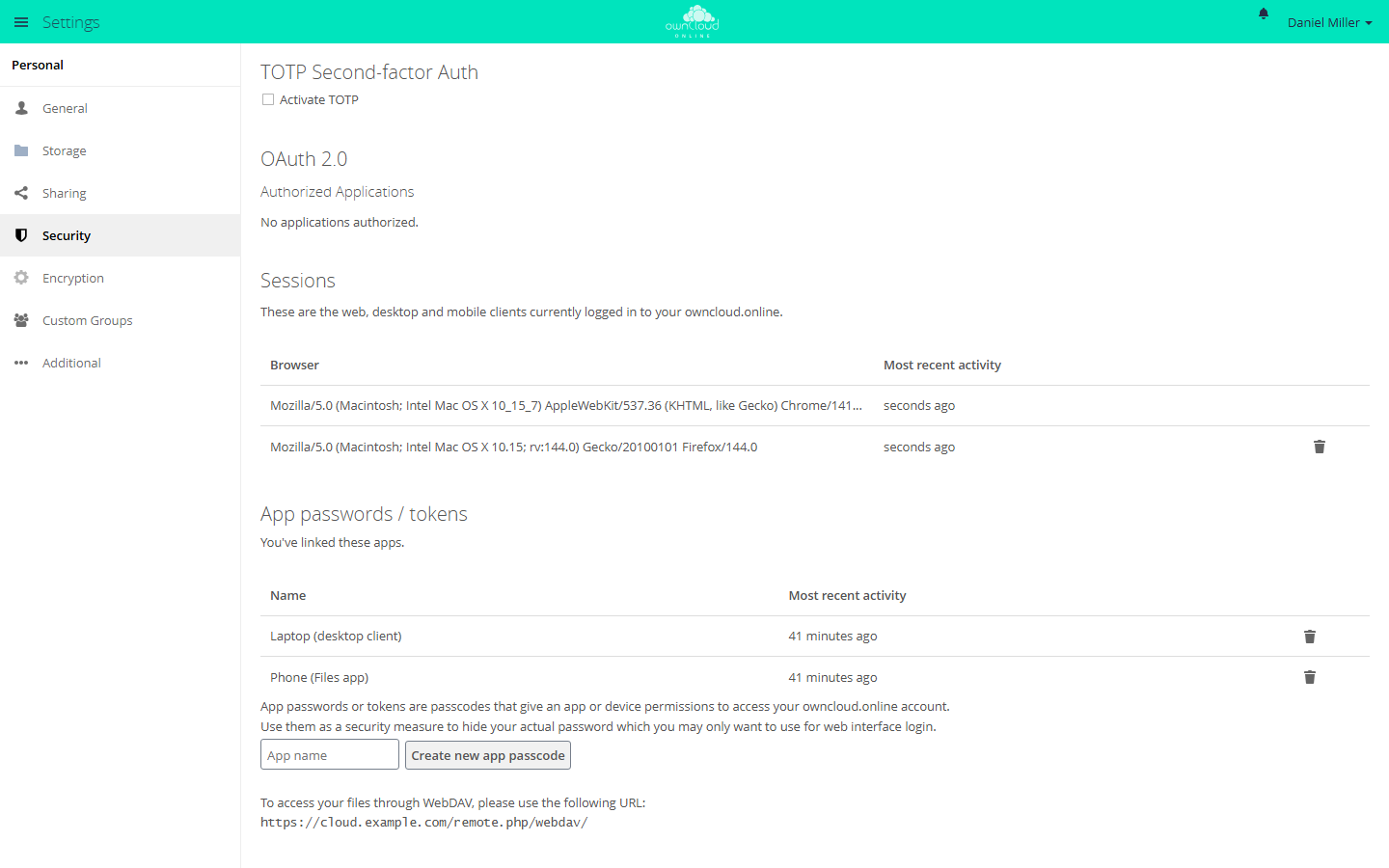
- In the web interface, open Settings → Security.
- In the App passwords / tokens section, enter a name for the device under App name and click Create new app passcode.
- The server shows Username and Password / Token once. Enter both in the program; after that, the password can't be retrieved again. The same page also shows the WebDAV address of your instance.
A deleted app password stops working, and the program that used it has to be set up again. The Sessions section lists the browsers where you are logged in; you can end individual sessions there.
When the OAuth2 app handles the login, the desktop client itself appears in the OAuth 2.0 section under Authorized Applications as Desktop Client. If a device is lost, revoke access there with the trash icon. This applies to every device where you connected the desktop client to this account; each of them asks for a new login in the browser afterwards.
Your administrator can also block logins with the account password for all programs, regardless of the second factor:
sudo -u www-data php8.4 occ config:system:set token_auth_enforced --value true --type boolean
Logging in through the browser is not affected. For details, see Two-factor authentication.
Client logs
There are two logs, and only one of them is written automatically.
In the sync folder, the client writes lines to .owncloudsync.log on every
run. The file sits directly in the root of the synced folder and is visible in
Explorer only when hidden files are shown. At 10 MiB, it is moved to
.owncloudsync.log.1 and a new file is started. It shows what the client did
with each file.
The detailed log is off by default. Turn it on before you reproduce an error:
- Open Settings → General Settings → Log Settings. The Log Output window appears.
- Select Enable logging to temporary folder. Above it, under If enabled, logs will be written to:, you see the path the log goes to; the Open folder button at the bottom of the window opens it. The window states explicitly: "These settings persist across client restarts."
- Reproduce the error.
The log is written to owncloud.online.log; older runs sit next to it as
owncloud.online-<timestamp>.log.gz. The Log files to keep: setting in the
same window controls how many of them are kept. The folder is
%TEMP%\owncloud.online-logdir on Windows and /tmp/owncloud.online-logdir on
Linux; on macOS, use the path shown in the window.
The window warns for good reason: "The logs contain sensitive information which you should not make publicly available". They include file and folder names, your server address, and your account name. Only pass the logs on to your own administrator, never to public forums.
Since 7.11.1, the client no longer writes credentials, access tokens, or cookies to the detailed log. Logs from older versions can contain such data in plain text. Delete those logs. Also delete the affected app passwords and revoke the desktop client's authorization (see Two-factor authentication and app passwords).
The settings of the client itself are in %APPDATA%\owncloud.online on
Windows, in ~/.config/owncloud.online on Linux, and in
~/Library/Preferences/owncloud.online on macOS. Your own exclude list,
sync-exclude.lst, is there too.
What to send when something goes wrong
So that your administrator doesn't have to guess:
- Client version and operating system. Both are in the client under Settings in the About section.
- The address of the instance and your account name.
- The exact wording of the message, ideally as a screenshot of the client window.
- The time of the error, to the minute. Without it, the server log is hard to search.
- The path of the affected file or folder, including its size.
- The detailed log from the folder mentioned above, if it was turned on before
the error, and
.owncloudsync.logfrom the sync folder.
On the server side, the matching part of the server log is needed as well; see Server log and error messages.
Troubleshooting
| Symptom | Cause | Fix |
|---|---|---|
| "Invalid URL scheme. Only https is accepted." | The address was entered with http:// |
Enter the address with https://. If the instance is only reachable over HTTP, set up TLS first |
| "OAuth2 authentication requires a secured connection." | The login would run over an unsecured connection | Same as the previous row; a reverse proxy must also pass HTTPS through |
| The browser opens, then the client reports "Error while trying to log in to OAuth2-enabled server." | Neither oauth2 nor openidconnect is enabled, or the registered redirect URI doesn't match |
Administrator: sudo -u www-data php8.4 occ app:enable oauth2, then Login with OAuth2 and OpenID Connect |
| "Unable to retrieve capabilities from server." | The instance can't be reached from this computer, a proxy blocks the connection, or the certificate isn't trusted | Open the address in a browser on the same computer; check the certificate chain and the proxy |
| "The server is not supported by this client." or the note "Unsupported Server Version" | The instance is older than 10.0.0 | Update the server; until then, work in the browser |
| "You are already connected to an account with these credentials." | The same account is already set up in the client | Use the existing account or remove it first |
| The Use virtual files option is missing or rejected | The target folder isn't on NTFS, is a whole drive, or is a network drive; macOS and Linux don't support virtual files | Choose a folder on a local NTFS disk, not the drive itself |
| "your user directory may not be chosen as the sync root." | The home folder itself was chosen as the sync folder | Choose a subfolder, such as owncloud.online in your home folder |
| Manage subfolder sync can't be selected | Virtual files are turned on for this folder | Use Manage availability instead, or deactivate virtual files |
| No status icons in Explorer, no entry in the navigation pane | The Windows restart required after installation is still pending, or the navigation pane checkbox isn't selected | Restart Windows; select Show sync folders in the Explorer navigation pane |
| New "(conflicted copy …)" files keep appearing | The same file is edited in two places, or a program keeps writing to it | Edit the file in one place only; exclude working files with Edit Ignored Files |
| "File … is currently in use" | An open program has locked the file | Close the program; the client retries on its own |
| Nothing syncs anymore, the icon shows a pause | Syncing is paused, or the connection was detected as metered | Choose Resume synchronization; if needed, clear the checkbox for metered connections |
| A file changed on the server takes a long time to arrive on the computer | Client 7.11 only learns about server changes at the next full sync (about once an hour) or after your next local change | Choose Sync now in the folder's action menu |
| A program is rejected even though the password is correct | A second factor applies to the account, or token_auth_enforced is set |
Create an app password and enter it in the program |
| Files placed on the server don't show up in the client | The files were put into storage bypassing the server and aren't in the file index | Administrator: sudo -u www-data php8.4 occ files:scan <account> |
| "Storage space almost full" | The account's quota is almost used up | Clean up, including the trash bin in the web interface; otherwise ask for a larger quota |
| Files deleted locally are also gone on the server | The client synced the deletion like any other change | Restore the file from the trash bin in the web interface |
If the cause is still unclear, turn on the detailed log, reproduce the error, and pass on the details from the previous section.