

MCP Connector (oco_mcp)
oco_mcp turns an owncloud.online instance into an MCP server (Model
Context Protocol). AI assistants such as Claude (Desktop and Code), editors,
or your own agents connect to it and work with the files, shares, tags, and
comments of the logged-in account. They get exactly that account's permissions
and are read-only by default.
The app is part of the server: it lives in apps/oco_mcp/ in the
server repository and in
the release archive, but it is disabled after installation. This page covers
app version 1.0.3, which ships with owncloud.online 11.0.25.
Contents
- Basics
- Quick start
- How it works (protocol)
- Authentication
- Permission model
- Tool reference
- Resources (files as context)
- AI document search
ai_ask(optional) - Connecting clients
- Configuration
- Security
- Troubleshooting
- Adding your own tools
1. Basics
The Model Context Protocol is an open standard that lets AI models talk to
external systems. oco_mcp uses three parts of it:
- Tools: functions the model can call, such as "list my files" or "create a public link".
- Resources: content the client can attach as context, here the account's files.
- Sessions: the client initializes once and then calls any number of tools within that session.
oco_mcp implements the Streamable HTTP transport of MCP (JSON-RPC 2.0 over
POST). To the model, the account's cloud becomes a toolbox: it can search and
read and, if enabled, write and share. It can never do more than the account
itself is allowed to do.
2. Quick start
# 1. Enable the app (it ships with the server in apps/oco_mcp)
sudo -u www-data php8.4 occ app:enable oco_mcp

# 2. Optional: enable the write and management tools (default: read-only).
#    Both keys are required; only members of the listed groups can write.
sudo -u www-data php8.4 occ config:app:set oco_mcp enable_write --value=yes
sudo -u www-data php8.4 occ config:app:set oco_mcp write_groups --value='mcp-writers'

#    Create the group and add accounts, if the group does not exist yet
sudo -u www-data php8.4 occ group:add mcp-writers
sudo -u www-data php8.4 occ group:add-member --member <user> mcp-writers
3. Create an app password. Each account creates its own under Settings → Security, section App passwords / tokens: enter an app name, for example "Claude Desktop", and click Create new app passcode. The server then shows Username (the login name) and Password / Token. Copy the password before you click Done; it cannot be displayed again later.
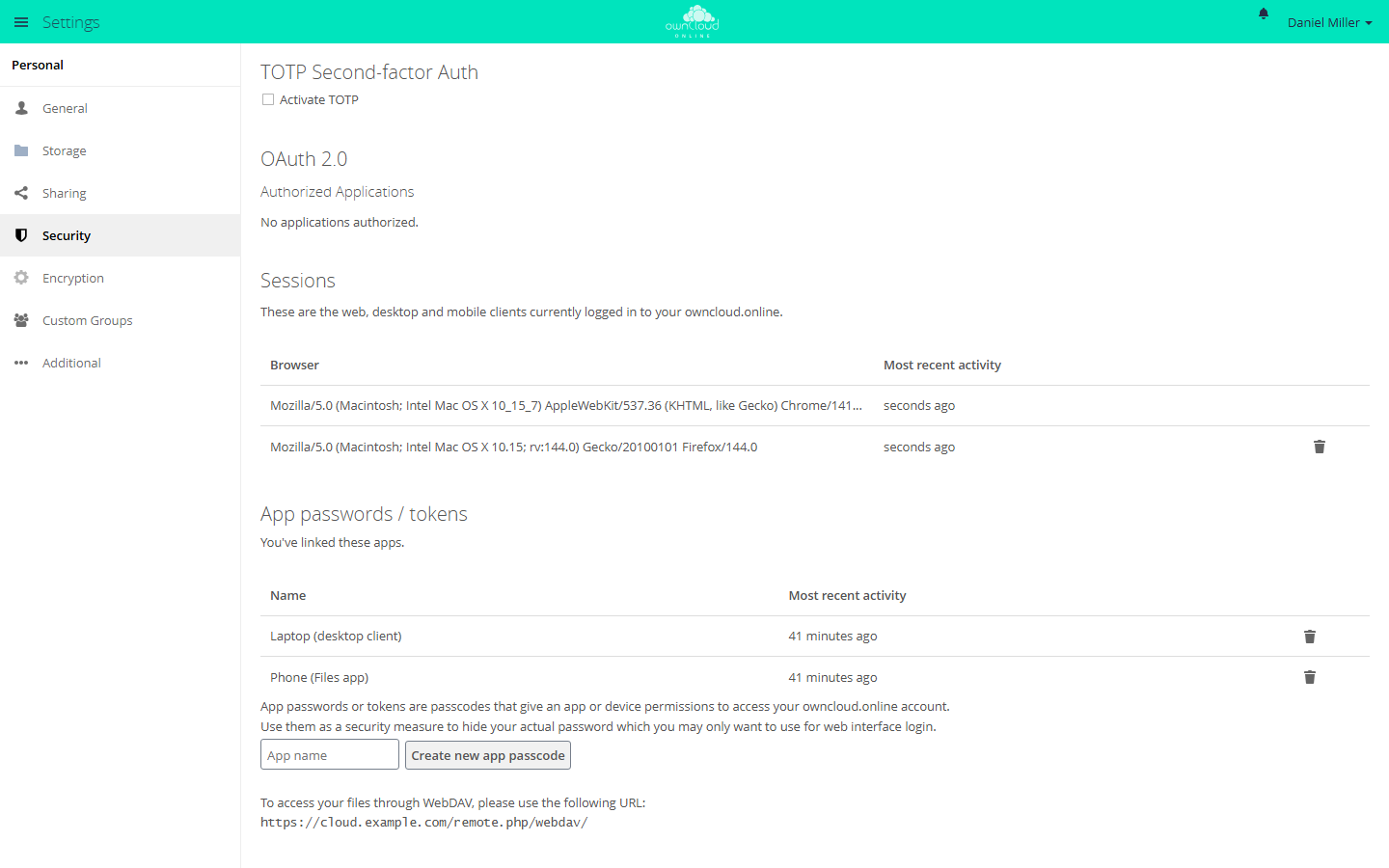
Endpoint: POST https://<server>/apps/oco_mcp/mcp
(without URL rewriting: https://<server>/index.php/apps/oco_mcp/mcp)
3. How it works (protocol)
An MCP session has three steps.
Step 1: initialize. The client introduces itself. The server answers with
its capabilities and assigns a session ID in the Mcp-Session-Id response
header.
curl -u "loginname:app-password" \
  -H "Content-Type: application/json" \
  -H "Accept: application/json, text/event-stream" \
  -D - \
  -d '{"jsonrpc":"2.0","id":1,"method":"initialize","params":{
        "protocolVersion":"2025-11-25","capabilities":{},
        "clientInfo":{"name":"my-client","version":"1.0"}}}' \
  https://cloud.example.com/apps/oco_mcp/mcp
Response (shortened); the session ID is in the header:
Mcp-Session-Id: f1fff858-70bc-49ed-bdfc-bed963d5b57b

{"jsonrpc":"2.0","id":1,"result":{
  "protocolVersion":"2025-11-25",
  "serverInfo":{"name":"owncloud.online","version":"1.0.3"},
  "instructions":"You are connected to an owncloud.online instance as user \"…\" …"}}
The server answers with the protocol version the client requests, provided it
supports that version: 2024-11-05, 2025-03-26, 2025-06-18, or
2025-11-25.
Step 2: List and call tools. Send the session ID in the Mcp-Session-Id
header with every subsequent request:
curl -u "loginname:app-password" \
  -H "Content-Type: application/json" \
  -H "Accept: application/json, text/event-stream" \
  -H "Mcp-Session-Id: f1fff858-…" \
  -d '{"jsonrpc":"2.0","id":2,"method":"tools/list","params":{}}' \
  https://cloud.example.com/apps/oco_mcp/mcp
Calling a tool:
  -d '{"jsonrpc":"2.0","id":3,"method":"tools/call","params":{
        "name":"files_list","arguments":{"path":"/"}}}'
If a client also sends the MCP-Protocol-Version header, the value must be one
of the versions above. The server rejects an unknown value with HTTP 400.
Step 3: End the session (optional). A DELETE request to the endpoint with
the session ID ends the session. Otherwise it expires after one hour
without requests. Sessions are stored as files in the server's data directory
under oco_mcp-sessions/.
Ready-made MCP clients (Claude, mcp-remote, MCP SDKs) handle all of this on
their own. The curl examples only show what happens on the wire.
4. Authentication
The endpoint accepts only HTTP Basic authentication with the login name and
an app password: Authorization: Basic base64("loginname:app-password").
Each account creates its own app passwords, see Quick start.
- The server checks the credentials again on every request. It rejects plain
browser sessions (cookies), Bearer headers, and other
Authorizationheaders. A session that a browser sends along cannot trigger MCP calls behind the user's back. - The endpoint also rejects the regular account password. Only an app password that can be revoked on its own is accepted, so a two-factor authentication requirement cannot be bypassed this way.
- The server slows down failed attempts the same way as a regular login
(brute-force protection, per IP address and login name). Each failed attempt
appears in the server log as
MCP login failed: '<login>' (Remote IP: '<ip>'). A fail2ban filter that only matchesLogin failedwith a capital "L" does not catch this line. Behind a reverse proxy, brute-force protection only counts the real client address iftrusted_proxiesis set correctly, see Reverse proxy and TLS.
5. Permission model
| Level | Rule |
|---|---|
| Identity | Every call runs as the logged-in account, with the same view of files and the same permissions as in the web interface. |
| Read and write | Read-only by default. The server offers the write tools (files_write, shares_create_*, tags_assign, …) only when enable_write is yes and the account is a member of a group listed in write_groups. |
| Management | The server offers the users_* and groups_* tools only to administrators; other accounts do not even see them in tools/list. The write tools among them also need write access as described in the row above. |
| Limits | A request can be at most 2 MiB. files_read returns 1 MiB by default and up to 10 MiB with max_bytes. files_write accepts at most 1 MiB. Images (files_view_image) and resources are limited to 5 MiB. files_delete deletes through the regular file API: if the files_trashbin app is enabled (the default), the file goes to Deleted files. |
Errors come back as regular MCP tool errors. The model can read them and explain them to the user; nothing fails silently.
The server checks paths strictly: . and .. are forbidden in every tool.
It does not resolve them; it rejects them before it touches the storage.
Errors from connected services, especially from ai_ask, reach the client only
as a short, generic message. The full cause is written only to the
server log, so gateway addresses, database
errors, and internal file paths never leak through an MCP client.
6. Tool reference
Files (read):
| Tool | Purpose |
|---|---|
files_list |
List a folder (path), paged with limit (default 200, at most 1000) and offset |
files_info |
Metadata of a file or folder |
files_read |
Read a file (default 1 MiB, up to 10 MiB with max_bytes); binary files come back Base64-encoded |
files_view_image |
Return an image as image content so the model can "see" it (up to 5 MiB) |
files_search |
Search files and folders by part of the name (default 50, at most 200 results) |
Files (write, requires write access):
| Tool | Purpose |
|---|---|
files_write |
Create or overwrite a file (at most 1 MiB; binary content with base64) |
files_mkdir |
Create a folder, including missing parent folders |
files_move / files_copy |
Move or rename / copy |
files_delete |
Delete (with the files_trashbin app enabled, the file goes to Deleted files) |
Shares:
| Tool | Purpose |
|---|---|
shares_list |
List the shares you created, optionally for one path (read) |
shares_create_link |
Create a public link, optionally with a password; permissions as a bitmask, default 1 = read only (write) |
shares_create_user |
Share with another account; default 31 = all permissions, including resharing (write) |
shares_delete |
Remove one of your own shares (write) |
Tags and comments:
| Tool | Purpose |
|---|---|
tags_list |
Visible system tags; with path, the tags of one file (read) |
tags_assign / tags_remove |
Assign or remove a tag; only administrators can create new tags (write) |
comments_list |
Read the comments on a file (read) |
comments_add |
Add a comment (write) |
Management (administrators only):
| Tool | Purpose |
|---|---|
users_list / users_get |
List accounts / show details (read) |
users_create / users_disable / users_enable / users_set_quota |
Create, disable, and enable accounts, set the storage quota (write) |
groups_list / groups_members |
Groups / members (read) |
groups_add_member / groups_remove_member |
Manage members (write) |
Meta:
| Tool | Purpose |
|---|---|
whoami |
Logged-in account, administrator yes/no, write access yes/no |
quota |
Used and free storage |
capabilities |
Which tool groups this connection can read and write |
ai_ask |
AI question about your own documents; only present when the ai_documents app is enabled for the account (see below) |
tools/list returns the exact parameters of every tool as a JSON schema. MCP
clients display them on their own.
7. Resources (files as context)
In addition to the tools, the server exposes the account's files as MCP resources. Clients can browse them directly and attach them to the context:
owncloud:///: a JSON listing of the root folder. Each entry has aurithat can be read directly.owncloud:///{path}: a file (text or binary) or the listing of a folder, addressed by its path. Important: a URI template variable matches only one segment without a slash. For nested paths, write%2Finstead of/(RFC 6570), for exampleowncloud:///Documents%2Freport.txt.
Binary files come back Base64-encoded, text as UTF-8. Reads are limited to
5 MiB; use files_read for larger files. Access is confined to the storage of
the logged-in account.
8. AI document search ai_ask (optional)
When the AI Documents app (ai_documents) is installed and enabled for the
account, the ai_ask tool appears as well. It answers questions about the
account's indexed documents (retrieval-augmented generation, with the
account's permissions) and cites its sources.
Parameters: question, scope (all | folder | selection), path (for
folder), file_ids (comma-separated, for selection), mode (qa |
summary | extract | report).
The response contains answer and sources. needs_analysis and
pending_files show whether files are still waiting to be analyzed.
oco_mcp does not require ai_documents: on servers without that app, only
the tool is missing, and no errors occur.
9. Connecting clients
Claude Desktop (through mcp-remote)
Claude Desktop reaches the server through the mcp-remote bridge, an npm
package; it needs Node.js with npx. Add this entry to
claude_desktop_config.json:
{
  "mcpServers": {
    "owncloud-online": {
      "command": "npx",
      "args": [
        "-y", "mcp-remote",
        "https://cloud.example.com/apps/oco_mcp/mcp",
        "--header", "Authorization:${AUTH_HEADER}",
        "--transport", "http-only"
      ],
      "env": {
        "AUTH_HEADER": "Basic <Base64 of loginname:app-password>"
      }
    }
  }
}
The header goes into args without spaces, and the value with its space goes
into env. Claude Desktop on Windows does not pass spaces inside args to
npx correctly; the environment variable works on every system.
--transport http-only matches the server: it answers with Streamable HTTP
JSON and deliberately offers no SSE stream over GET.
Claude Code (CLI)
claude mcp add --transport http owncloud-online \
  https://cloud.example.com/apps/oco_mcp/mcp \
  --header "Authorization: Basic <Base64 of loginname:app-password>"
Your own client or script
Any MCP SDK (TypeScript, Python, PHP, …) with the "Streamable HTTP" transport works. You can also send JSON-RPC directly over HTTP as shown in section 3.
Create the Base64 value for the Basic header:
printf '%s' 'loginname:app-password' | base64 | tr -d '\n'
tr removes the line breaks that base64 on Linux inserts into long values.
With a line break, the header would be invalid.
In PowerShell:
[Convert]::ToBase64String([Text.Encoding]::UTF8.GetBytes("loginname:app-password"))
Base64 is not encryption. Anyone who can read the configuration file has the app password. If a device is lost or the file ends up in the wrong hands, revoke the app password under Settings → Security with the trash can icon (Disconnect).
10. Configuration
Key (occ config:app:set oco_mcp …) |
Values | Default | Effect |
|---|---|---|---|
enable_write |
yes / no |
no |
Enables the write tools: changing files, creating and deleting shares, setting tags and comments, managing users and groups. Takes effect only together with write_groups. |
write_groups |
Group IDs, comma-separated | (empty) | Only members of these groups get write access. Empty means nobody. All other accounts stay read-only. |
Example:
sudo -u www-data php8.4 occ config:app:set oco_mcp enable_write --value=yes
sudo -u www-data php8.4 occ config:app:set oco_mcp write_groups --value='mcp-writers,admin'
If enable_write is yes and write_groups is empty, the server writes a
warning to the log on MCP requests, at most once a day:
MCP write tools are unavailable: "enable_write" is set but "write_groups" is empty …
Configurations from 11.0.13 and earlier
Up to owncloud.online 11.0.13, an empty write_groups meant "all
accounts". Since 11.0.14, it allows nobody to write. An instance that runs
with enable_write=yes and without write_groups therefore has no write
tools until you add the groups.
After a change, clients have to reconnect (initialize) to see the new tool
list.
There is nothing else to configure: authentication and permissions come entirely from owncloud.online itself.
11. Security
- No cookie access: the server checks the Basic credentials on every
request. It rejects browser sessions and made-up
Authorizationheaders, which rules out cross-site request forgery (CSRF). - App passwords instead of the account password: each one can be revoked under Settings → Security.
- Read-only by default: administrators enable writing on purpose, with
enable_writeandwrite_groups. - The account's permissions: every tool runs with the identity and permissions of the logged-in account, never beyond them.
- Brute-force protection: failed attempts delay further attempts, per IP address and login name.
- Host names: the endpoint only accepts requests whose
Originheader or, withoutOrigin, whoseHostheader points to an entry intrusted_domains(entries with*do not count), tooverwritehost, or tolocalhost,127.0.0.1, or[::1]. This protects against DNS rebinding. The server sets no CORS permissions, so web pages from other origins cannot reach the endpoint from a browser. - Bundled libraries kept apart: the server loads the MCP SDK and its
dependencies only for an MCP request. Through
replacein the app'scomposer.json, they contain no Guzzle and no copies of thepsr/*packages, so they cannot override core libraries. - Limits: requests up to 2 MiB;
files_read1 MiB by default, 10 MiB at most; 5 MiB for images and resources; deleted files go to Deleted files when thefiles_trashbinapp is enabled; sessions expire after one hour without requests. - Data at the AI service: whatever a tool returns is processed by the AI service behind the client. With cloud assistants, this content leaves the instance.
12. Troubleshooting
| Symptom | Cause and fix |
|---|---|
A valid session id is REQUIRED for non-initialize requests. |
The Mcp-Session-Id header is missing. Call initialize first, take the ID from the response header, and send it with every following request. |
HTTP 401, MCP requires HTTP Basic authentication with an owncloud.online app token. |
No Basic header or an invalid one, for example only a browser cookie or a Bearer header. Send the login name and app password with Basic authentication. |
HTTP 401, Invalid MCP credentials. |
Wrong login name or app password, the app password was revoked, or the account password was used. Create a new app password. |
HTTP 403, Forbidden: Invalid Host header. or Forbidden: Invalid Origin header. |
The host name is not listed literally in trusted_domains (wildcards such as *.example.com do not count here) and not in overwritehost. Add the host name to config/config.php. |
HTTP 413, MCP request body is too large. |
The request is larger than 2 MiB. Split the content; files_write accepts at most 1 MiB anyway. |
-32601, Tool not found: "files_write". (also shares_create_*, tags_assign …) |
No write access, so the write tools are hidden. As an administrator, set enable_write to yes and add the account to a group listed in write_groups. Then reconnect the client (initialize) so it reloads the tool list. |
-32601, Tool not found for users_* / groups_* |
The server offers these tools only to administrators. Connect with an administrator account. |
In the log: MCP write tools are unavailable: "enable_write" is set but "write_groups" is empty … |
write_groups is empty and therefore allows nobody to write. Add the groups, see Configuration. |
Write access is disabled on this MCP connection. / This tool requires owncloud.online administrator privileges. |
Safeguard message from the tools themselves. The bundled tools never trigger it, because the server does not offer write and management tools without the required rights. It appears with tools you added yourself that are registered outside if ($writeEnabled) or if ($isAdmin). Fix the registration, see Adding your own tools. |
The ai_ask tool is missing |
The ai_documents app is not installed or not enabled for the account. This is intended, not an error. |
AI query failed. Ask an administrator to check the server log. |
Deliberately generic. The real cause (gateway unreachable, wrong model or key, empty index) is in the server log under app: oco_mcp, with the full stack trace. |
Relative path segments (".", "..") are forbidden. |
The client sent a non-canonical path. Always give paths relative to the account's root folder and without . or ... |
| The client reports SSE or stream errors | Switch the transport to HTTP (mcp-remote: --transport http-only). The server does not offer an SSE stream over GET. |
13. Adding your own tools
Two steps, no extra framework. The app's README describes them in detail, with a code example:
- Add a public method to a class in
lib/Tools/. Its signature and DocBlock become the tool schema automatically.$this->assertWrite()and$this->assertAdmin($this->isAdmin)check write and administrator rights. - Register the tool in
lib/Mcp/ServerFactory.php:$builder->addTool([FilesTool::class, 'countFiles'], 'files_count');
Write tools belong in the if ($writeEnabled) block there, and management
tools also under if ($isAdmin). Otherwise they show up in read-only
connections too and only fail when called.
For tools that connect an optional other app, AiDocumentsTool shows the
pattern: refer to the class name only as a string, check it with
class_exists, and register the tool only when that app is enabled.
License: AGPL-3.0-only · Author: BW-Tech GmbH