

Installing on a Linux server
After these twelve steps, owncloud.online runs on your server with HTTPS. All you need is SSH access with administrator rights. Every command can be copied and pasted.
The commands are for Ubuntu 24.04 LTS. Where Debian 12 differs, a note says so. The guide was tested with owncloud.online 11.0.25 on fresh installations of both systems.
Replace these placeholders in the commands:
| In the text | Meaning | What you do |
|---|---|---|
cloud.example.com |
address of your cloud | replace with your address |
DATABASE_PASSWORD |
password of the database account | replace with the password from step 4 |
/var/www/owncloud.online |
program directory | leave as is |
/var/oco-data |
data directory with all uploaded files | leave as is, or choose your own path, for example on a second disk |
The steps at a glance:
- Prepare the server
- Install the software
- Configure PHP
- Create the database
- Download and verify owncloud.online
- Unpack and set permissions
- Install
- Set up the web server
- Turn on HTTPS
- Set up background jobs
- Turn on caching
- Log in and check
The installation in step 7 runs on the command line before the web server serves the site. This way, the setup wizard is never exposed on the internet.
1. Prepare the server
Debian 12: sudo is missing
Debian only sets up sudo if you did not set a root password during the
installation. If the first command below reports
sudo: command not found, log in as root with su - and set it up.
Replace YOUR_USER with your login name, then log out and back in:
apt install -y sudo
usermod -aG sudo YOUR_USER
Install updates
Bring the system up to date before you install anything:
sudo apt update
sudo apt full-upgrade -y
sudo reboot
If a dialog about services or the kernel appears during the update, confirm it with Enter. After the reboot, log in again over SSH.
Set up the address
Browsers and Let's Encrypt find the server by its name. For that, it needs a DNS record.
-
Find the public IP address of the server. Your provider shows it in the customer portal. On most servers, this command shows it as well, the first address is the IPv4 address:
bashhostname -I -
At your domain provider, create an A record, for example with the name
cloudand the IPv4 address as the target. Only create an AAAA record for IPv6 if the server is reachable at that IPv6 address. -
Check the record on your own computer:
bashnslookup cloud.example.comThe answer shows the IP address of the server. New records can take up to an hour until they are known everywhere.
Turn on the firewall
The firewall only lets SSH, HTTP, and HTTPS through. The first command installs it if it is missing:
sudo apt install -y ufw
sudo ufw allow 22/tcp
sudo ufw allow 80/tcp
sudo ufw allow 443/tcp
sudo ufw enable
Answer the question Command may disrupt existing ssh connections. Proceed with operation (y|n)? with y. Check the result:
sudo ufw status
The output starts with Status: active and lists 22/tcp, 80/tcp, and
443/tcp with ALLOW.
Allow port 22 first
Allow the SSH port before you run ufw enable. If SSH runs on a port other
than 22 on your server, use that port. If your provider also has a firewall
in the customer portal, open the same three ports there.
If it doesn't work
| What you see | Cause | Fix |
|---|---|---|
nslookup reports NXDOMAIN or a different address |
record missing, misspelled, or not propagated yet | check the record at your domain provider, wait an hour |
The SSH connection drops after ufw enable |
port 22 was not allowed | log in through your provider's web console and run sudo ufw allow 22/tcp |
2. Install the software
Add the package source for PHP 8.4
Ubuntu 24.04 ships PHP 8.3. PHP 8.4 comes from the ondrej/php package
source. Ondřej Surý also maintains the PHP packages in Debian.
sudo apt install -y software-properties-common
sudo add-apt-repository -y ppa:ondrej/php
The second command prints a description of the package source. It says that
the source is moving to packages.sury.org. For Ubuntu 24.04, it remains
valid.
Check that PHP 8.4 is now offered:
apt-cache policy php8.4-fpm
The Candidate: line shows a version that starts with 8.4..
Debian 12 and Debian 13
On Debian 12, PHP 8.4 comes from the packages.sury.org package
source. Replace the two commands above with:
sudo apt install -y lsb-release ca-certificates curl
curl -sSLo /tmp/debsuryorg-archive-keyring.deb https://packages.sury.org/debsuryorg-archive-keyring.deb
sudo dpkg -i /tmp/debsuryorg-archive-keyring.deb
echo "deb [signed-by=/usr/share/keyrings/debsuryorg-archive-keyring.gpg] https://packages.sury.org/php/ $(lsb_release -sc) main" | sudo tee /etc/apt/sources.list.d/php.list
sudo apt update
Debian 13 already includes PHP 8.4. Skip this step there. The package names in the next step are the same.
Not Ubuntu 26.04
Ubuntu 26.04 only includes PHP 8.5, and the ondrej/php package source
does not exist for 26.04. Only packages.sury.org offers PHP 8.4 for
26.04 (as of October 2026), and this guide has not been tested with that
combination. Install Ubuntu 24.04 LTS.
Install the packages
One command installs the Apache web server, the MariaDB database, Redis, PHP with all required extensions, Certbot for the HTTPS certificate, and the tools cron, curl, and nano if they are missing:
sudo apt install -y apache2 mariadb-server redis-server \
  php8.4-fpm php8.4-cli php8.4-mysql php8.4-curl php8.4-gd php8.4-intl \
  php8.4-mbstring php8.4-xml php8.4-zip php8.4-bcmath php8.4-imagick \
  php8.4-apcu php8.4-redis certbot python3-certbot-apache cron curl nano
Along the way, lines starting with NOTICE recommend running
a2enconf php8.4-fpm. You do not need to: step 8 sets up PHP-FPM in the
site configuration.
Check the result:
php8.4 -v
systemctl is-active apache2 mariadb redis-server php8.4-fpm
The first line starts with PHP 8.4. The second command prints active four
times.
Always use the package names with 8.4
Packages without a version number, such as php-apcu or php-redis, pull
the extensions for PHP 8.5 from the ondrej/php package source, and with
them PHP 8.5 itself. owncloud.online does not run on PHP 8.5.
nginx instead of Apache
To use nginx, replace apache2 with nginx and python3-certbot-apache
with python3-certbot-nginx in the command above. Steps 8 and 9 then look
different, see nginx instead of Apache.
Background: which extension is for what
owncloud.online checks these PHP extensions on every start and does not
start without them: zip, dom, XMLWriter, XMLReader, intl, libxml, mbstring,
ctype, JSON, GD, zlib, iconv, SimpleXML, hash, cURL, and PDO. In addition,
default_charset must be UTF-8.
| Package | Purpose |
|---|---|
php8.4-fpm |
PHP for the web server |
php8.4-cli |
PHP for the occ command line and the background jobs |
php8.4-mysql |
access to MariaDB and MySQL |
php8.4-curl, php8.4-gd, php8.4-intl, php8.4-mbstring, php8.4-xml, php8.4-zip |
required extensions, see above |
php8.4-bcmath |
faster calculations with large numbers |
php8.4-imagick |
previews for more file types |
php8.4-apcu |
local cache, see step 11 |
php8.4-redis |
file locking through Redis, see step 11 |
cron, curl, nano |
schedule for the background jobs, download of the release, editor. Already present on most servers, but not on a minimal Ubuntu installation. |
ctype, exif, fileinfo, iconv, PDO, posix, and OPcache come with the
php8.4-common and php8.4-opcache packages, which are installed
automatically.
If it doesn't work
| What you see | Cause | Fix |
|---|---|---|
Unable to locate package php8.4-fpm or Candidate: (none) |
package source missing | repeat the first part of this step, then sudo apt update |
A service reports failed or inactive instead of active |
start failed | sudo systemctl status <service> shows the reason, for example a port already in use |
3. Configure PHP
For large uploads and for updates, owncloud.online needs longer time limits and more OPcache space than PHP's defaults. These commands create a small settings file each for PHP-FPM and for the command line:
sudo tee /etc/php/8.4/fpm/conf.d/90-owncloud-online.ini > /dev/null <<'EOF'
max_execution_time = 3600
max_input_time = 3600
opcache.memory_consumption = 256
opcache.interned_strings_buffer = 32
opcache.max_accelerated_files = 24000
EOF
echo 'apc.enable_cli = 1' | sudo tee /etc/php/8.4/cli/conf.d/90-owncloud-online.ini > /dev/null
sudo systemctl restart php8.4-fpm
Check that PHP-FPM uses the new values:
sudo php-fpm8.4 -i | grep max_execution_time
The output is max_execution_time => 3600 => 3600.
Background: where the PHP values come from
The release includes a .user.ini file in the program directory. PHP-FPM
reads it on every request and sets:
| Setting | Value |
|---|---|
upload_max_filesize, post_max_size |
513M |
memory_limit |
512M |
default_charset |
UTF-8 |
output_buffering |
0 |
session.upload_progress.enabled |
0 |
The 513 MB limit applies to a single request. The web interface and the
desktop client upload large files in chunks and are not affected. The
command line does not read .user.ini. occ and the background jobs
follow the command line settings, which on Ubuntu and Debian have no
memory limit.
apc.enable_cli = 1 lets occ and the background jobs use APCu. The
php_value lines in the bundled .htaccess only apply to the old Apache
module mod_php and have no effect with PHP-FPM.
For more on sizing the OPcache, see Performance.
4. Create the database
owncloud.online stores accounts, shares, and the file list in MariaDB. It gets its own database and its own database account.
First, generate a random password for the database account:
openssl rand -hex 20
Write down the output. You need it in a moment and in step 7. Then open the MariaDB console:
sudo mariadb
In these lines, replace DATABASE_PASSWORD with the password you wrote down.
Keep the quotes. Then paste the lines:
CREATE DATABASE owncloud_online CHARACTER SET utf8mb4 COLLATE utf8mb4_general_ci;
CREATE USER 'owncloud'@'localhost' IDENTIFIED BY 'DATABASE_PASSWORD';
GRANT ALL PRIVILEGES ON owncloud_online.* TO 'owncloud'@'localhost';
FLUSH PRIVILEGES;
EXIT;
Each line answers with Query OK, EXIT with Bye.
Background: character set
utf8mb4 is needed so that file names with emoji and rare characters
work. The installation detects this and adds 'mysql.utf8mb4' => true
to config/config.php. owncloud.online sets the READ COMMITTED isolation level on
every connection itself, so you do not need to change anything in
MariaDB for it. More under Database.
If it doesn't work
| What you see | Cause | Fix |
|---|---|---|
ERROR 1007 (HY000): Can't create database 'owncloud_online'; database exists |
the database is left over from an earlier attempt | only on a new server without data: DROP DATABASE owncloud_online;, then paste the lines again |
ERROR 1396 (HY000): Operation CREATE USER failed |
the database account already exists | DROP USER 'owncloud'@'localhost';, then paste the lines again |
5. Download and verify owncloud.online
Download the release and the checksums, and verify that the file arrived unchanged:
cd /tmp
curl -fLO https://github.com/BWTECH-github/owncloud.online/releases/download/v11.0.25/owncloud-online-11.0.25.tar.gz
curl -fLO https://github.com/BWTECH-github/owncloud.online/releases/download/v11.0.25/SHA256SUMS.txt
sha256sum --ignore-missing -c SHA256SUMS.txt
The last line reads owncloud-online-11.0.25.tar.gz: OK.
If https://github.com/BWTECH-github/owncloud.online/releases lists a newer
version, replace 11.0.25 everywhere in this step and the next one with the
new number.
Background: checksum
SHA256SUMS.txt contains the checksums of both archives and two other
files in the release. --ignore-missing skips the files you did not
download. Without this option, sha256sum reports an error for each of
them.
If it doesn't work
| What you see | Cause | Fix |
|---|---|---|
curl: (22) The requested URL returned error: 404 |
version number misspelled | compare the number with the releases page |
owncloud-online-11.0.25.tar.gz: FAILED |
file incomplete or modified | do not use the file, delete it with rm /tmp/owncloud-online-11.0.25.tar.gz, and download it again |
6. Unpack and set permissions
The archive contains a single folder owncloud. It is unpacked to /var/www
and renamed. The data directory lives outside of it, so the web server never
serves it. Both belong to the www-data user that the web server and PHP run
as:
sudo tar -xzf /tmp/owncloud-online-11.0.25.tar.gz -C /var/www
sudo mv /var/www/owncloud /var/www/owncloud.online
sudo mkdir -p /var/oco-data
sudo chown -R www-data:www-data /var/www/owncloud.online /var/oco-data
sudo chmod 750 /var/oco-data
Check the result:
ls /var/www/owncloud.online
The list includes apps, config, core, index.php, and occ, among
others.
Background: permissions and directories
www-data must be able to write to three places:
| Place | Reason |
|---|---|
config/ |
the installation writes config/config.php |
apps-external/ |
apps from the Marketplace go here |
/var/oco-data |
uploaded files, log, previews |
If the data directory were inside the program directory, its protection
would depend on the .htaccess file alone, and nginx does not read it.
Set stricter permissions for the program directory only after the installation, see step 12.
7. Install
The installation creates the tables, creates the administrator account, and
writes the configuration to config/config.php:
cd /var/www/owncloud.online
sudo -u www-data php8.4 occ maintenance:install \
  --database mysql \
  --database-name owncloud_online \
  --database-user owncloud \
  --admin-user admin \
  --data-dir /var/oco-data
The command asks for two passwords. What you type stays hidden.
What is the password to access the database with user <owncloud>?: the database password from step 4.What is the password you like to use for the admin account <admin>?: a new, long password for the administrator account. Write it down.
Shortly after, owncloud.online was successfully installed appears.
Use your own name for the administrator account
admin is the first name attackers try. A different value for
--admin-user makes it harder for them.
The installation does not know your address yet. Enter it and turn on
addresses without index.php:
sudo -u www-data php8.4 occ config:system:set trusted_domains 0 --value cloud.example.com
sudo -u www-data php8.4 occ config:system:set overwrite.cli.url --value https://cloud.example.com
sudo -u www-data php8.4 occ config:system:set htaccess.RewriteBase --value /
sudo -u www-data php8.4 occ maintenance:update:htaccess
Each config:system:set command confirms with a line that starts with
System config value. The last one reports .htaccess has been updated.
Background: what these commands set
| Setting | Meaning |
|---|---|
trusted_domains |
list of addresses the instance answers to. The command line installation enters localhost. Index 0 replaces that entry, a second address gets index 1. |
overwrite.cli.url |
address for links in emails that background jobs send. Without a request from a browser, the server does not know its own name. |
htaccess.RewriteBase |
With this setting, maintenance:update:htaccess writes rewrite rules to the .htaccess file. owncloud.online then creates addresses without index.php. This only works with Apache. |
Other options of occ maintenance:install:
| Option | Default | Note |
|---|---|---|
--database |
sqlite |
mysql for MariaDB and MySQL, pgsql for PostgreSQL |
--database-host |
localhost |
name or address of the database server |
--database-pass |
– | without this option, the command asks for it hidden |
--database-table-prefix |
oc_ |
|
--admin-pass |
– | without this option, the command asks for it hidden |
--data-dir |
<program directory>/data |
always set it |
The hidden prompt is the safer way: the passwords end up neither in the shell history nor in the process list.
The installation writes config/config.php, creates the tables, and
enables the bundled apps, including the "Market" app. It registers apps/
as the fixed and apps-external/ as the writable app directory, sets the
time zone of the log to the system's, and creates the marker file
.ocdata and a protective .htaccess in the data directory.
In the program directory, the installation also creates an almost empty
data/ folder to test the protection by the .htaccess file. It stays
locked and is not used. The short log in it contains the message
Specific user creation failed. It is harmless: the installation checks
whether it may create a database account of its own and then uses the
owncloud account.
Alternative: setup in the browser
Instead of occ, you can also set up owncloud.online in the browser. In
that case, skip this step, complete steps 8 and 9, and then open
https://cloud.example.com.
| Field | Entry |
|---|---|
| Create an admin account: Username, Password | your future administrator account |
| Storage & database (click to expand), Data folder | /var/oco-data. The suggested value is /var/www/owncloud.online/data, change it. |
| Configure the database | Only MySQL/MariaDB is available. |
| Database user, Database password, Database name, Database host | owncloud, the password from step 4, owncloud_online, localhost |
Clicking Finish setup starts the setup. The wizard enters the address
you used in trusted_domains and overwrite.cli.url itself. For
addresses without index.php, run the last two commands from above
afterwards.
Until you click Finish setup, anyone who opens the address can take over the installation. Set up the instance right after step 9.
If it doesn't work
| What you see | Cause | Fix |
|---|---|---|
PHP module … not installed. |
an extension is missing | install the package from step 2, sudo systemctl restart php8.4-fpm |
Console has to be executed with the user that owns the file config/config.php |
sudo -u www-data forgotten |
repeat the command with sudo -u www-data at the beginning |
Can't create or write into the data directory /var/oco-data |
missing permissions | repeat step 6 |
Failed to connect to the database or Access denied for user 'owncloud'@'localhost' |
MariaDB is not running or the password is wrong | check systemctl is-active mariadb, compare the password |
If the installation stops halfway, start over cleanly. These commands delete the configuration and create the database again, empty. The database account and its permissions are kept:
sudo rm /var/www/owncloud.online/config/config.php
sudo mariadb -e "DROP DATABASE owncloud_online; CREATE DATABASE owncloud_online CHARACTER SET utf8mb4 COLLATE utf8mb4_general_ci;"
Then repeat this step.
8. Set up the web server
Apache serves owncloud.online at your address and hands PHP files to PHP-FPM. First, turn on the required modules:
sudo a2enmod rewrite headers env dir mime setenvif proxy_fcgi ssl
Then open a new configuration file in the nano editor:
sudo nano /etc/apache2/sites-available/owncloud-online.conf
Paste this content and replace cloud.example.com with your address. Save with
Ctrl+O and Enter, exit nano with Ctrl+X.
<VirtualHost *:80>
    ServerName cloud.example.com
    DocumentRoot /var/www/owncloud.online

    <Directory /var/www/owncloud.online>
        Require all granted
        AllowOverride All
        Options FollowSymLinks
    </Directory>

    <FilesMatch \.php$>
        SetHandler "proxy:unix:/run/php/php8.4-fpm.sock|fcgi://localhost"
    </FilesMatch>

    # Large uploads: no size limit, time to assemble the chunks
    TimeOut 3600
    LimitRequestBody 0

    ErrorLog  ${APACHE_LOG_DIR}/owncloud-online-error.log
    CustomLog ${APACHE_LOG_DIR}/owncloud-online-access.log combined
</VirtualHost>
Turn on the new configuration and turn off Apache's default site:
sudo a2ensite owncloud-online
sudo a2dissite 000-default
sudo apache2ctl configtest
sudo systemctl restart apache2
configtest reports Syntax OK. You can ignore a warning that starts with
AH00558. Then check that owncloud.online answers:
curl -s http://cloud.example.com/status.php
The answer starts with {"installed":true. Do not log in through the browser
yet. Without HTTPS, your password would travel over the network unencrypted.
Background: Apache
AllowOverride All is required. Without it, Apache does not read the
bundled .htaccess file. Then the security headers, the blocks for
config/, lib/, and other internal folders, the redirects under
/.well-known/, and the addresses without index.php are all missing.
The .htaccess file sets the Strict-Transport-Security (HSTS) header
itself as soon as Apache serves HTTPS. Do not set it again in the
configuration.
If owncloud.online runs behind a separate reverse proxy, read Reverse proxy and TLS.
If it doesn't work
| What you see | Cause | Fix |
|---|---|---|
Invalid command 'Header' or Invalid command 'RewriteEngine' |
module not enabled | repeat the a2enmod command from above |
| Apache's "It works" default page instead of owncloud.online | default site still active or address misspelled | sudo a2dissite 000-default, check ServerName, sudo systemctl reload apache2 |
Service Unavailable |
PHP-FPM is not running | sudo systemctl restart php8.4-fpm, find the reason with sudo systemctl status php8.4-fpm |
| "You are accessing the server through an untrusted domain." | address missing from trusted_domains |
repeat the first command of the second block in step 7 with the correct address |
9. Turn on HTTPS
Certbot gets a free certificate from Let's Encrypt, adds it to Apache, and redirects HTTP to HTTPS:
sudo certbot --apache --redirect -d cloud.example.com
The first time, Certbot asks three questions:
- for an email address for notices about the certificate,
- for your consent to the Let's Encrypt terms of service:
Y, - whether Certbot may share your address with the Electronic Frontier
Foundation. This is optional,
Nis fine.
At the end, it prints Congratulations! You have successfully enabled HTTPS on https://cloud.example.com.
Certbot renews the certificate on its own from then on. This dry run checks that renewal will work:
sudo certbot renew --dry-run
It ends with Congratulations, all simulated renewals succeeded.
If it doesn't work
| What you see | Cause | Fix |
|---|---|---|
Timeout during connect (likely firewall problem) |
port 80 is not reachable from outside | check the firewall from step 1 and the firewall in your provider's customer portal |
DNS problem: NXDOMAIN looking up A for cloud.example.com |
DNS record missing or not propagated yet | check step 1, try again later |
| Errors when connecting over IPv6 | the AAAA record points to an address where the server does not answer | fix or delete the AAAA record |
After several failed attempts in a short time, Let's Encrypt temporarily refuses further attempts. Fix the cause first.
10. Set up background jobs
Every 15 minutes, owncloud.online does work in the background: it cleans up deleted files and old versions, removes expired shares, and sends notifications and emails. Without this schedule, the instance grows without limit and sends no email.
echo '*/15 * * * * /usr/bin/php8.4 /var/www/owncloud.online/occ system:cron' | sudo crontab -u www-data -
sudo -u www-data php8.4 /var/www/owncloud.online/occ background:cron
The second command answers with Set mode for background jobs to 'cron'. The
first one replaces an existing schedule of the www-data user. A new server
has none. Check the entry:
sudo crontab -u www-data -l
Within 15 minutes, Settings → Admin → General shows the line "Last cron job execution: …" with a green dot in the Cron section.
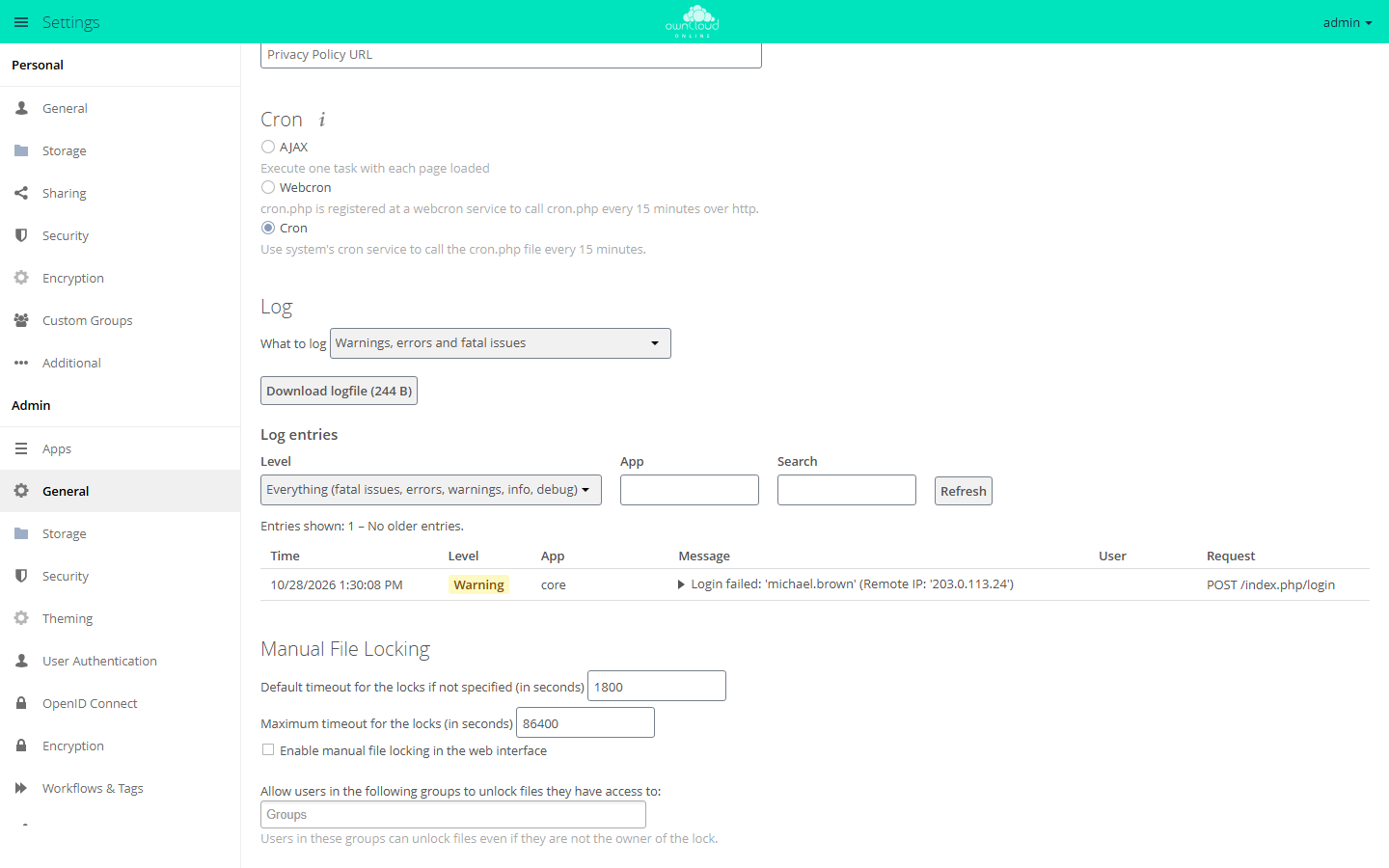
The Cron option is selected. It means that the system's cron service starts the background jobs.
Background: cron
The schedule must run as www-data. If it ran as root, newly created
files would belong to root, and the web server could no longer write
them. The settings page names the cron.php file. It runs the same
occ system:cron command internally, but prints a line on every run that
cron tries to deliver as email. Details under
Background jobs (cron).
If it doesn't work
If it still says "Cron was not executed yet!" after 30 minutes, start a run by hand and read the error message:
sudo -u www-data php8.4 /var/www/owncloud.online/occ system:cron
If the command prints nothing, it ran successfully. Then check that the
cron service is running: systemctl is-active cron.
11. Turn on caching
APCu keeps frequently read data in PHP's memory. Redis manages the file locks, so that simultaneous access to the same file does not collide:
cd /var/www/owncloud.online
sudo -u www-data php8.4 occ config:system:set memcache.local --value '\OC\Memcache\APCu'
sudo -u www-data php8.4 occ config:system:set memcache.locking --value '\OC\Memcache\Redis'
sudo -u www-data php8.4 occ config:system:set redis host --value 127.0.0.1
sudo -u www-data php8.4 occ config:system:set redis port --value 6379 --type integer
Each command confirms with a line that starts with System config value.
Check that Redis answers:
redis-cli ping
The answer is PONG.
Background: caching
Without memcache.local, owncloud.online reads all language and app files
again on every request, and the settings page reports "No memory cache has
been configured." Without Redis, file locking runs through the database,
which is slower and also shows a warning. File locking itself is on by
default. More under Performance.
If it doesn't work
| What you see | Cause | Fix |
|---|---|---|
Error page Memcache \OC\Memcache\APCu not available for local cache |
APCu missing or PHP-FPM not restarted | sudo apt install -y php8.4-apcu, then sudo systemctl restart php8.4-fpm |
redis-cli ping reports Connection refused |
Redis is not running | sudo systemctl restart redis-server |
12. Log in and check
Open https://cloud.example.com in your browser. Under Username or email,
enter the name of the administrator account from step 7, below it the
Password, and click Login.

Then open Settings from your name at the top right, and Admin → General on the left. After following this guide, the Security & setup warnings section shows no warning, only "All checks passed." For what other messages mean, see Security and setup warnings.
Finally, check the state on the command line:
cd /var/www/owncloud.online
sudo -u www-data php8.4 occ status
sudo -u www-data php8.4 occ check
occ status shows installed: true and versionstring: 11.0.25. occ check
prints nothing if all requirements are met.
If it doesn't work
If you forgot the password of the administrator account, set a new one. The command asks for it hidden:
sudo -u www-data php8.4 /var/www/owncloud.online/occ user:resetpassword admin
Stricter permissions (optional)
To lock out other users on the server completely, set stricter permissions now. Repeat both commands after every update:
sudo find /var/www/owncloud.online -type d -exec chmod 750 {} \;
sudo find /var/www/owncloud.online -type f -exec chmod 640 {} \;
After that, only www-data can open the program directory. Your own account
gets Permission denied for cd /var/www/owncloud.online. Therefore, run
occ with its full path:
sudo -u www-data php8.4 /var/www/owncloud.online/occ status
What comes next
| Task | Page |
|---|---|
| Set up email so that password links and invitations arrive | Sending email |
| Set up backups and update owncloud.online | Backups and updates |
| Install apps from the Marketplace | Managing apps |
| Create accounts and groups | Users and groups |
| Roll out the desktop client | The desktop client |
| Read error messages | Server log and error messages |
nginx instead of Apache
nginx does not read .htaccess files. Everything in there must therefore be
in the nginx configuration. The process differs in four places:
-
Step 2: Install
nginxinstead ofapache2andpython3-certbot-nginxinstead ofpython3-certbot-apache. -
Step 7: Skip the last two commands for
htaccess.RewriteBaseandmaintenance:update:htaccess. With nginx, the linefastcgi_param front_controller_active true;turns on short addresses. -
Step 8: Instead of the Apache configuration, create this file:
bashsudo nano /etc/nginx/sites-available/owncloud-onlineContent, again with your address instead of
cloud.example.com:nginxupstream php-handler { server unix:/run/php/php8.4-fpm.sock; } server { listen 80; listen [::]:80; server_name cloud.example.com; root /var/www/owncloud.online; index index.php index.html; # Replaces the headers from .htaccess add_header Strict-Transport-Security "max-age=15552000; includeSubDomains" always; add_header X-Content-Type-Options "nosniff" always; add_header X-XSS-Protection "0" always; add_header X-Frame-Options "SAMEORIGIN" always; add_header X-Robots-Tag "none" always; add_header X-Download-Options "noopen" always; add_header X-Permitted-Cross-Domain-Policies "none" always; # Large uploads client_max_body_size 0; client_body_timeout 300s; # Redirects under /.well-known location = /.well-known/host-meta { rewrite ^ /public.php?service=host-meta last; } location = /.well-known/host-meta.json { rewrite ^ /public.php?service=host-meta-json last; } location ^~ /.well-known/carddav { return 301 /remote.php/dav/; } location ^~ /.well-known/caldav { return 301 /remote.php/dav/; } location ^~ /.well-known/acme-challenge/ { } location ^~ /.well-known/pki-validation/ { } # Blocked paths, as in .htaccess location ~ ^/(?:build|tests|config|lib|3rdparty|templates|changelog)/ { return 404; } location ~ ^/(?:\.|autotest|occ|issue|indie|db_|console) { return 404; } location = /core/signature.json { return 404; } location ^~ /core/skeleton/ { return 404; } location ^~ /data/ { return 404; } location ~ ^/(?:core|apps|apps-external)/.*/(?:package|package-lock|composer|bower|\.bower|installed|testem)\.json$ { return 404; } location ~ ^/(?:core|apps|apps-external)/.*/(?:composer|yarn)\.lock$ { return 404; } location ~ ^/(?:apps|apps-external)/[^/]+/(?:vendor|tests)/ { return 404; } # Serve existing files directly, everything else through index.php location / { rewrite ^/remote/(.*) /remote.php last; try_files $uri /index.php$request_uri; } location ~ \.php(?:$|/) { fastcgi_split_path_info ^(.+?\.php)(/.*)$; try_files $fastcgi_script_name =404; include fastcgi_params; fastcgi_param SCRIPT_FILENAME $document_root$fastcgi_script_name; fastcgi_param PATH_INFO $fastcgi_path_info; fastcgi_param PATH /usr/local/bin:/usr/bin:/bin; fastcgi_param HTTPS $https if_not_empty; fastcgi_param HTTP_AUTHORIZATION $http_authorization; fastcgi_param front_controller_active true; fastcgi_param modHeadersAvailable true; fastcgi_pass php-handler; fastcgi_read_timeout 3600s; fastcgi_request_buffering off; } # Federation: these folders serve their own index.php location ~ ^/(?:ocs-provider|ocm-provider)(?:$|/) { try_files $uri/ =404; index index.php; } location ~ \.(?:css|js|mjs|woff2?|svg|gif|png|jpg|jpeg|ico|map)$ { try_files $uri /index.php$request_uri; access_log off; expires 7d; } }Turn on the configuration and turn off the default site:
bashsudo ln -s /etc/nginx/sites-available/owncloud-online /etc/nginx/sites-enabled/ sudo rm /etc/nginx/sites-enabled/default sudo nginx -t sudo systemctl reload nginxnginx -treportssyntax is okandtest is successful. -
Step 9: Run Certbot with
--nginx:bashsudo certbot --nginx --redirect -d cloud.example.com
Background: what the nginx configuration does
- The
add_headerlines replace the headers from the.htaccessfile. The settings page checks each of them. IfX-XSS-Protection "0"is missing, for example, it shows a warning about it. try_files $uri /index.php$request_uri;serves existing files directly and passes everything else toindex.php. An additional$uri/would be wrong: addresses such as/apps/files/are also real folders, and nginx would answer there with 403 instead of the app.fastcgi_param HTTP_AUTHORIZATIONpasses the login data on to PHP. Without this line, WebDAV programs and the desktop client get error 401 despite correct credentials.fastcgi_param PATHgives PHP a search path for programs. Without it, the settings page reports that PHP cannot query environment variables./ocs-provider/and/ocm-provider/need their own block so that sharing between two servers works.- The block
location ~ ^/(?:\.|…)would also match/.well-known/. Thelocation ^~blocks before it take precedence over regular expressions. This keeps the redirects and certificate issuance working. fastcgi_split_path_info ^(.+?\.php)(/.*)$;splits at the first occurrence of.php. A greedy version without?breaks routes of apps whose path itself contains.php.- The blocks for
vendor/andtests/also apply toapps-external/, where the apps from the Marketplace live.
Troubleshooting
Most errors are logged with their cause in /var/oco-data/owncloud.log, web
server errors in /var/log/apache2/owncloud-online-error.log. More under
Server log and error messages.
| What you see | Cause | Fix |
|---|---|---|
| "PHP module … not installed." | a PHP extension is missing | install the package from step 2, sudo systemctl restart php8.4-fpm, then occ check |
This version of owncloud.online requires at least PHP 8.4.0 |
occ run with php instead of php8.4, or the wrong PHP |
always type php8.4 |
| "You are accessing the server through an untrusted domain." | the address you used is missing from trusted_domains |
occ config:system:set trusted_domains 1 --value <address> |
All addresses contain index.php |
htaccess.RewriteBase missing (Apache) or front_controller_active missing (nginx) |
check step 7 or the nginx section |
occ maintenance:update:htaccess changes nothing |
overwrite.cli.url is empty |
set overwrite.cli.url first, then run it again |
| Security headers missing with Apache | AllowOverride All missing |
add it to the <Directory> block, sudo systemctl reload apache2 |
| Desktop client or WebDAV gets 401 despite correct credentials (nginx) | HTTP_AUTHORIZATION is not passed on |
copy the line from the nginx configuration |
| "Last cron job execution: … Something seems wrong." | schedule missing or running as the wrong user | repeat step 10 |
| File names with emoji fail | database not on utf8mb4 |
see Database |
| A large upload stops shortly before the end | assembling the chunks exceeds a time limit | raise TimeOut (Apache) or fastcgi_read_timeout (nginx) |
| No emails for password links and shares | email not set up | Sending email |