

Windows Network Drive (Custom)
API key required
The Marketplace lists this app only for instances with a valid API key.
Without a key, the app is missing from the catalog and the download is
refused. BW-Tech GmbH provides the key on request. Enter it in the
Market under Settings → Add API Key. For details, see
Market: Enter an API key. App ID: wnd. This
page describes version 1.3.5.
The app mounts shares from Windows and Samba file servers as external storage in owncloud.online. Users open and edit the files in the browser, the desktop client, and the mobile apps, while the files stay on the file server. The app is meant for organizations that keep running their file servers and their Active Directory.
Overview
| Component | Purpose |
|---|---|
| Storage type Windows Network Drive | mounts a share; owncloud.online keeps the file list per Windows account |
| Storage type Windows Network Drive (Collaborative) | mounts a share for many users with shared file IDs |
| Five additional authentication methods | from the stored login password to Kerberos, see Authentication methods |
| Listener and queue | bring changes made directly on the file server into owncloud.online |
| ACL evaluation | applies each user's Windows access rights in owncloud.online |
| Password lockout prevention | keeps a wrong stored password from locking the Windows account |
| Activities | activity stream entries for changes on the file server |
| Migration | mounts from a previous installation keep working |
Requirements
| What | Needed for | Notes |
|---|---|---|
| owncloud.online 11.0 with PHP 8.4 | running the app | the app cannot be enabled on older PHP versions |
External storage (app files_external) |
every mount | part of the core; the feature must be turned on |
| Windows or Samba file server | every mount | reachable from the owncloud.online server on TCP 445, plus 139 for NetBIOS |
smbclient program |
listener; file access when the PHP extension is missing | package smbclient (Debian, Ubuntu) or samba-client (RHEL and related systems) |
smbcacls program |
ACL queries when the PHP extension is missing | same package |
PHP extension smbclient |
optional | the app uses it for file access when it is installed |
stdbuf program |
listener | package coreutils, present on common systems |
App user_ldap, connected to the same Active Directory as the file server |
ACL evaluation, Kerberos mapping through LDAP | see ACL evaluation with LDAP |
kinit, kvno, klist, /etc/krb5.conf, keytab of the service account |
Kerberos | package krb5-user (Debian, Ubuntu) or krb5-workstation (RHEL); KDC reachable on port 88 |
App activity |
activities | optional |
Install the packages:
# Debian, Ubuntu
sudo apt install smbclient
sudo apt install krb5-user          # Kerberos only

# RHEL, Rocky Linux, AlmaLinux
sudo dnf install samba-client
sudo dnf install krb5-workstation   # Kerberos only
PHP-FPM needs a search path
The app looks for the smbclient program through the PATH environment
variable. By default, PHP-FPM clears the environment of its worker
processes (clear_env = yes), so depending on the web server, PATH is
missing as well. You can tell by the message "php does not seem to be setup
properly to query system environment variables" in the Security & setup
warnings section under Settings → Admin → General. In that case,
Windows Network Drive is missing from Add storage. Add the search path
to the pool file, on Debian and Ubuntu /etc/php/8.4/fpm/pool.d/www.conf:
env[PATH] = /usr/local/bin:/usr/bin:/bin
sudo systemctl reload php8.4-fpm
If the PHP extension smbclient is installed, the storage type appears
without this entry.
Installation
- Request an API key from BW-Tech GmbH.
- In the Market sidebar, click Add API Key under Settings, paste the key into the Your personal API Key field, and click Save. The Market then reloads the catalog.
- Open Windows Network Drive (Custom) and click Install. The Market downloads the app and enables it.
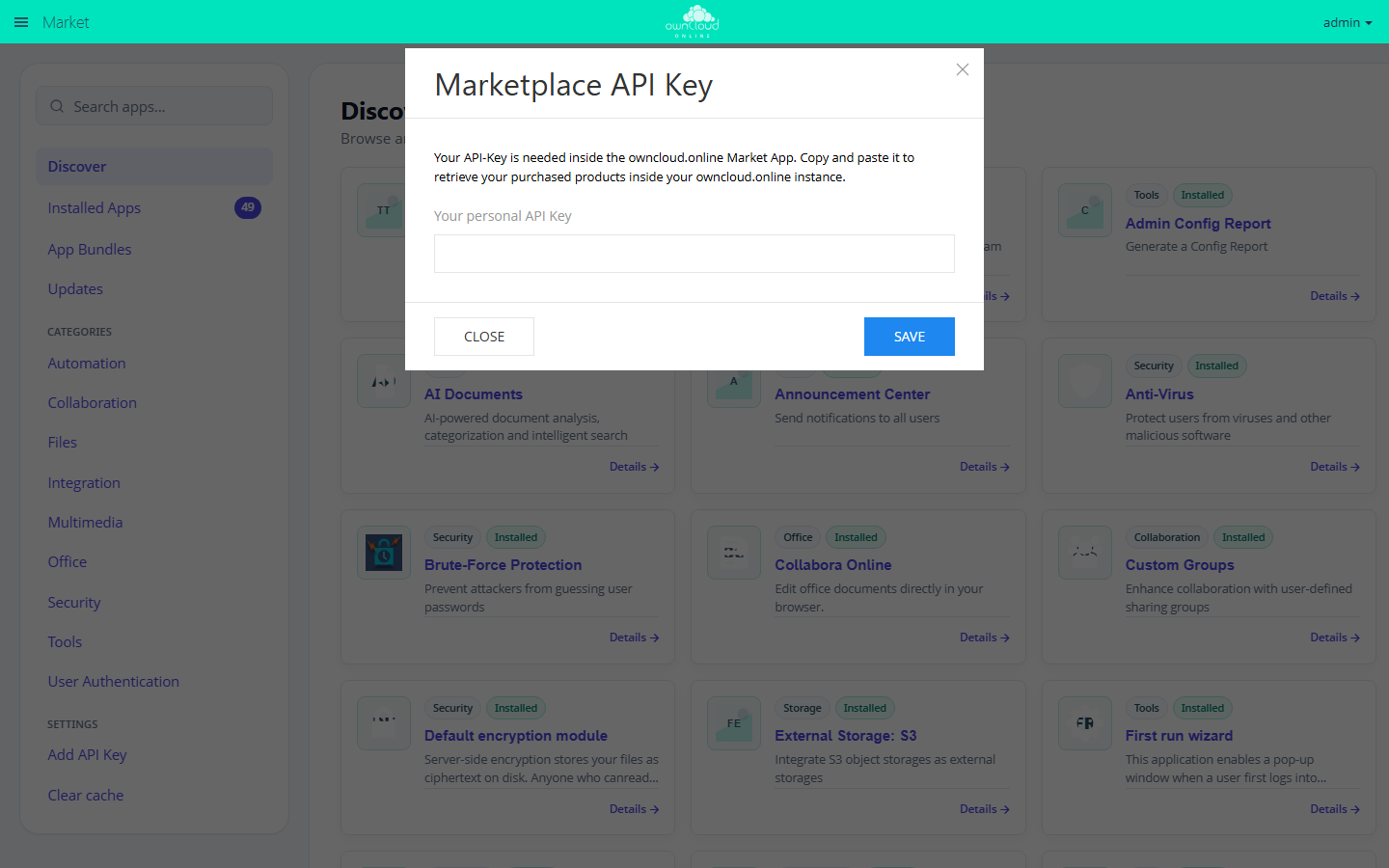
Apps that require an API key appear only after you enter the key. "Add API Key" opens this dialog.
On the command line, in the owncloud.online installation directory:
# enter the key; then select "Clear cache" in the Market
sudo -u www-data php8.4 occ config:app:set market key --value '<API-KEY>'

# install the app; this also enables it
sudo -u www-data php8.4 occ market:install wnd

# only needed if the app is present but disabled
sudo -u www-data php8.4 occ app:enable wnd

# check the result
sudo -u www-data php8.4 occ app:list wnd
External storage must also be turned on: the Enable external storage checkbox under Settings → Admin → Storage, or
sudo -u www-data php8.4 occ config:app:set core enable_external_storage --value yes
On installation, on every update, and on occ maintenance:repair, the app
checks whether there are mounts from a previous installation to migrate, see
Migrating existing mounts.
Update and disable
The Market lists updates under Updates. On the command line:
sudo -u www-data php8.4 occ market:upgrade wnd
A running listener keeps using the old code until it restarts.
Restart it after every update, for example with
sudo systemctl restart wnd-listen-projects.service.
After occ app:disable wnd, the mounts stay in the database but cannot be
used. Once you enable the app again, they work as before. Stop listeners and
queue cron jobs first.
Setup
Basic settings
The basic settings are in the Windows Network Drive (Custom) section under Settings → Admin → Storage. Click Save to apply your changes.
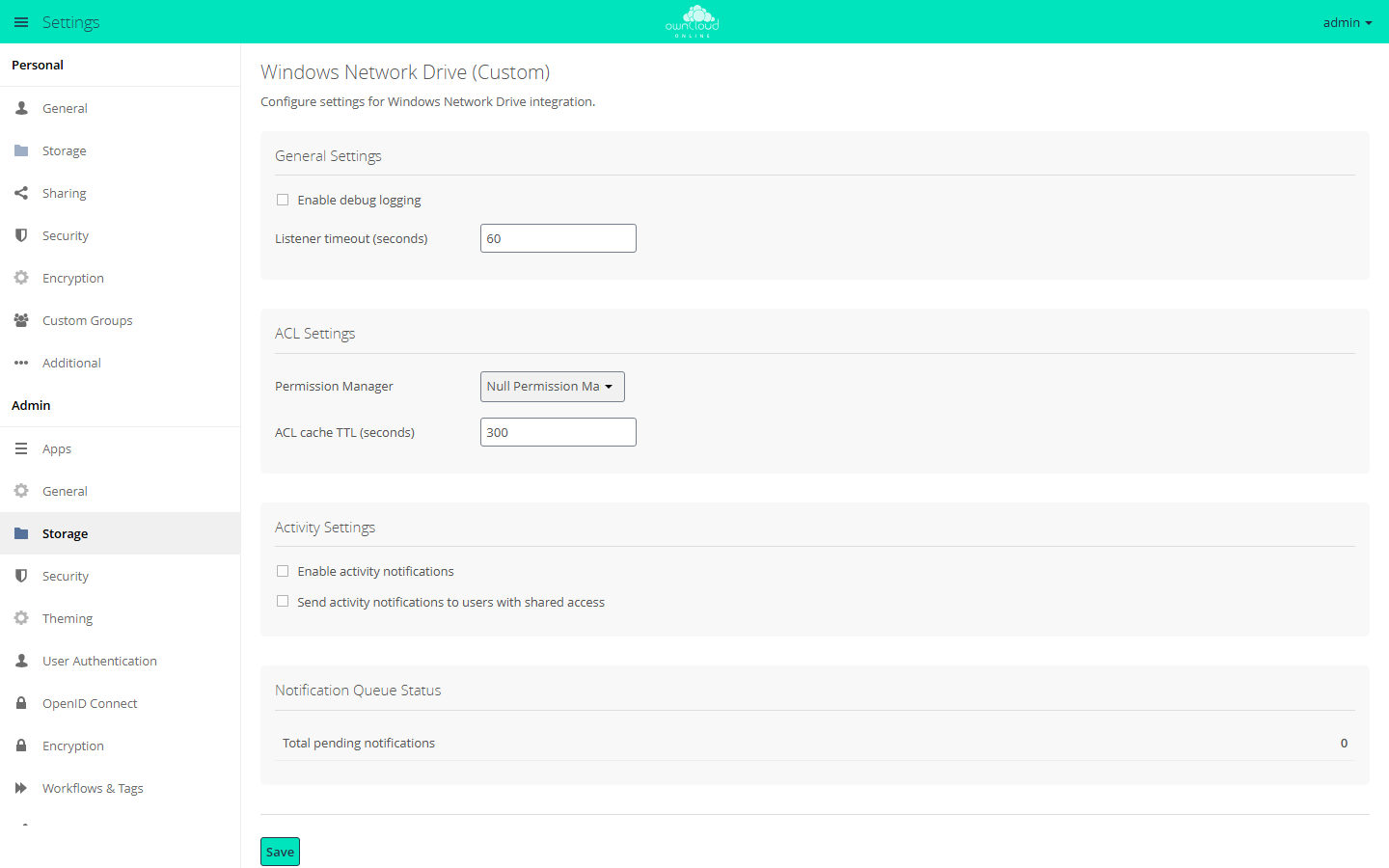
The basic settings for Windows network drives are under "Storage". You mount the drives under "External Storage".
| Field or section | Effect in version 1.3.5 |
|---|---|
| Enable debug logging | none; wnd.logging.enable in config/config.php turns on debug messages, see More keys in config.php |
| Listener timeout (seconds) | none |
| Permission Manager | permission check for all mounts: Null Permission Manager (file attributes only) or LDAP Permission Manager (ACL evaluation) |
| ACL cache TTL (seconds) | none; wnd.acl.cache_ttl in config/config.php applies |
| Enable activity notifications | turns on activities |
| Send activity notifications to users with shared access | none |
| Notification Queue Status | number of unprocessed change notifications, in total and per host and share |
| Invalid Credentials | appears only when password lockout prevention has locked an account |
| Command Line Tools | short help for wnd:listen, wnd:process-queue, and wnd:test |
The Null Permission Manager looks only at the file attributes: hidden entries are hidden, read-only files can only be read, and read-only folders cannot be deleted. For the LDAP Permission Manager, see ACL evaluation with LDAP.
The same settings on the command line:
sudo -u www-data php8.4 occ config:app:set wnd permission_manager --value null   # or ldap
sudo -u www-data php8.4 occ config:app:set wnd activity.registerExtension --value true
Mount a network drive
- Open Settings → Admin → Storage, section External Storage.
- Under Folder name, enter the name the drive shows up under in the file list.
- Under Add storage, select the storage type Windows Network Drive, or Windows Network Drive (Collaborative) for collaborative mode.
- Under Authentication, select the authentication method.
- Fill in the fields under Configuration, see the table.
- Under Available for, enter users or groups. If you leave the field empty, the drive is available to all users.
As soon as all required fields are filled in, owncloud.online saves the row on its own, tests the connection, and shows the result at the start of the row.
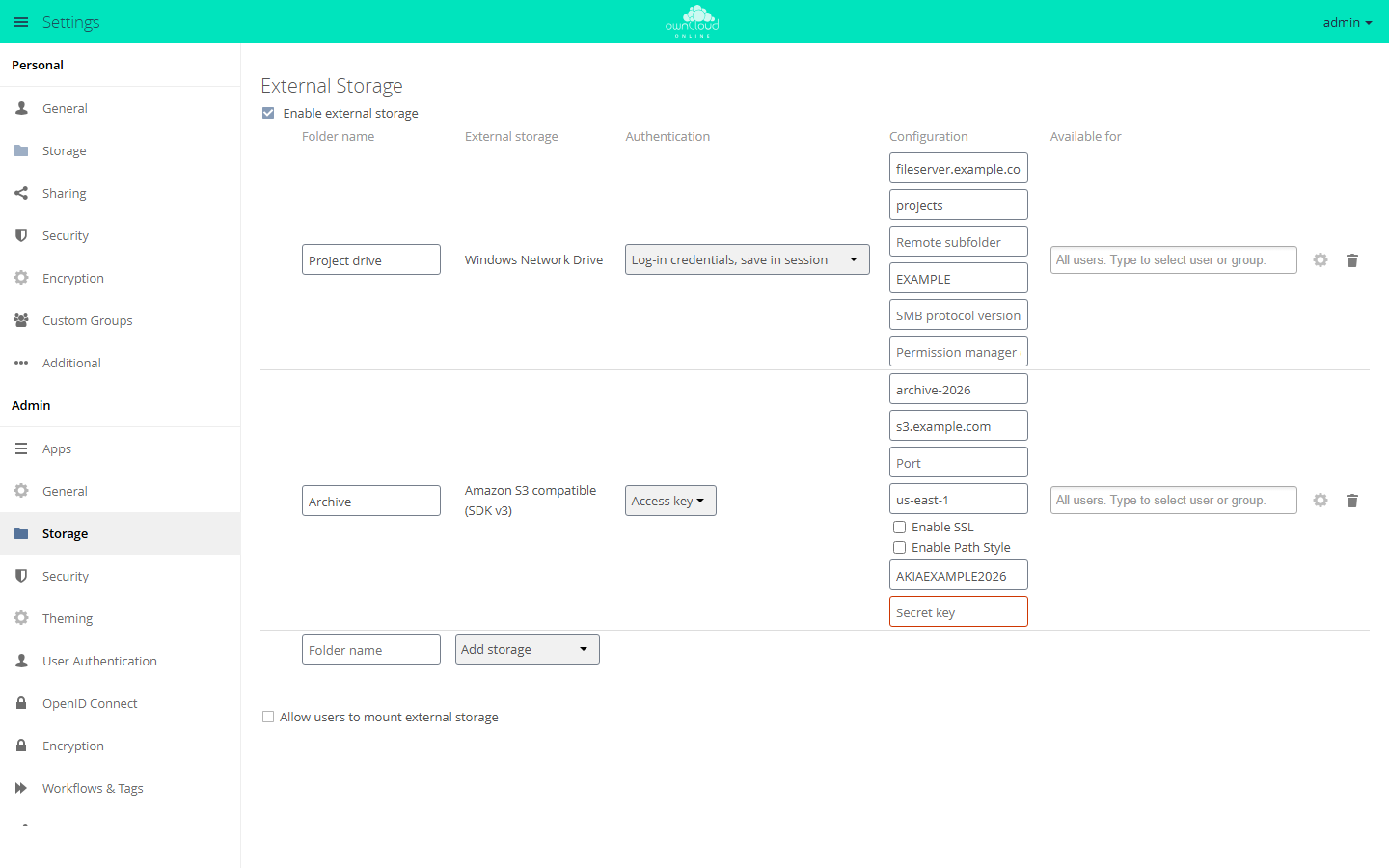
Pick the storage type under "Add storage". Each type has its own fields; empty required fields are marked red.
| Field | Required | Content |
|---|---|---|
| Host | yes | DNS name or IP address of the file server; for Kerberos, the fully qualified DNS name |
| Share | yes | name of the share, for example projects; $user stands for the user ID |
| Remote subfolder | no | folder inside the share, for example /sales; $user is allowed |
| Domain | no | Windows domain, for example EXAMPLE |
| SMB protocol version (e.g. 2.1, 3.0, 3.1.1) | no | has no effect in version 1.3.5, see Limits and notes |
| Permission manager (nullPermissionManager or ocLdapPermissionManager) | no | nullPermissionManager turns off ACL evaluation for this mount and, in version 1.3.5, is required for sharing, see Limits and notes |
The gear icon at the end of the row opens the Advanced settings. These matter most for network drives:
| Option | Effect |
|---|---|
| Enable sharing | users may share files from the drive; the authentication method must allow sharing as well, see Limits and notes |
| Check for changes | Once every direct access (default) checks whether a folder changed on the server when it is opened; with Never, changes on the server only arrive through the listener |
| Set read-only | read access only, regardless of the permissions on the server |
Users may mount their own network drives if you check Allow users to mount external storage and select Windows Network Drive below it. Users then find the setting under Settings → Personal → Storage. The collaborative storage type and the authentication method Credentials hardcoded in config file remain reserved for admins. In version 1.3.5, User entered, stored in database does not work for these personal mounts, because the app does not find the credentials entered there. Users choose Username and password or Log-in credentials, saved in database instead.
Mount with occ
| Storage type | Identifier |
|---|---|
| Windows Network Drive | wnd_custom |
| Windows Network Drive (Collaborative) | wnd_custom_collaborative |
The identifiers of the authentication methods are in the table under Authentication methods. Example: a Projects drive for one group, where each user logs in with their own Windows account.
sudo -u www-data php8.4 occ files_external:create /Projects wnd_custom wnd::logincredentials_db \
  -c host=fileserver.example.com -c share=projects -c domain=EXAMPLE
The command prints the ID of the mount, 5 in this example:
sudo -u www-data php8.4 occ files_external:applicable 5 --add-group projects

# allow sharing; in version 1.3.5 this also takes nullPermissionManager, see Limits and notes
sudo -u www-data php8.4 occ files_external:option 5 enable_sharing true
sudo -u www-data php8.4 occ files_external:config 5 permissionmanager nullPermissionManager

sudo -u www-data php8.4 occ files_external:list
More configuration keys: root (remote subfolder), smb_version,
permissionmanager, for collaborative mode service_account_user and
service_account_password, and depending on the authentication method user,
password, config_key, or kerberos_server_id. Passwords on the command
line end up in the shell history, so create mounts with fixed credentials in
the web interface instead. For all files_external commands, see
External storage.
Authentication methods
The authentication method determines which Windows account owncloud.online uses to log in to the file server. The permissions a user has on the drive depend on it.
| Authentication method (identifier) | Login to the file server | Sharing allowed |
|---|---|---|
Username and password (password::password) |
one fixed account entered in the mount | yes |
Log-in credentials, save in session (password::sessioncredentials) |
each user with the login name and password of their current session | no |
Global credentials (wnd::global_credentials) |
one account from config/config.php |
yes |
Log-in credentials, saved in database (wnd::logincredentials_db) |
each user with the user name and password of their last login | yes |
User entered, stored in database (wnd::userprovided) |
each user with the credentials they enter themselves, see Usage | yes |
Credentials hardcoded in config file (wnd::hardcoded_config) |
each user with their user ID and a password from config/config.php |
yes |
Kerberos (wnd::kerberos) |
each user with their own Kerberos ticket, see Kerberos | no |
- With Username and password and Global credentials, all users work with the same Windows account and therefore with the same permissions.
- Log-in credentials, save in session works only while the user is logged in
with a password. With single sign-on through SAML or OpenID Connect, for
occcommands, and in cron runs, the drive is not available. - "Sharing allowed: no" means the app turns off Enable sharing for this mount. For the other methods, the option decides, with one restriction in version 1.3.5, see Limits and notes.
- User entered, stored in database adds the fields Username, Password, and a second Domain field to the mount. Without a username and password, the web interface does not save the row. The app does not use these values, so enter placeholders rather than a real password. Each user enters their own credentials later, see Usage. Of the two Domain fields, the second one wins, even when it is empty. Enter the domain in both, or create the mount with occ.
- owncloud.online also offers Global credentials, Log-in credentials, saved in database, User entered, stored in database, and Credentials hardcoded in config file for the other storage types that use a user name and password, such as SMB, SFTP, and WebDAV. Kerberos is available only for the two Windows network drive types.
Global credentials
One account for many mounts. In version 1.3.5, you enter it in
config/config.php; there is no input form:
'wnd.global.credentials' => [
    'user' => 'svc_cloud',
    'domain' => 'EXAMPLE',
    'password' => '<PASSWORD>',
],
Instead of domain, you can also write the user as EXAMPLE\svc_cloud.
Global credentials migrated from a previous installation into
the database take precedence over this entry. Personal mounts do not read the
entry in config/config.php; they use only migrated credentials of the account
that owns the mount.
Log-in credentials, saved in database
At every login with a password, owncloud.online stores the user name and
password encrypted in the database and uses them to log in to the file server.
This makes the drive available to wnd:process-queue and other
background tasks as well.
- The Windows user name is the user name of the account; for LDAP accounts, by
default, the
sAMAccountName. If it is missing, the app uses the login name, and as a last resort the user ID. - Once stored, the name stays. Later logins only renew the password.
- If a user has not logged in with a password since the app was enabled, the drive is not available to them.
- With single sign-on without a password (SAML, OpenID Connect), owncloud.online stores nothing. Use User entered, stored in database, Global credentials, or Kerberos there.
Credentials hardcoded in config file
Admins only. Each user logs in with their user ID as the Windows user name; the
password comes from config/config.php. The app reads only entries in the
wnd.hardcoded.credentials array. Other values in the file cannot be reached
through this authentication method.
'wnd.hardcoded.credentials' => [
    'finance' => '<PASSWORD>',
    'grouped' => [
        'dept1' => '<PASSWORD>',
    ],
],
In the mount, enter the name of the entry in the Config key field, here
finance. Separate nested entries with #, here grouped#dept1.
The $user placeholder
In Share and Remote subfolder, the app replaces $user with the user ID.
This way, a single mount gives each user their own folder, for example with
the share home and the subfolder /$user. In collaborative mode, $user is
allowed only in the subfolder. For such mounts, the listener has
restrictions.
Collaborative mode
With Windows Network Drive, owncloud.online keeps the file list per Windows account. If users log in with their own accounts, the same file has a separate file ID for each user. Comments and tags that one user adds to a file are not visible to the others in their view of the same file.
With Windows Network Drive (Collaborative), all users of the mount share one file list and therefore the same file IDs. In addition to the fields of the regular storage type, it requires a service account:
| Field | Required | Content |
|---|---|---|
| Service Account Username | yes | Windows account for access without user credentials |
| Service Account Password | yes | password of this account |
- Only admins can create this storage type.
- Users access the drive with the selected authentication method, that is, with their own credentials. The app uses the service account only when no user credentials are available for an access.
- The service account always logs in with its password, even if the mount uses Kerberos.
$useris not allowed in the Share field, but it is allowed in the Remote subfolder.- Do not combine it with ACL evaluation, see ACL limits.
The listener can read the service account password from the mount. Host, share, and user name must match the collaborative mount exactly:
sudo -u www-data php8.4 occ wnd:listen fileserver.example.com projects svc_cloud \
  --domain EXAMPLE --password-from-service-account
Listener and queue
Without a listener, owncloud.online notices changes made directly on the file
server, for example through a mapped Windows drive, at the earliest when the
folder is opened next. The listener (occ wnd:listen) keeps a connection to
the share open and writes every change notification from the server into a
queue in the database. occ wnd:process-queue works through that queue: it
rescans the affected folders for every user of the mount and, if turned on,
creates activities. You need one listener and one cron job per
host and share.
1. Test the connection. The command prompts for the password without showing it:
sudo -u www-data php8.4 occ wnd:test fileserver.example.com projects svc_cloud --domain EXAMPLE --list
wnd:test does not count toward the app's
password lockout prevention. Each failed attempt does count on
the domain controller, though.
2. Create a password file. A password passed as an argument would show up in the process list. Put it in a file that only root and the web server can read:
sudo mkdir -p /etc/owncloud.online
sudo touch /etc/owncloud.online/wnd-projects.pw
sudo chown root:www-data /etc/owncloud.online/wnd-projects.pw
sudo chmod 0640 /etc/owncloud.online/wnd-projects.pw
sudo nano /etc/owncloud.online/wnd-projects.pw
3. Run the listener as a service. File
/etc/systemd/system/wnd-listen-projects.service:
[Unit]
Description=owncloud.online WND listener fileserver.example.com/projects
After=network-online.target
Wants=network-online.target

[Service]
User=www-data
Group=www-data
WorkingDirectory=/var/www/owncloud.online
ExecStart=/usr/bin/php8.4 occ wnd:listen fileserver.example.com projects svc_cloud --domain EXAMPLE --password-file /etc/owncloud.online/wnd-projects.pw --password-trim
Restart=always
RestartSec=30

[Install]
WantedBy=multi-user.target
sudo systemctl daemon-reload
sudo systemctl enable --now wnd-listen-projects.service
sudo journalctl -u wnd-listen-projects.service -f
--password-trim removes the line break that the editor writes at the end of
the file. This is how the listener behaves:
- If the connection drops, it retries up to four times, with pauses of 5, 10, 15, and 20 seconds. On the fifth failure in a row, it exits.
- If the server rejects the login, it exits immediately. The failed attempt counts toward password lockout prevention.
- If the account is locked, it exits without contacting the server.
Restart=alwaysstarts it again; once the lock expires, it reconnects.
4. Process the queue regularly. The app's background jobs do not empty the
queue; only wnd:process-queue does. Set up the command as a cron job of the
web server user:
sudo crontab -u www-data -e
*/5 * * * * flock -n /tmp/wnd-projects.lock /usr/bin/php8.4 /var/www/owncloud.online/occ wnd:process-queue fileserver.example.com projects --chunk-size 500 --squash
flock -n prevents a new run from starting while the previous one is still
working. An hourly background job of the app deletes processed notifications
older than 24 hours. For it to run, cron must be set up for owncloud.online,
see Background jobs.
5. Check. The following command shows pending notifications per host and share. In the web interface, they are listed in the Notification Queue Status section.
sudo -u www-data php8.4 occ wnd:notifications
Commands and options
occ wnd:listen <host> <share> <username> [<password>]
| Option | Meaning |
|---|---|
-d, --domain |
Windows domain; alternatively use DOMAIN\user as the user name |
-f, --password-file |
read the password from a file; - reads from standard input |
-t, --password-trim |
remove spaces and line breaks at the start and end of the password |
-s, --password-from-service-account |
take the service account password from the collaborative mount with this host, share, and user name |
-p, --path |
folder in the share to watch, default / |
Without a password and without one of the password options, the command prompts for it without showing it.
occ wnd:process-queue <host> <share>
| Option | Meaning |
|---|---|
-c, --chunk-size |
notifications per batch, default 500 |
-s, --squash |
merge several notifications for the same path into one first |
--dry-run |
only show what would be processed |
--cleanup |
afterwards, delete processed notifications older than 24 hours |
--serializer-type file --serializer-params file=<path> |
cache the list of affected mounts in a file; delete this file after every change to the mounts |
occ wnd:notifications [--cleanup] shows the pending notifications;
--cleanup first deletes processed notifications older than 24 hours.
occ wnd:test <host> <share> <username> [<password>] tests a share without a
mount. -d sets the domain, -l lists the folder content, and -p selects a
path in the share.
Limits
- Write host and share for
wnd:listenandwnd:process-queueexactly as in the mount, so not the name in one place and the IP address in the other. Otherwise,wnd:process-queuereports "No storages found for …". wnd:process-queuelooks for the changed folders relative to the share. For mounts with a Remote subfolder or with$userin the Share field, the command does not find them. These mounts rely on the check when a folder is opened.- The command rescans for every user of the mount. If the mount is available to all users, a run takes correspondingly long on instances with many accounts.
- It needs credentials that are available without a session. With Log-in credentials, save in session, it cannot rescan the users' folders.
- Do not use it for mounts with ACL evaluation, see ACL limits.
ACL evaluation with LDAP
With the LDAP Permission Manager (ACL evaluation), the app reads the Windows access control lists (ACLs) of every file and folder and derives what the logged-in user may do in owncloud.online.
Requirements:
- The
user_ldapapp is enabled and connected to the same Active Directory as the file server, see LDAP Integration. - The internal user name of LDAP accounts is the
sAMAccountName: Settings → Admin → User Authentication, Expert tab, field Internal Username Attribute:. The LDAP app does not change existing mappings afterwards, so set the field before the first users log in, see Internal username. smbcaclsis installed (packagesmbclientorsamba-client), or the PHP extensionsmbclientis present.
To turn on the evaluation, select LDAP Permission Manager (ACL evaluation) under Permission Manager and click Save, or run:
sudo -u www-data php8.4 occ config:app:set wnd permission_manager --value ldap
The setting applies to all mounts. To exclude a single mount, enter
nullPermissionManager in its Permission manager (nullPermissionManager or
ocLdapPermissionManager) field. You cannot turn on the evaluation for single
mounts only.
| Permission in the Windows ACL | Permission in owncloud.online |
|---|---|
| Read | view and download |
| Write | change and create |
| Delete | delete |
- Entries for the user take precedence over entries for the user's groups.
Within each of these two levels, Deny beats Allow. With
'wnd.groupmembership.checkUserFirst' => false, the app weighs all entries equally, and every Deny wins. - The app compares users and groups by name, without the domain part and
without regard to case. Groups are the user's groups in owncloud.online,
usually the LDAP groups. If the ACL contains a SID instead of a name, the app
compares it with the
objectSidfrom LDAP. - Everyone (S-1-1-0) and Authenticated Users (S-1-5-11) apply to all users. The app recognizes these entries by their SID or by their English name. It does not recognize localized names such as Jeder or Authentifizierte Benutzer from a German Windows server.
- If no entry matches, the user has no access.
- The hidden attribute hides an entry. Read-only files can only be read, and read-only folders cannot be deleted.
- If the server returns no ACL, for example because
smbcaclsis missing, only the file attributes apply.
ACL limits
Version 1.3.5
- The app evaluates the ACL for the logged-in user. Commands without a user
session, such as
occ files:scanandocc wnd:process-queue, get no permissions for entries with an ACL, and owncloud.online removes these entries from its file cache. On the next access, it reads them in again with new file IDs; shares, comments, and tags on these files lose their reference. Do not run these commands for mounts with ACL evaluation, and do not run a listener for them. - owncloud.online stores the permissions it determines in the file cache of the mount. If several users log in with the same Windows account (Username and password, Global credentials) or the mount is collaborative, they share this cache and see the permissions of the user whose access last rescanned the folder. Use ACL evaluation only for mounts where each user logs in with their own Windows account.
- Files from mounts with ACL evaluation cannot be shared, see Limits and notes.
Kerberos
With Kerberos, each user logs in to the file server with their own Windows
account without owncloud.online knowing their password. To do so, the app uses
the keytab of a service account to get a ticket (kinit) and then requests a
ticket for cifs/<host> on behalf of the user (kvno -U).
1. Store the keytab. The web server user must be able to read it:
sudo mkdir -p /etc/owncloud.online
sudo cp wnd.keytab /etc/owncloud.online/wnd.keytab
sudo chown root:www-data /etc/owncloud.online/wnd.keytab
sudo chmod 0640 /etc/owncloud.online/wnd.keytab
sudo klist -k /etc/owncloud.online/wnd.keytab
klist -k shows the principals in the keytab. You enter one of them as
service in the next step. The server also needs an /etc/krb5.conf that lets
kinit find the KDC of the realm.
2. Add the server to config/config.php. The key of the entry, fs01
here, is the Kerberos Server ID:
'wnd.kerberos.servers' => [
    'fs01' => [
        'keytab' => '/etc/owncloud.online/wnd.keytab',
        'service' => 'HTTP/cloud.example.com@EXAMPLE.COM',
        'realm' => 'EXAMPLE.COM',
        'usermapping' => [
            'type' => 'EALdapAttr',
            'params' => ['attr' => 'userPrincipalName'],
        ],
    ],
],
| Key | Required | Meaning |
|---|---|---|
keytab (also ockeytab) |
yes | path to the keytab of the service account |
service (also ocservice) |
yes | principal of the service account from the keytab |
realm |
no | realm; the app appends @<realm> to principals without @ and to cifs/<host> |
usermapping |
no | how the principal is derived from the user ID, default noop |
ccachettl |
no | age in seconds after which leftover ticket caches are deleted, default 32400, at least 3600 |
ticket_cache |
no | fixed ticket cache for all users; all users then log in with the same ticket |
type in usermapping |
Principal |
|---|---|
noop |
the user ID unchanged |
removedomain |
the user ID without a leading DOMAIN\ and without a trailing @domain |
EALdapAttr |
value of the LDAP attribute in params.attr, default userPrincipalName; requires the user_ldap app; values in the params.nomap list are not mapped |
static |
fixed table params.mapping, for example ['jdoe' => 'jdoe@EXAMPLE.COM'] |
If the mapping does not produce a principal, the app denies access.
3. Test the flow by hand. The Active Directory decides whether the service account gets tickets on behalf of users. Test it with the same commands the app runs, as the web server user:
# ticket of the service account from the keytab
sudo -u www-data env KRB5CCNAME=FILE:/tmp/wnd-krb5-test kinit -k -t /etc/owncloud.online/wnd.keytab HTTP/cloud.example.com@EXAMPLE.COM

# ticket for the file server on behalf of a user
sudo -u www-data env KRB5CCNAME=FILE:/tmp/wnd-krb5-test kvno -U jdoe@EXAMPLE.COM cifs/fileserver.example.com@EXAMPLE.COM

# show the result, then clean up
sudo -u www-data env KRB5CCNAME=FILE:/tmp/wnd-krb5-test klist
sudo -u www-data rm /tmp/wnd-krb5-test
If kvno fails, the app cannot get a ticket either.
4. Create the mount. Authentication = Kerberos, Kerberos Server ID =
fs01. As Host, enter the fully qualified DNS name of the file server,
because the app requests a ticket for cifs/<host>. If Kerberos Server ID
stays empty, the app looks for an entry whose key matches the host of the
mount.
Notes:
- The app gets new tickets for every request that uses the drive. They are
stored per user in
<datadirectory>/wnd-krb5(directory 0700, files 0600) and deleted at the end of the request. - Kerberos mounts cannot be shared. They do not count toward password lockout prevention.
Password lockout prevention
A wrong stored password triggers a login to the file server on every access and can lock the Windows account in the Active Directory. Password lockout prevention stops that.
| Rule | Value |
|---|---|
| Counted per SMB account | host, share, and user name, case-insensitive, across all owncloud.online users |
| Lock after | 3 rejected logins in a row (wnd.lockout.max_attempts) |
| Lock duration | 1800 seconds (wnd.lockout.duration); 0 means until reset |
| Counter back to zero | on every successful login |
| After the lock expires | exactly one new attempt; if it fails, the lock applies again at once |
Locked accounts are listed under Settings → Admin → Storage in the
Invalid Credentials section, with the columns User, Host, Share, SMB
account, and Failed Attempts. Reset releases the account for all users who
use it. While the lock is active, the server log reports "Password lockout
prevention: logons for … are paused …" with the end of the lock, and so does
occ files_external:verify.
Set the values in config/config.php. Keep the number of attempts below the
account lockout threshold of the Active Directory.
'wnd.lockout.max_attempts' => 3,
'wnd.lockout.duration' => 1800,
Without an entry in config/config.php, the app values apply, for example
occ config:app:set wnd lockout.max_attempts --value 3.
What password lockout prevention does not cover:
- Parallel requests can each log in with the wrong password once before the first rejection is counted.
- The same Windows account on different shares is counted separately. The Active Directory adds the failed attempts up.
- Kerberos logins are not counted.
- An unreachable server counts neither as a failed attempt nor as a success.
occ wnd:testis not counted.
Activities
With the activity app, wnd:process-queue creates an entry in the activity
stream of all users of the mount for every change the listener
reported. Turn this on with Enable activity notifications in the
basic settings, or run:
sudo -u www-data php8.4 occ config:app:set wnd activity.registerExtension --value true
In the activity stream, the Network Drives filter groups these entries. By default, new, changed, deleted, and renamed files appear in the stream, and only deleted files are sent by email. Each user changes this under Settings → Personal → General, section Activity. Changes that do not go through the listener and queue create no entries from this app.
More keys in config.php
| Key | Default | Effect |
|---|---|---|
wnd.logging.enable |
false |
debug messages of the app in the server log; loglevel must also be 0 |
wnd.connector.opts.timeout |
20000 |
timeout for connection and response in milliseconds |
wnd.acl.cache_ttl |
300 |
seconds an ACL result stays cached in the running process |
wnd.permissionmanager.cache.size |
512 |
number of cached ACL results |
wnd.groupmembership.checkUserFirst |
true |
user entries of the ACL before group entries; false: every Deny wins |
wnd.fileInfo.parseAttrs.mode |
stat |
only for mounts with nullPermissionManager: none evaluates no attributes, stat only for files, getxattr for files and folders |
wnd.lockout.max_attempts |
3 |
failed attempts before the lock |
wnd.lockout.duration |
1800 |
lock duration in seconds, 0 until reset |
wnd.in_memory_notifier.enable |
true |
after a rejected login, no other mount with the same account logs in during the same request |
wnd.errorCodes.passwordReset |
[13] |
error codes that trigger the rule in the previous row; 13 is the code of a rejected login, [] turns the rule off |
wnd.activity.registerExtension |
false |
default for Enable activity notifications |
wnd.global.credentials |
none | account for Global credentials |
wnd.hardcoded.credentials |
none | passwords for hardcoded credentials |
wnd.kerberos.servers |
none | Kerberos settings, see Kerberos |
If a wnd. key is missing, the app also reads the older spelling
wnd_custom.… for most settings. Write new entries with wnd.. Simple values
can be set with occ:
sudo -u www-data php8.4 occ config:system:set wnd.logging.enable --value true --type boolean
Usage
For users, the network drive is a folder in the file list, named after the Folder name. What a user may do there depends on their permissions on the file server and, if turned on, on the ACL evaluation. The desktop client and the mobile apps show the folder like any other.
For admin-created mounts with User entered, stored in database, users enter their credentials themselves:
- Open Files. The drive's folder is marked red.
- Click the folder. The Credentials required dialog opens.
- Enter the Windows user name and password and click Save. The domain comes from the mount.
After a password change in Windows:
| Authentication method | What to do |
|---|---|
| Log-in credentials, saved in database | log out and back in once in the browser; owncloud.online then stores the new password |
| Log-in credentials, save in session | log out and back in |
| User entered, stored in database | click the folder marked red and enter the new password |
Until then, owncloud.online keeps trying the old password. After three failed attempts, password lockout prevention locks the account, by default for 30 minutes. The new password only works once the lock expires or an admin resets it.
If activities are turned on, the Network Drives filter in the activity stream shows changes made directly on the file server.
Migrating existing mounts
If you move from an installation that had network drives with the storage
identifiers windows_network_drive and windows_network_drive2, these mounts
keep working with this app. The app recognizes the identifiers of the storage
types and authentication methods. On installation, on every update, and on
occ maintenance:repair, a repair step carries over:
- the options of the mounts (permission manager, service account, config key, Kerberos server ID),
- the stored credentials,
- the existing file IDs, so that shares, tags, comments, and client synchronization are preserved.
The step never overwrites existing values and processes each mount only once. Proceed as follows:
-
Copy
secretfrom theconfig/config.phpof the previous installation. Without the same value, stored passwords cannot be decrypted, and the step cannot carry over the password of a service account. -
Install the app before users log in again. During a move, that is the moment after
occ maintenance:mode --offand before the web server starts, becauseocc market:installis not available in maintenance mode:bashsudo -u www-data php8.4 occ market:install wndThe Market needs the API key for this, see Installation. If the app code is already in an app directory,
occ app:enable wndis enough; this command also works in maintenance mode. -
Check the messages of the step.
occ market:installandocc app:enabledo not print them; they are in the server log with"app":"wnd". Warnings show up there at the default log level, the other notes only fromloglevel1. Each warning says what to fix by hand, for example a service account password that could not be decrypted. If the step fails on a mount with an error,occ maintenance:repairtries that mount again and prints the messages directly. That command requires maintenance mode.
Notes:
- The app reads hardcoded credentials only from
wnd.hardcoded.credentials. If the key of a migrated mount points somewhere else inconfig/config.php, the step reports it; add the value there, see Credentials hardcoded in config file. - If a migrated mount had
ocLdapPermissionManagerset, the step sets the global permission manager toldapunless one is already set, and setsnullPermissionManageron the other migrated mounts. If the permission manager was alreadyldapbefore, ACL evaluation stays on for these mounts as well; the step then prints a warning. If it is set tonull, ACL evaluation only takes effect once you set it toldap; the step reports this as well. - The app does not read mounts that exist only in the tables
oc_wnd_mountsandoc_wnd_personal_mounts. The step reports them.
For the complete move, see Moving to another server.
Limits and notes
- Only one app for Windows network drives may be active. This app also uses the
storage identifiers
windows_network_driveandwindows_network_drive2. - The SMB protocol version (e.g. 2.1, 3.0, 3.1.1) field has no effect in
version 1.3.5. Set the protocol version in the
[global]section of/etc/samba/smb.conf, for example withclient min protocol = SMB3. - Four fields of the basic settings store a value that the app does not evaluate. Where another setting takes effect, the table there names it.
- With Windows Network Drive, the file list depends on host, share, and Windows account, not on the subfolder. Do not mount the same share twice with the same account and different subfolders, or both mounts share one file list.
- In version 1.3.5, a file can be shared only if three conditions are met:
Enable sharing is set on the mount, the
authentication method allows sharing, and the Permission
manager (nullPermissionManager or ocLdapPermissionManager) field contains
nullPermissionManager. Without that entry, the permission manager from the basic settings, Null or LDAP, does not grant the share permission. Mounts with ACL evaluation therefore cannot be shared. For the file attributes of such mounts,wnd.fileInfo.parseAttrs.modeapplies, see More keys in config.php. - Listener, queue, and ACL evaluation have their own limits, see Listener limits and ACL limits.
Troubleshooting
The app writes warnings and errors to the server log even without debug
logging, with "app":"wnd". For debug messages, temporarily turn on
wnd.logging.enable and set the log level to 0:
sudo -u www-data php8.4 occ config:system:set wnd.logging.enable --value true --type boolean
sudo -u www-data php8.4 occ log:manage --level 0

# path: <datadirectory>/owncloud.log, see occ config:system:get datadirectory
sudo jq -c 'select(.app == "wnd") | {time, level, message}' /var/oco-data/owncloud.log | tail -n 50

# reset afterwards
sudo -u www-data php8.4 occ config:system:delete wnd.logging.enable
sudo -u www-data php8.4 occ log:manage --level 2
For more about the log, see Server log and error messages.
| Message or symptom | Cause | Fix |
|---|---|---|
Windows Network Drive is missing under Add storage, and a note above says that smbclient is not installed |
the smbclient program is missing, or PHP-FPM has no PATH |
install the package; set env[PATH], see Requirements |
| Saving a mount reports "Invalid storage backend …" | same as above | same as above |
| "Windows Network Drive: logon rejected, check user name, password and domain …" | the server rejects the login | check user name, password, and domain with occ wnd:test |
| "Password lockout prevention: logons for … are paused …" | lockout after several failed attempts | correct the credentials, then click Reset under Invalid Credentials |
| "Windows Network Drive: server not reachable …" | network, DNS, or firewall | open TCP 445 (and 139); run smbclient -L //fileserver.example.com -U 'EXAMPLE\svc_cloud' from the owncloud.online server |
wnd:listen exits with "Listener error: Logon rejected for …" |
wrong password in the password file | fix the file, set --password-trim, reset the lock |
wnd:listen exits with "stdbuf is required for usage of the notify command" |
the stdbuf program is missing |
install the coreutils package |
wnd:listen exits with "smbclient not found in path for notify command" |
only the PHP extension is installed | install the smbclient or samba-client package |
wnd:process-queue reports "No storages found for …" |
host or share spelled differently than in the mount | use exactly the same spelling |
| Changes from the file server do not show up | the listener is not running, the cron job is missing, or the mount has a subfolder | systemctl status wnd-listen-projects.service, occ wnd:notifications, Listener limits |
| ACLs have no effect | the permission manager is set to Null, the mount to nullPermissionManager, user_ldap is disabled, the internal user name is not the sAMAccountName, or smbcacls is missing |
check the points under ACL evaluation with LDAP |
| "Kerberos authentication failed: Kerberos ticket initialization (kinit) failed for user …" | wrong keytab or principal | sudo klist -k <keytab>; copy service exactly from the output |
| "… Kerberos service ticket acquisition (kvno) failed for user … on host …" | the Active Directory does not issue a ticket on behalf of the user, or the host does not match the file server | test the flow by hand; use the fully qualified DNS name as host |
| "Kerberos user mapping failed for user …" | the mapping produces no principal | check usermapping; with EALdapAttr, the attribute must have a value |
| "Kerberos keytab file not found" or "not readable" | path or permissions | check the path, chown root:www-data, chmod 0640 |
| "No Kerberos WND config for server id …" | the Kerberos Server ID is missing from wnd.kerberos.servers |
make the spelling match |
Connections fail only through the web server while occ works |
SELinux does not allow the web server to open network connections | sudo setsebool -P httpd_can_network_connect 1 |
smbclient fails under Apache because no home directory is set |
web server environment | add export HOME=/var/www to /etc/apache2/envvars and restart Apache |