

External Storage: S3
Available on the Marketplace
The app is listed on the Marketplace without an API key and installs directly from the Market app. This page covers version 2.2.1.
The app mounts a bucket in Amazon S3 or an S3-compatible object store as a
folder in the Files app. The files stay in the bucket. Access, sharing, and
sync go through owncloud.online. You set up each mount in the web interface or
with occ. config.php stays unchanged.
To store all files of the instance in S3 instead of single folders, use S3 Primary Object Storage.
Requirements
| Component | Requirement |
|---|---|
| owncloud.online | 11.x |
| PHP | 8.4 or later |
| Core app | files_external, enabled |
| Object store | Amazon S3 or S3-compatible, for example MinIO or Ceph RGW |
| Network | The server can reach the object store endpoint |
| Credentials | Access key and secret key for the bucket |
Installation
Open Market from the app menu, search for External Storage: S3, and click Install. On the command line, in the owncloud.online installation directory:
# enable the core app for external storage
sudo -u www-data php8.4 occ app:enable files_external

# install the app from the Marketplace; this also enables it
sudo -u www-data php8.4 occ market:install files_external_s3

# only needed if the app is present but disabled
sudo -u www-data php8.4 occ app:enable files_external_s3
External storage must be turned on as well. Check Enable external storage under Settings → Admin → Storage, or run:
sudo -u www-data php8.4 occ config:app:set core enable_external_storage --value yes
Setup
In the web interface
- Open Settings → Admin → Storage, section External Storage.
- Under Folder name, enter the name the bucket gets in the Files app.
- Under Add storage, pick Amazon S3 compatible (SDK v3). The authentication is fixed to Access key.
- Fill in the fields under Configuration, see the table.
- Under Available for, enter accounts or groups. If you leave it empty, the storage is available to all accounts.
| Field | Required | Meaning | Default |
|---|---|---|---|
| Bucket | yes | Bucket name | – |
| Hostname | no | Host name of the endpoint, without https:// and without a path, for example s3.example.com |
s3.amazonaws.com |
| Port | no | Endpoint port | 443 with SSL, 80 without |
| Region | no | Bucket region | eu-west-1 |
| Enable SSL | no | Connect over HTTPS | off |
| Enable Path Style | no | Use addresses like host/bucket instead of bucket.host. MinIO and Ceph usually need this |
off |
| Access key | yes | Access key ID | – |
| Secret key | yes | Secret access key | – |
Enable SSL is not checked by default. Without it, the server talks to the object store over plain HTTP, on port 80 unless you set a port. Check it for Amazon S3 and for any endpoint that uses HTTPS.
If the bucket does not exist, the app creates it on first access. This requires a key that may create buckets. If yours may not, create the bucket with your provider first.
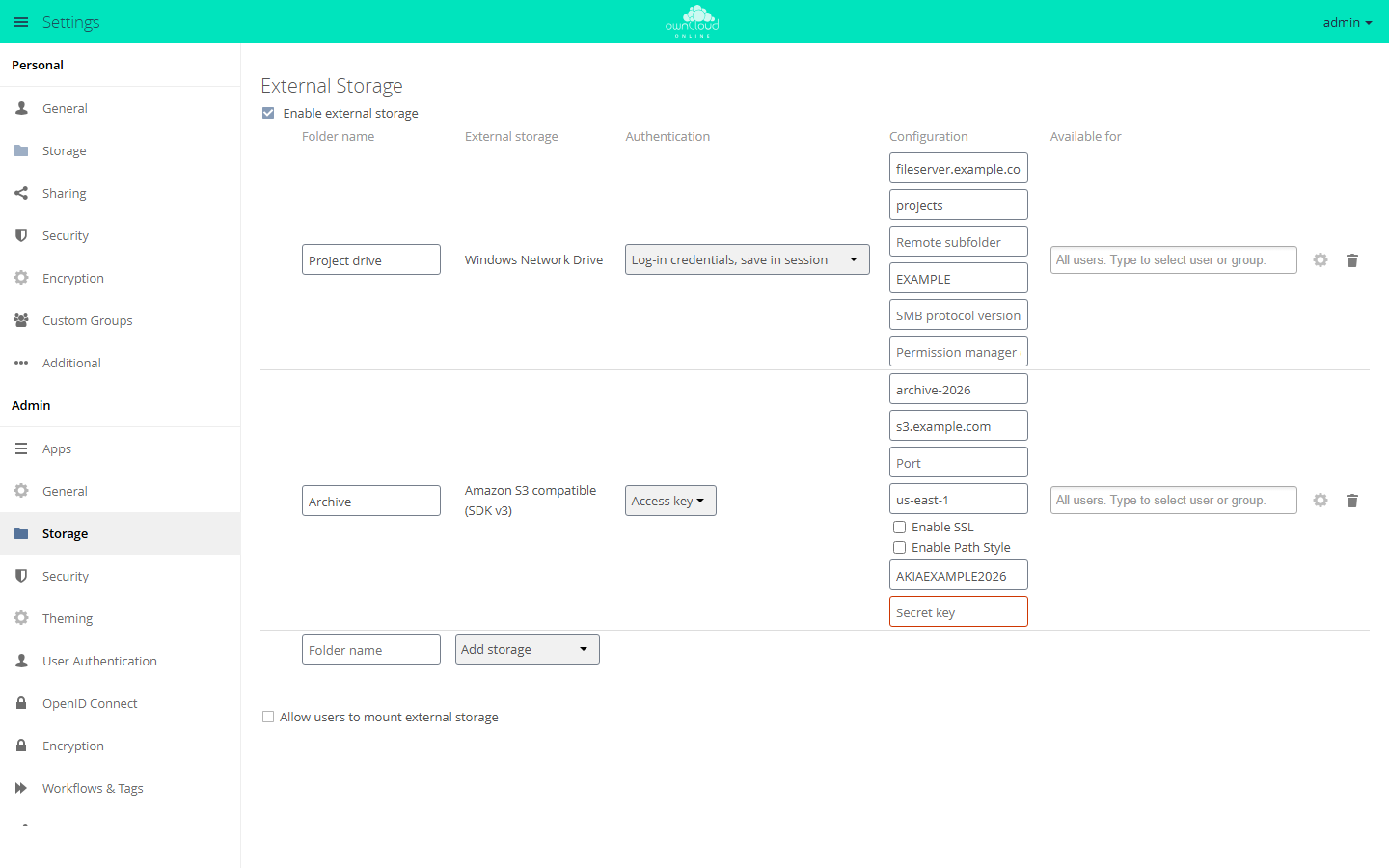
Pick the storage type under "Add storage". Each type has its own fields; empty required fields are marked red.
The gear icon at the end of the row opens Advanced settings. Two of them matter for S3:
| Option | Default | Note |
|---|---|---|
| Enable sharing | off | Without it, users cannot share files from the bucket |
| Check for changes | Once every direct access | If only owncloud.online writes to the bucket, setting it to Never saves requests to the store |
With occ
Create the mount. The command prints the ID of the new storage:
sudo -u www-data php8.4 occ files_external:create /Archive files_external_s3 amazons3::accesskey \
  -c bucket=archive-2026 \
  -c hostname=s3.example.com \
  -c region=us-east-1 \
  -c use_ssl=true \
  -c use_path_style=true \
  -c key=<ACCESS_KEY> \
  -c secret=<SECRET_KEY>
This puts the secret key into the shell history. To avoid that, enter it in the web interface instead.
Change values and test the connection. 3 stands for the ID from
files_external:list:
sudo -u www-data php8.4 occ files_external:list
sudo -u www-data php8.4 occ files_external:config 3 port 9000
sudo -u www-data php8.4 occ files_external:config 3 use_path_style true
sudo -u www-data php8.4 occ files_external:verify 3
Set accounts, groups, and mount options with files_external:applicable and
files_external:option, as for any external storage. All commands are listed
under External storage.
Let users mount buckets
Under Settings → Admin → Storage, check Allow users to mount external storage and, below it, Amazon S3 compatible (SDK v3). Users then find the same form under Settings → Personal → Storage.
Usage
The bucket shows up as a folder in the Files app and under External storage in the left sidebar. Users upload, download, move, delete, and sync files as in any other folder. Sharing works only if the admin has checked Enable sharing.
Limits and notes
- S3 has no folders. The app emulates them with empty objects whose names end
in
/. When someone deletes a folder, the app removes all objects under that prefix, in batches. Folders with many objects take a while. - The app builds the internal storage ID from the bucket name only
(
amazon::<bucket>). Two mounts with the same bucket name share one file cache, even if they point to different services. Give each mounted bucket a name of its own. - To create thumbnails, the server downloads the file from the bucket. With many large pictures, it can make sense to turn off Enable previews in the advanced settings.
Troubleshooting
| Symptom | Cause | Fix |
|---|---|---|
| Amazon S3 compatible (SDK v3) is missing under Add storage | files_external or files_external_s3 is disabled |
occ app:enable files_external, then occ app:enable files_external_s3 |
| Red status icon at the start of the row | Wrong key, bucket, or endpoint, or the server cannot reach the endpoint | Hover over the icon, the tooltip shows the error. Clicking the icon checks again. Also run occ files_external:verify <id> and check the connection from the server to the endpoint |
Creation of bucket failed in the server log |
The app queries the bucket when it connects. If that fails, it assumes the bucket is missing and tries to create it. Common reasons: wrong access key or secret key, the key lacks the s3:ListBucket permission for the bucket, or the bucket really is missing and the key may not create buckets |
Check the keys and permissions. If the bucket is missing, create it with your provider |
| The folder stays empty | MinIO or Ceph without Enable Path Style, or Hostname and Port do not match the endpoint | Check Enable Path Style, check host name and port |
| TLS errors | The endpoint only speaks HTTP, or its certificate is invalid | Uncheck Enable SSL and adjust the port, or fix the endpoint certificate |
Connection errors and their cause are in the server log, see Server log and error messages.