

User guide
You work with owncloud.online in the browser, with the desktop client, or through mobile apps. The main areas are files, shares, deleted files, versions, favorites, and external storage.
Logging in
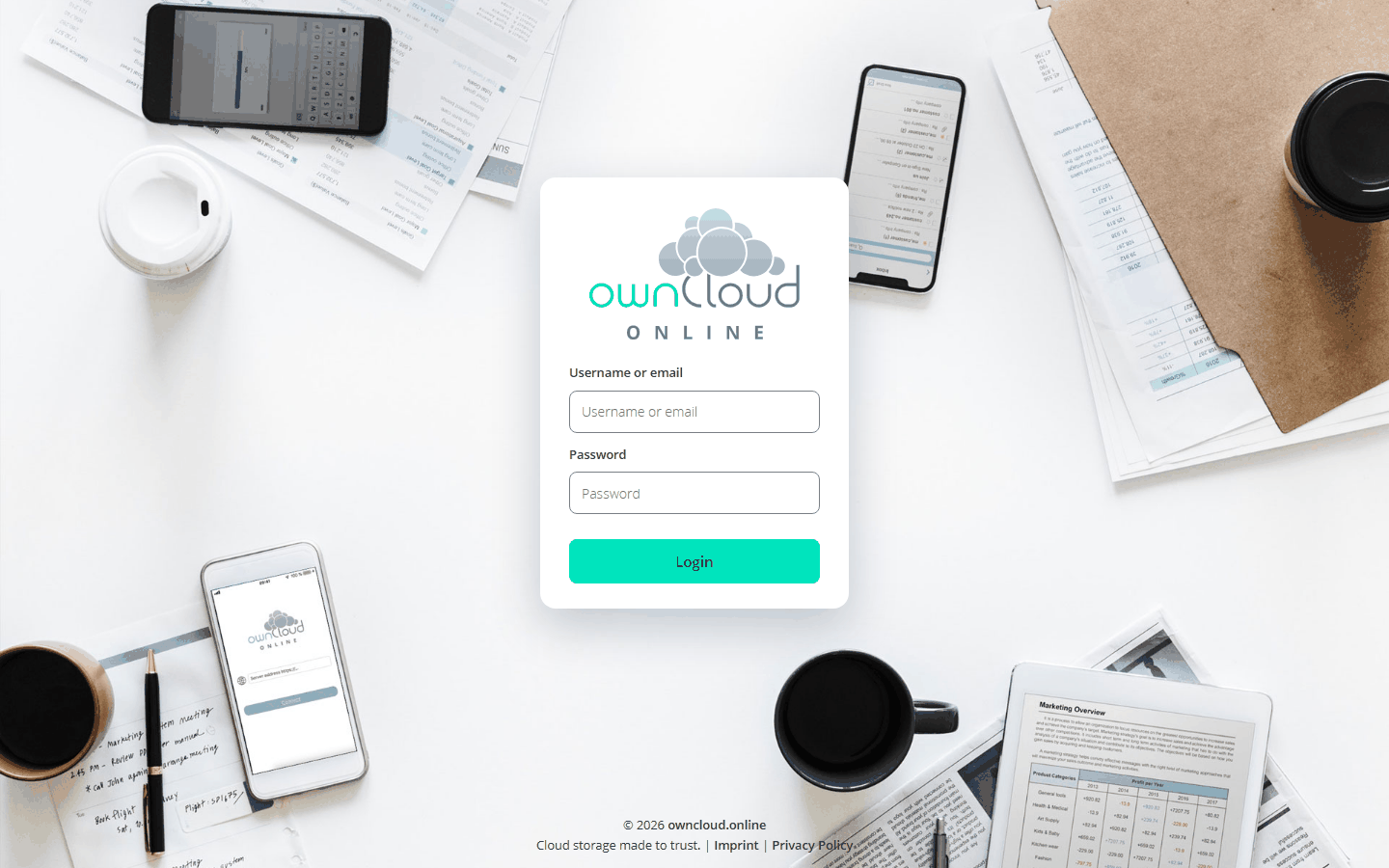
- Open the address of your instance in the browser.
- Under Username or email, enter your username or email address.
- Under Password, enter your password and click Login.
- If two-factor authentication is turned on for your account, the next page asks for a code from your authenticator app. Enter the code and click Verify.
If the password was wrong and your instance allows password resets, the page offers the link Wrong password. Reset it? After several failed attempts from your connection, owncloud.online pauses logins for a short time: the page shows Login paused for a moment and how long to wait. At that point, reset your password instead of guessing again.
Files
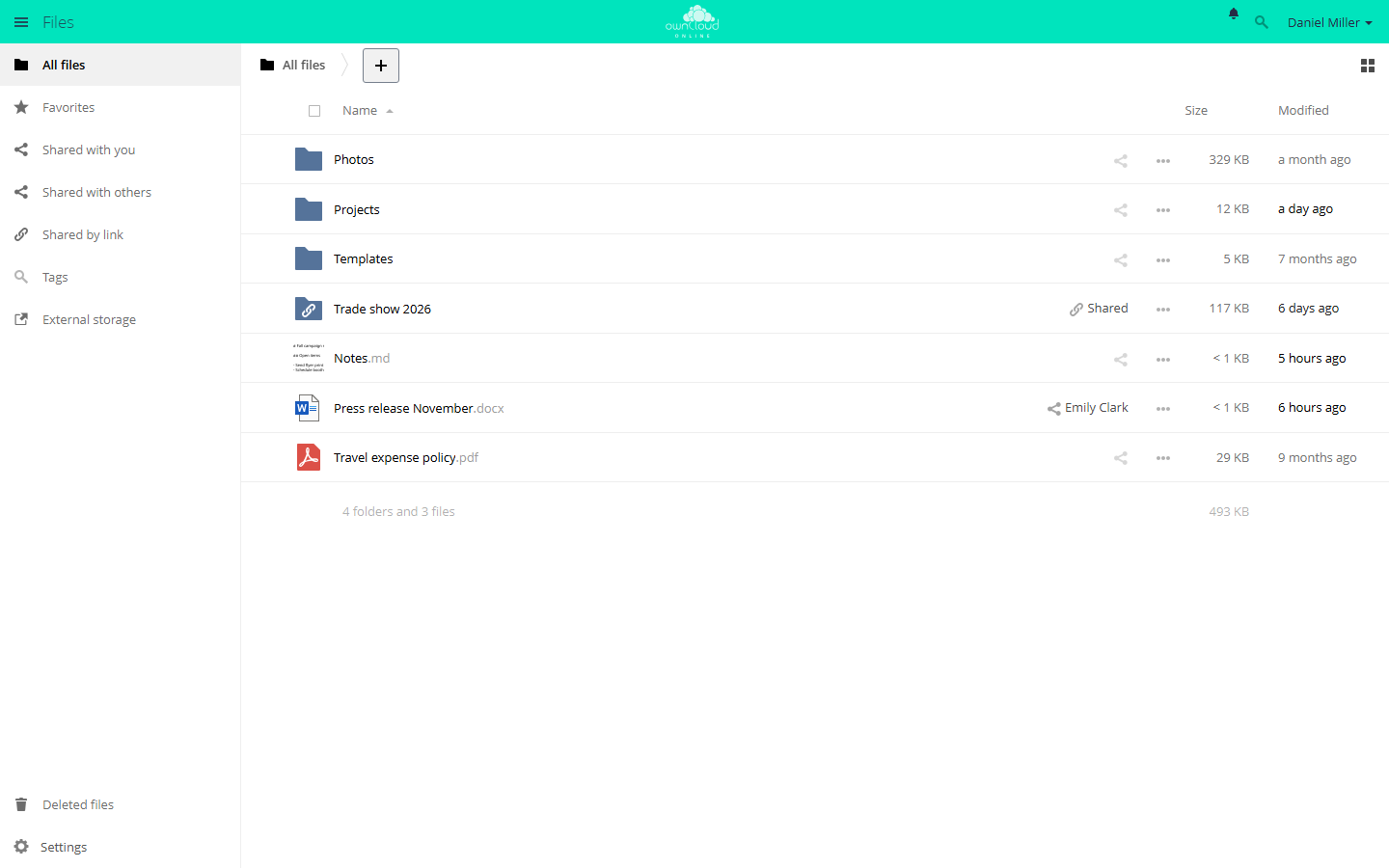
By default, the Files app opens after you log in. The views are on the left:
| View | Contents |
|---|---|
| All files | Your folders and files |
| Favorites | Files and folders you marked with the star |
| Shared with you | What others have shared with you |
| Shared with others | What you have shared with others |
| Shared by link | Your public links |
| Tags | Files filtered by tag |
| External storage | Mounted storage such as network drives |
| Deleted files | The trash bin, at the bottom left |
Files and sharing explains how to upload files, create folders, and restore deleted files.
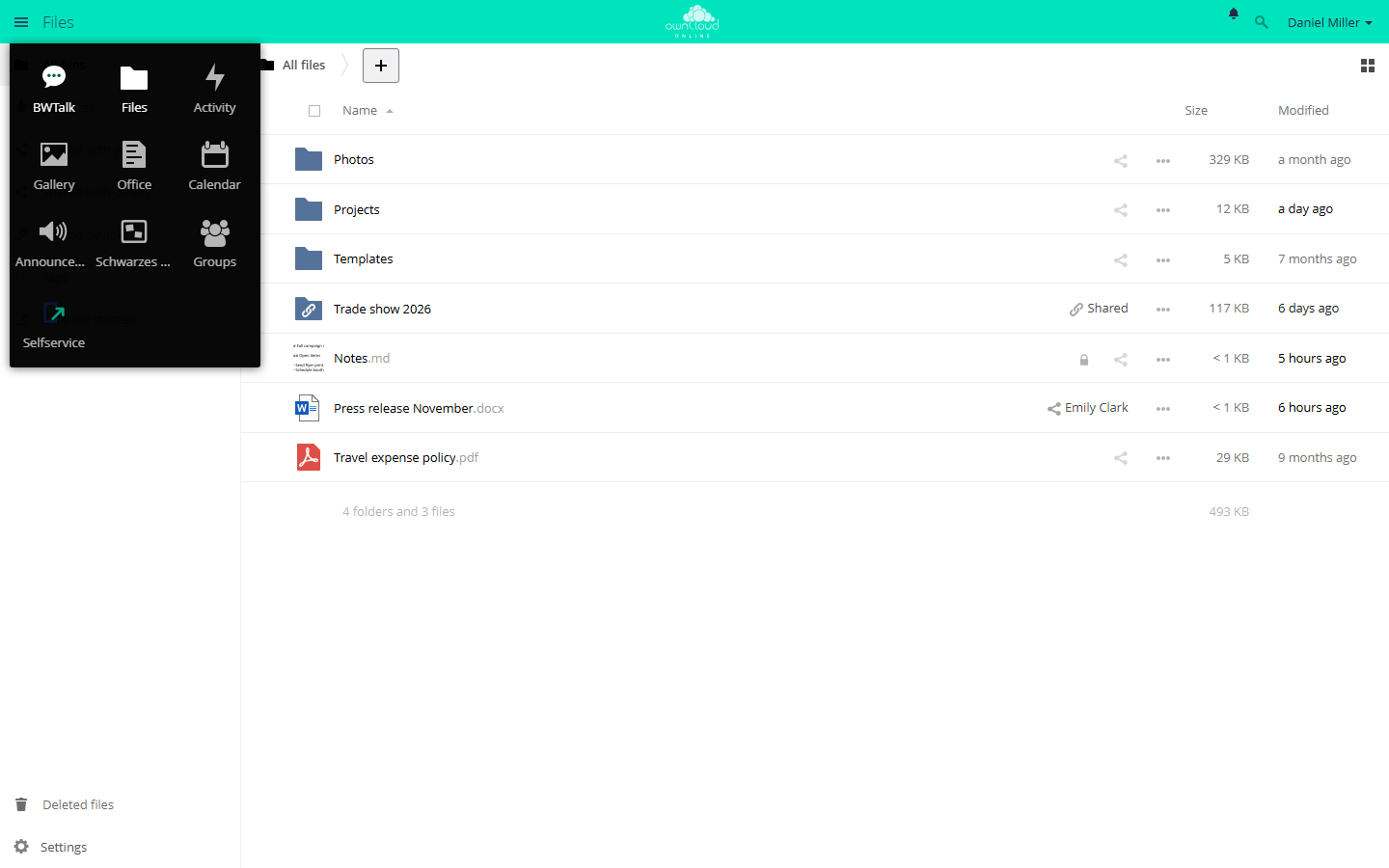
The menu icon at the top left switches between apps such as Files, Activity, and Calendar. The apps you see depend on your instance.
Sharing
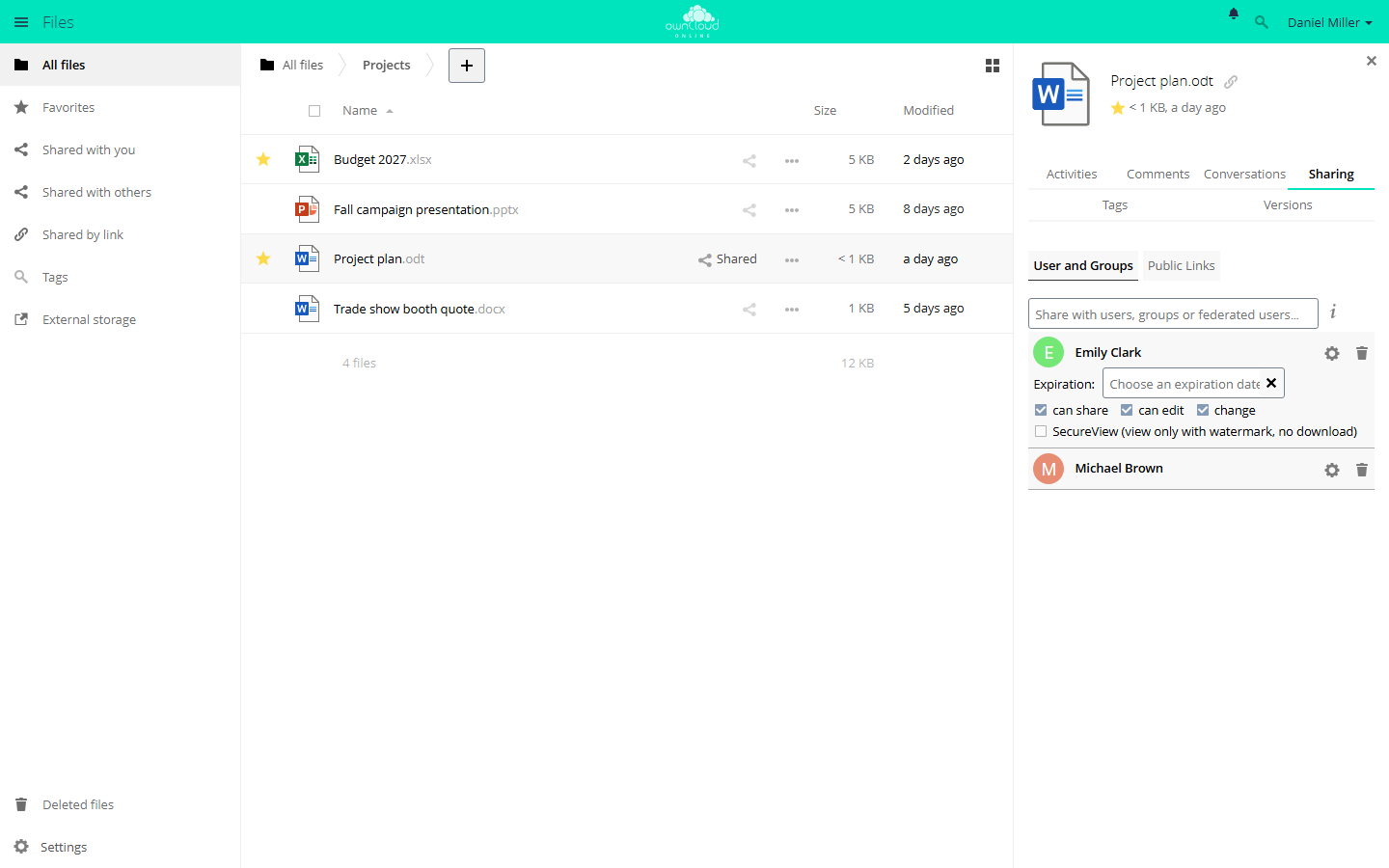
Click the share icon in the file list to open the sidebar on the right with the Sharing tab. You have two options there:
- User and Groups: type a name and set the permissions for each share, for example can edit and can share.
- Public Links: for recipients without an account. You can protect a link with a password and an expiration date and restrict it to read-only access or to uploads.
Existing shares are listed in the same view, where you can change or remove them. For step-by-step instructions, see Share with people and groups and Public links.
Personal settings
To open your personal settings, click your name at the top right and then Settings.
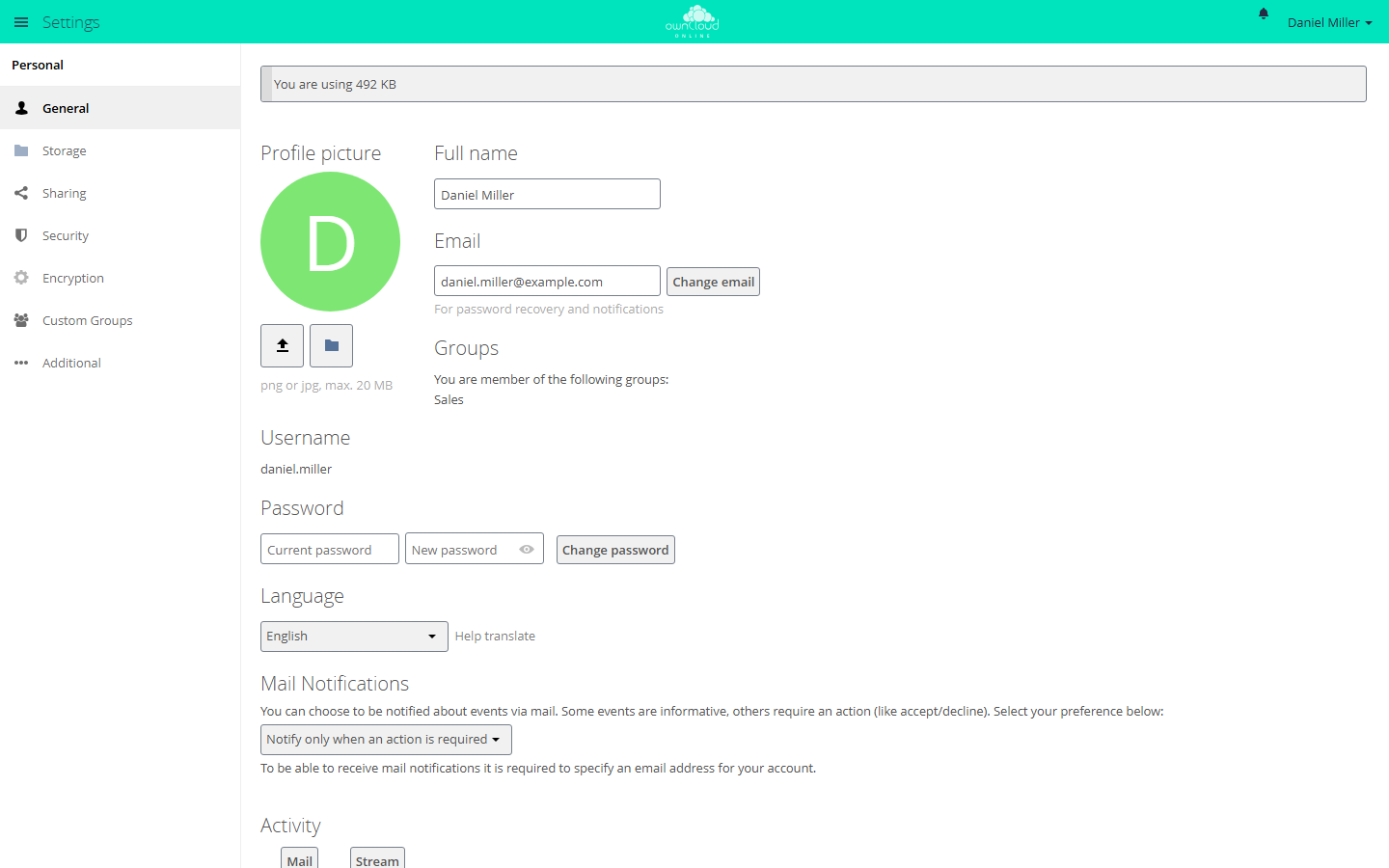
Under General, you can change your profile picture, full name, email address, password, and language. owncloud.online sends notifications and the password reset link to that email address. Depending on how your instance is set up, some fields may be locked, for example for accounts that come from a directory service.
Security
To keep your account safe:
- Use a strong password that you don't use anywhere else.
- Set up two-factor authentication if your instance offers it.
- End old browser sessions.
- Check your public links regularly (the Shared by link view).
Set up two-factor authentication
You need an authenticator app on your phone. Your instance must also have the app for two-factor authentication installed.
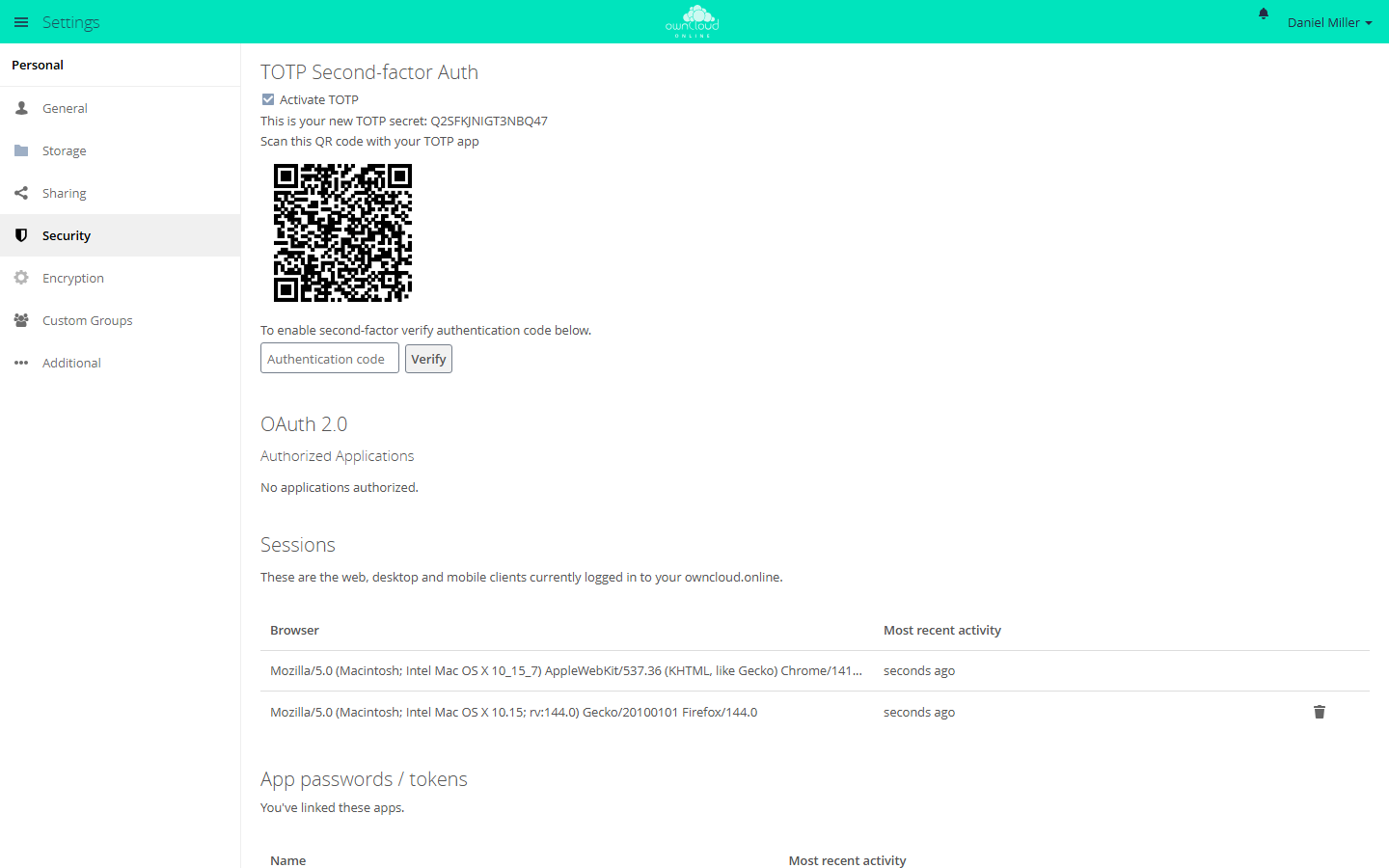
- Open Settings → Security.
- Under TOTP Second-factor Auth, select Activate TOTP.
- Scan the QR code with your authenticator app, or type the TOTP secret shown on the page into the app.
- Enter the code from the app in the Authentication code field and click Verify.
The second factor is active only after you verify a code. If the clock on your phone is off by more than a minute or two, the codes won't match.
From then on, programs that log in with a username and password need an app password. The desktop client doesn't, because it logs in through the browser.
Sessions and app passwords
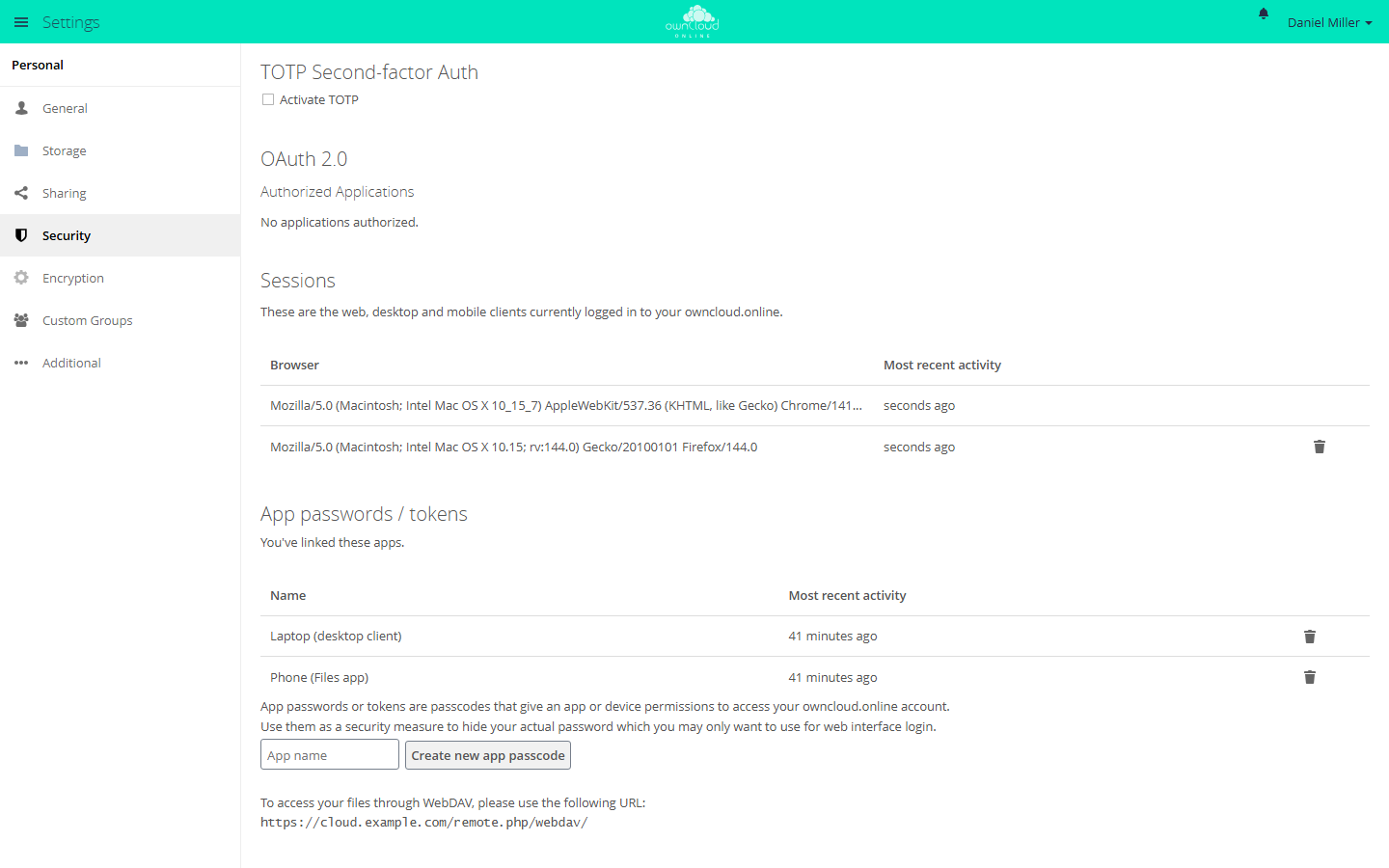
Settings → Security also has these sections:
| Section | Purpose |
|---|---|
| OAuth 2.0 → Authorized Applications | Programs you connected by logging in through the browser, such as the desktop client. The trash icon revokes access. This section appears only if the OAuth2 app is enabled. |
| Sessions | Browsers where you are logged in. The trash icon ends a session. |
| App passwords / tokens | Separate passwords for individual programs. A deleted app password stops working. |
Two-factor authentication and app passwords explains when you need an app password and how to create one.