

Moving to another server
A move transfers an existing instance to new hardware or to another hosting
provider. Three things belong together and must come from the same point in
time: the data directory, the database, and config/config.php. If they do
not match, metadata points to files that do not exist, or the other way
around.
If the version changes during the move, for example from a server running version 10.x to owncloud.online 11, the points under Moving with a version change also apply.
Requirements on the target server
| Item | Requirement |
|---|---|
| Code version | Same as the source (occ status); otherwise also run step 6 (occ upgrade) |
| PHP | 8.4 with the same extensions |
| Database | The same type as in dbtype, see special case; an empty database for the dump |
| Services | Everything config.php refers to: memcache.local (APCu), memcache.locking with the redis block |
| Paths | Easiest: keep the same paths as before for the code and the data directory. Then there are no home directories to move in step 7 |
Keep the old config/config.php; do not generate a new one. Four values in it
tie the database and the data directory to this exact instance and must
not change during the move:
| Value | What it is used for | What happens with a new value |
|---|---|---|
secret |
Key that OC\Security\Crypto uses to encrypt and decrypt stored credentials (table credentials, for example for external storage) and login tokens (table authtoken) |
App passwords are rejected with HTTP 401, two-factor authentication with TOTP fails with HTTP 500 (“HMAC does not match”), external storage reports login errors |
passwordsalt |
Verifying older password hashes | Accounts with such hashes can no longer log in |
instanceid |
Name of the appdata_<instanceid> folder in the data directory (previews, uploaded theme images) and of the session cookie |
The uploaded logo and login background return HTTP 404 while the pages still point to them; previews are generated again |
version |
Tells occ upgrade which version the database comes from |
With a version change, repair steps that only apply to updates from older versions do not run, and the Marketplace is not asked for compatible app versions |
A freshly installed or newly provisioned instance has its own values for all
four. You therefore cannot use its config.php for a move, even if everything
else in it is correct.
1. Maintenance mode on the old server
sudo -u www-data php8.4 /var/www/owncloud.online/occ maintenance:mode --on
The command sets maintenance to true. From then on, every web request gets
HTTP 503 and the maintenance page. It does not force a logout and does not
drop existing sessions. occ also suggests stopping the web server (“Please
also consider to stop the web server …”). For a consistent backup, that is the
safe way:
systemctl stop apache2
systemctl stop php8.4-fpm
Also disable the cron entry on the old server so that no background job writes during the transfer (see Background jobs (cron)).
2. Back up the data directory, database, and config.php
tar -czf /root/oco-data-$(date +%F).tar.gz /var/owncloud-online-data
mysqldump --single-transaction -u root -p owncloud_online \
  > /root/oco-db-$(date +%F).sql
cp /var/www/owncloud.online/config/config.php /root/oco-config-$(date +%F).php
Besides the user files, the data directory holds other files the server needs:
- the hidden marker file
.ocdata, .htaccess(also hidden) andindex.html, which the installer creates to block web access to the directory,- depending on the configuration,
owncloud.log, - with encryption enabled, the key directories
files_encryption/, - if
dbtypeissqlite, the database file itself.
Hidden files
cp /old/* /new/ does not copy files whose names start with a dot. If
.ocdata is missing afterwards, the instance reports “Your Data directory
is invalid”. Always use tar or rsync -a with the directory as the
source, not a wildcard such as *.
Keep the database dump and the data directory backup until you have finished
the checks after the move. With a version change, occ upgrade
modifies the database; anything lost in the process can only be restored from
the old dump.
3. Transfer
# User data (keeps permissions, ACLs, and extended attributes)
rsync -aAX /var/owncloud-online-data/ new.example.com:/var/owncloud-online-data/

# Database dump and the old config.php
scp /root/oco-db-*.sql new.example.com:/root/
scp /root/oco-config-*.php new.example.com:/root/
On the target server, load the dump into an empty database and put the
old config.php in place:
mysql -u root -p -e "DROP DATABASE IF EXISTS owncloud_online;
  CREATE DATABASE owncloud_online CHARACTER SET utf8mb4 COLLATE utf8mb4_general_ci;"
mysql -u root -p owncloud_online < /root/oco-db-2026-08-13.sql
cp /root/oco-config-2026-08-13.php /var/www/owncloud.online/config/config.php
chown www-data:www-data /var/www/owncloud.online/config/config.php
DROP DATABASE does not take away the database user's privileges on
owncloud_online.*. MariaDB and MySQL keep privileges granted on a database
even after the database is dropped.
Do not import into a database that already has tables
The dump only contains the tables that existed on the old server. Tables
already in the target database, for example from a test installation with
occ maintenance:install, stay next to the imported data, and the app
entries in the dump know nothing about them. Later, occ app:enable fails
for exactly the apps whose tables were left behind this way (for example
oc_announcements or oc_files_antivirus). With an empty database, this
does not happen.
Owner of config.php
occ stops if it does not run as the user who owns config/config.php:
“Console has to be executed with the user that owns the file
config/config.php”. If the copied file still belongs to root, the very
first sudo -u www-data call in step 4 fails. That is why chown follows
the copy right away.
Do not copy the application code. Unpack it fresh on the target server (see
Bare Linux server). An installation with
occ maintenance:install is not needed for the move. If you run one anyway,
for example to test the web server and PHP, empty the database afterwards as
shown above.
The apps-external directory holds every app installed later through the
Market app (apps_paths, the entry with 'writable' => true). It sits in the
code tree and is therefore not part of the backup from step 2:
- Same version on both servers: install the apps again on the target
server through the Marketplace, or take
apps-externalfrom the old server. Both give you a working setup. The Marketplace delivers the newest compatible version, which can be newer than the one on the old server. - Version change: do not copy the old
apps-external. The apps in it are builds for the old version. If an app's code is present but not compatible with the new version,occ upgradestops with “Upgrade is not possible” unless the Marketplace provides a compatible version. If the code is missing instead, the upgrade fetches a compatible version from the Marketplace or disables the app (see Moving with a version change).
4. Adjust the configuration
Two settings must be in the file before the first occ call: the
database connection and the data directory. Without a working database
connection, every command stops at its first database query. A wrong
datadirectory is not always caught. If no upgrade is pending, every occ
call except occ check stops with “Environment not properly prepared.” when
there is no .ocdata under the path. With a version change, this check is
skipped until after the upgrade, and every command that touches files works in
the wrong place. Enter both directly in config/config.php:
'datadirectory' => '/var/owncloud-online-data',
'dbhost' => '127.0.0.1',
'dbname' => 'owncloud_online',
'dbuser' => 'owncloud_user',
'dbpassword' => 'CHANGE_ME',
Ideally, datadirectory keeps the old path. If it has to change, still enter
the old path first and restore the data directory there; you switch to the
new path in step 7.
The copied file also contains the old server's apps_paths. If the code lives
under a different path on the target server, change both entries in the same
file to the new code location. Otherwise the server looks for apps in a
directory that does not exist:
'apps_paths' => [
  ['path' => '/var/www/owncloud.online/apps', 'url' => '/apps', 'writable' => false],
  ['path' => '/var/www/owncloud.online/apps-external', 'url' => '/apps-external', 'writable' => true],
],
instanceid, passwordsalt, secret, and version stay unchanged (see
Requirements). Because the file was backed up in
maintenance mode, it also contains 'maintenance' => true. That is intended:
the instance stays locked until step 8.
Then set the remaining values with occ:
# New host name (index 0 replaces the first entry,
# any other index adds to the list)
sudo -u www-data php8.4 /var/www/owncloud.online/occ \
  config:system:set trusted_domains 0 --value=cloud.example.com

# Base URL for cron, occ, and all links they generate
sudo -u www-data php8.4 /var/www/owncloud.online/occ \
  config:system:set overwrite.cli.url --value=https://cloud.example.com

# Check
sudo -u www-data php8.4 /var/www/owncloud.online/occ config:list system
| Key | Why it needs attention during a move |
|---|---|
trusted_domains |
If the new host name is not in the list, the server answers every request for that name with HTTP 400 and “You are accessing the server through an untrusted domain.” The check applies only to web requests, not to occ. |
datadirectory |
Absolute path to the data directory on the new server |
dbhost, dbname, dbuser, dbpassword |
Access to the new database; leave dbtableprefix unchanged |
apps_paths |
Only if the code lives in a different location than on the old server |
overwrite.cli.url |
Otherwise links in cron emails and notifications keep pointing to the old server |
If the subpath (webroot) changes as well, update the .htaccess afterwards. It
contains the ErrorDocument paths, which on the command line are derived from
overwrite.cli.url:
sudo -u www-data php8.4 /var/www/owncloud.online/occ maintenance:update:htaccess
If the instance runs behind a reverse proxy, also check trusted_proxies,
overwriteprotocol, and, if used, overwritehost (see
Reverse proxy and TLS).
5. Set permissions
The web server user must be able to write to the data directory, and the
directory itself must not be readable by other users. The server checks this
and tries to set the permissions to 0770 on its own. If that fails, for
example because the directory still belongs to root, it reports “Your Data
directory is readable by other users”.
chown -R www-data:www-data /var/owncloud-online-data
chown -R www-data:www-data /var/www/owncloud.online
chmod 0770 /var/owncloud-online-data
chmod 0640 /var/www/owncloud.online/config/config.php
6. Upgrade when the version changes
If the database comes from an older version, every occ call reports
“… require upgrade - only a limited number of commands are available”. In
that case, run the upgrade now. With the same version, skip this step:
sudo -u www-data php8.4 /var/www/owncloud.online/occ upgrade
Because maintenance mode is already on, occ upgrade leaves it on. Keep a
copy of the output: it lists every app that was disabled because its code is
missing. The server log records the same (see
What to check afterwards).
7. Home paths and repair steps
This step still runs in maintenance mode.
The home directory of each account is stored as an absolute path in the
accounts table (column home). The value is written only when the account
is created; a later user:sync does not correct it. If the path of the data
directory has changed, these entries still point to the old location. First
check which root directories are actually stored:
sudo -u www-data php8.4 /var/www/owncloud.online/occ user:home:list-dirs
sudo -u www-data php8.4 /var/www/owncloud.online/occ user:home:list-users /old/path
If the path is wrong, user:move-home moves the home directory. Pass the
parent directory as the argument. The command disables the account, copies
the files with rsync, stores the new path, and enables the account again:
sudo -u www-data php8.4 /var/www/owncloud.online/occ \
  user:move-home alice /var/owncloud-online-data
The command has two requirements that dictate the order of the steps. The current home directory must still exist on disk. Otherwise the command stops with “Current user home … does not exist. Not mounted? Non local storage?” In addition, the target directory must not yet contain a non-empty folder of the account. Otherwise the command reports “New user folder … is either not readable or not empty”. If the files are already at the new path, the command no longer helps.
So if the data directory path really has to change, first restore the data
directory under the old path, then move the accounts one by one to the new
path with user:move-home, and only then update datadirectory. The command
only copies home directories. It does not move anything else in the data
directory; before you switch datadirectory, copy the following to the new
location by hand: .ocdata, .htaccess, index.html,
appdata_<instanceid>/, avatars/, files_encryption/, and owncloud.log.
The old home directory stays in place, and you have to delete it by hand. On
S3 primary storage, the command refuses to run. Keeping the path unchanged is
still the least work.
Then run the repair steps. They work only in maintenance mode; without it, the command stops with “Turn on maintenance mode to use this command.”
sudo -u www-data php8.4 /var/www/owncloud.online/occ maintenance:repair
If the database dump comes from a running system, it may contain locks from
interrupted transfers. This only affects instances without memcache.locking:
if it points to Redis, the locks live in the cache and never move with the
dump.
sudo -u www-data php8.4 /var/www/owncloud.online/occ maintenance:file-locks --cleanup-expired
8. Turn off maintenance mode and scan the files
Turn off maintenance mode first, then scan the files. The files:scan
command belongs to the files app, and in maintenance mode occ does not
load apps. The call then ends with “There are no commands defined in the
"files" namespace.” Start the web server only afterwards, so that nobody logs
in before the file cache matches the file system again:
sudo -u www-data php8.4 /var/www/owncloud.online/occ maintenance:mode --off
sudo -u www-data php8.4 /var/www/owncloud.online/occ files:scan --all
systemctl start php8.4-fpm
systemctl start apache2
With a version change, also install the replacement apps before you start the web server (see Replacements for old apps).
If individual files are still missing in the web interface, run
occ files:scan --all --repair. It repairs detached cache entries and takes
considerably longer.
What the move does not include
The data directory, database, and config.php cover the instance, but not its
environment. Set up the following separately on the target server:
| Not included | What happens if you forget it |
|---|---|
| Web server and TLS configuration | Instance unreachable or reachable only without encryption |
Cron entry for cron.php |
Deleted files and versions are never cleaned up, shares do not expire, no emails are sent |
| PHP extensions and services (APCu, Redis) | config.php refers to caches that do not exist |
apps-external (apps installed from the Marketplace) |
Apps are missing or disabled. With the same version, reinstall or copy them; with a version change, do not copy them (see step 3) |
Log file outside the data directory (logfile) |
Target path does not exist, nothing gets logged |
| System packages, firewall, backup jobs | The server is neither protected nor backed up |
instanceid, passwordsalt, secret, and version, on the other hand, are
part of the old config.php and must not change.
What to check afterwards
# Version and installation state
sudo -u www-data php8.4 /var/www/owncloud.online/occ status

# Environment dependencies (empty output = OK)
sudo -u www-data php8.4 /var/www/owncloud.online/occ check

# Apps complete and enabled
sudo -u www-data php8.4 /var/www/owncloud.online/occ app:list

# Apps the upgrade disabled because their code is missing (one line per app)
grep 'Upgrade: disabled app' /var/owncloud-online-data/owncloud.log

# Legal notice and privacy policy: the URLs point to your own pages
sudo -u www-data php8.4 /var/www/owncloud.online/occ config:app:get core legal.imprint_url
sudo -u www-data php8.4 /var/www/owncloud.online/occ config:app:get core legal.privacy_policy_url

# Job list with "Last Run" per job (ISO timestamp)
sudo -u www-data php8.4 /var/www/owncloud.online/occ background:queue:status

# Time of the last cron run (Unix time, should be only a few minutes ago)
sudo -u www-data php8.4 /var/www/owncloud.online/occ config:app:get core lastcron

# Home paths point to the new data directory
sudo -u www-data php8.4 /var/www/owncloud.online/occ user:home:list-dirs
Then check the following on the running instance:
- Log in with the new host name.
- Upload a file and download it again.
- Open an existing public link.
- Open external storage, if configured. This shows whether
secretwas carried over correctly. Also test an app password and, if used, two-factor authentication. - Connect a sync client and check that a change syncs in both directions.
- Go through the “Security & setup warnings” section under Settings → Admin → General.
- With the owncloud.online Theme
app: your logo and login background must appear on the login page and in
the header. If the image returns HTTP 404,
instanceidis wrong (see Requirements).
occ maintenance:data-fingerprint is not part of a normal move. It tells
all clients that a backup was restored and triggers conflict dialogs there.
Use it only if you went back to an older state of the data.
Special case: changing the database type
A move is not a good moment to change the database type as well. The former
db:convert-type command no longer exists in owncloud.online 11
(changelog: “This experimental command is untested and unsupported and
therefore removed.”). There is no supported way to convert the existing
database.
In practice, two options remain:
Keep the type. The move runs as described above; only dbhost, dbname,
dbuser, and dbpassword change. If dbtype is sqlite, the database lives
in the data directory and moves along with the rsync from step 3. SQLite is
not suitable for production; see Database.
Start over. Create a fresh installation with the target type:
sudo -u www-data php8.4 /var/www/owncloud.online/occ maintenance:install \
  --database mysql --database-name owncloud_online \
  --database-host 127.0.0.1 --database-user owncloud_user \
  --admin-user admin --data-dir /var/owncloud-online-data
The command prompts for the database and admin passwords if --database-pass
and --admin-pass are missing. Then put the user files into the home
directories and scan them with occ files:scan --all. You lose a lot this
way, and you need to know that up front: everything stored only in the
database is gone afterwards, that is shares (table share), comments, tags,
accounts of the internal user backend, external storage configuration, and all
app settings. instanceid, passwordsalt, and secret are generated anew as
well, which invalidates stored credentials and login tokens. Plan this
separately from the server move and not in the same maintenance window.
Moving with a version change
If you change the version during the move, the database you bring along marks apps as enabled that do not exist on the target server. On a version 10.x server with many add-on apps, there can easily be a dozen of them. Compared with a move without a version change, these points matter:
| Item | Why |
|---|---|
| Dump into an empty database (step 3) | Otherwise tables from a test installation remain and later make occ app:enable fail |
instanceid, passwordsalt, secret, and version from the old config.php (Requirements) |
App passwords, TOTP, and uploaded images depend on the first three; version tells the upgrade where the database comes from |
Do not copy the old apps-external (step 3) |
Old app versions whose code is present stop the upgrade |
occ upgrade before the repair steps (step 6) |
Until then, only a few occ commands are available |
| Keep the data directory path (step 7) | user:move-home only moves home directories, not appdata_<instanceid>/ and the other folders |
Turn off maintenance mode first, then files:scan (step 8) |
The command is not available in maintenance mode |
For apps whose code is missing, the upgrade fetches compatible versions from
the Marketplace. This needs an internet connection and the old version value
in config.php. Only then does the repair step “Upgrade app code from the
marketplace” detect a core update and ask the Marketplace. Through 11.0.18,
anything the Marketplace could not provide stopped the upgrade: “Upgrade is
not possible”, the instance stayed in maintenance mode, and you had to run
occ app:disable by hand for every app.
Since 11.0.19, an app without code no longer stops the upgrade. It cannot do
anything anyway; all that is left of it is the “enabled” entry. The repair
step disables the app, lists every app it disabled this way in the output, and
continues. The app's data (settings, tables, installed_version) stays in the
database. Since 11.0.21, the message depends on what the Marketplace reported
for the app:
Repair warning: The following apps were enabled but have no code on this
server. They have been disabled so the upgrade can continue; their data stays
in the database: admin_audit, diagnostics
Repair warning: Not offered by the marketplace: admin_audit, diagnostics. To
use one of them again, put its code into an app directory, then run occ
app:enable <app> and occ upgrade.
| Marketplace response | Message in the output | How to get the app back |
|---|---|---|
Does not list the app (for example admin_audit or diagnostics) |
“Not offered by the marketplace” | Put the code into an app directory, run occ app:enable <app>, then occ upgrade |
| Lists the app but has no version for this server | “Offered by the marketplace, but without a version for this server” | Once a compatible version exists, install it from the Marketplace, then run occ upgrade |
Not asked (no core update, upgrade.automatic-app-update off, no connection) |
“The marketplace was not consulted for, or could not provide” | Same as the first row |
The server log records the same information for each app, and when no version was available, it includes the reason the Marketplace gave. Versions 11.0.19 and 11.0.20 print a blanket “install them from the marketplace if you still need them” instead, even for apps the Marketplace does not offer at all.
After occ app:enable, the whole instance stays in the “upgrade required”
state until occ upgrade has run, because installed_version still holds the
old version. Apps that are present with code but are not compatible with
this version still stop the upgrade: something needs fixing there, and
disabling them silently would hide it.
Only apps that are really missing get disabled. The repair step first
checks that every path in apps_paths is readable and that the app has no
folder in any of them:
- If a path is not readable (not mounted, missing permissions), no app is disabled. The output reports “Apps without code are NOT disabled automatically because an app directory is missing or not readable”.
- If an app has a folder without a readable
appinfo/info.xml, that app stays enabled (“… but no readable appinfo/info.xml; it is not disabled automatically”).
In both cases the upgrade stops as before, because the code is just
temporarily unreachable. Each disabled app is also recorded in the server log
with its previous enabled value (owncloud.log, app core, the line starts
with “Upgrade: disabled app”), even if occ upgrade --no-warnings suppresses
the console warning.
Replacements for old apps
Some apps from the old instance exist in owncloud.online only as replacements
with a different name. Their settings stay in the database; the replacement
takes them over when it is installed for the first time after the upgrade.
The replacement apps are not part of the server package, so occ upgrade does
not install them. Without the step below, neither the old lockout settings nor
the old password rules apply after the move; only the throttling built into
the core remains.
| Old app | Replacement | Settings taken over |
|---|---|---|
security (servers 10.0.3 to 10.0.8) |
brute_force_protection |
Failed attempts, time window, ban period |
security |
password_policy |
Minimum length, upper and lower case, digits, special characters |
windows_network_drive |
wnd |
Mounts with their authentication methods, including SFTP, WebDAV, and SMB with stored or global credentials (see External storage from add-on apps) |
brute_force_protection and password_policy are available in the
Marketplace without an API key; wnd requires one (see
Marketplace access of the old instance). occ market:install
downloads an app and enables it. The command belongs to the Market app and is
only available once maintenance mode is off, that is in
step 8 after maintenance:mode --off and before
you start the web server:
sudo -u www-data php8.4 /var/www/owncloud.online/occ market:install brute_force_protection
sudo -u www-data php8.4 /var/www/owncloud.online/occ market:install password_policy
sudo -u www-data php8.4 /var/www/owncloud.online/occ market:install wnd
If security appears in the occ upgrade warning, do not search the
Marketplace for security; install the two replacement apps instead. If the
code of a replacement app is already in an app directory,
occ app:enable <app> is enough. The server log records which settings were
taken over (app brute_force_protection or password_policy). Both apps
apply the values to public link passwords as well, while security only
applied them to accounts. For details, see
Brute-Force Protection and
Password Policy. The same goes for
windows_network_drive: the mounts stay in the database and work again as
soon as wnd is installed (see
Windows Network Drive (Custom)).
Data directory under a new path
The data directory path is stored in two places in the database: in
accounts.home of each account and in the IDs of path-based storages in
storages (local::<path>/). If the files on the target server are already
under the new path, the home paths point nowhere. That is the usual case when
the target server has its own directory layout. Users can log in but see no
files, and empty home directories appear under the old path.
user:move-home no longer helps then (see step 7).
Rewrite the entries before occ upgrade instead. Example for MariaDB with
the old path /var/www/cloud/data, the new path /var/owncloud-online-data,
and the table prefix oc_:
-- Home paths: rewrite only real prefix matches, no REPLACE() on the whole string
UPDATE oc_accounts
   SET home = CONCAT('/var/owncloud-online-data', SUBSTR(home, CHAR_LENGTH('/var/www/cloud/data') + 1))
 WHERE SUBSTR(home, 1, CHAR_LENGTH('/var/www/cloud/data') + 1) = '/var/www/cloud/data/';
The server stores storage IDs that would be longer than 64 characters as an
MD5 hash. A REPLACE() on storages.id does not find such rows, and with a
long new path it creates an ID the server never looks for. Compute the IDs
beforehand the same way the server does:
sid() { php -r '$i = $argv[1]; echo strlen($i) > 64 ? md5($i) : $i, "\n";' "$1"; }
sid 'local::/var/www/cloud/data/'          # current ID of the root
sid 'local::/var/owncloud-online-data/'    # new ID of the root
-- Root of the data directory; if you skip this, the server scans it again as a new storage
UPDATE oc_storages SET id = '<new ID>' WHERE id = '<current ID>';
Rewrite only as long as the new ID does not exist yet; otherwise the server has
already run with the new path. You do not need to touch the home storages
(home::<account>, independent of the path) or the upload staging folders
(local::<path>/<account>/uploads/; new ones are created after the move).
Local mounts: If the path of a mount of type local changes (table
external_config, key datadir), rewrite its ID in storages at the same
time: local::<old path>/ to local::<new path>/, again following the MD5
rule. Otherwise the server scans the mount as a new storage. If the mount is
encrypted, every file loses its encryption version number in the process, and
files that were written more than once fail with “Bad Signature”. To repair
this afterwards, run occ encryption:fix-encrypted-version <account> -p <path>
(encryption app 2.0.9 or later). Local mounts are also only mounted if
files_external_allow_create_new_local is set to true.
External storage from add-on apps
Each mount is stored with its backend and authentication IDs in
external_mounts. Some IDs used by version 10.x servers are not provided by
the core itself:
| ID | Column | Comes from app | Replacement |
|---|---|---|---|
password::logincredentials, password::global, password::userprovided, password::hardcodedconfigcredentials, kerberos::kerberos |
auth_backend |
windows_network_drive |
App wnd; it also takes over these IDs for SFTP, WebDAV, and SMB |
windows_network_drive, windows_network_drive2 |
storage_backend |
windows_network_drive |
App wnd |
ftp |
storage_backend |
files_external_ftp |
none |
files_external_dropbox |
storage_backend |
files_external_dropbox |
none |
As long as an ID is missing, the row stays unchanged in the database, but the
mount is unusable. occ files_external:list shows “Unknown auth mechanism
backend …” or “Unknown storage backend …”. Mounts with a missing
authentication method do not show up for users at all; mounts with a missing
backend show up as an empty folder that cannot be written to (HTTP 503). As
soon as wnd is installed and enabled, the authentication IDs resolve again.
To find the affected mounts, query the old database before the move:
SELECT mount_id, mount_point, storage_backend, auth_backend
  FROM oc_external_mounts
 WHERE auth_backend IN ('password::logincredentials', 'password::global', 'password::userprovided',
                        'password::hardcodedconfigcredentials', 'kerberos::kerberos')
    OR storage_backend IN ('windows_network_drive', 'windows_network_drive2', 'ftp', 'files_external_dropbox');
The SharePoint integration of version 10.x stored its mounts in tables of its
own (sp_*); there is no replacement for it either.
No way back to version 10.x
After the upgrade, the server writes data in formats that a version 10.x server cannot read:
- The core encrypts stored secrets (external storage passwords in the
credentialstable, app passwords inauthtoken) in thev3format; 10.x only knowsv2and the older three-part format. - With the
encryptionapp, every newly written or newly shared file gets a key envelope in the v2 format and a signature of the last block without the “end” suffix. The encryption app of version 10.x rejects both.
The only way back is therefore the backup of the database, data directory, and
config.php from before the move (step 2); anything
written afterwards is not in it. For a trial run, leave the old instance
running unchanged and practice the move on a copy.
New address: federated shares and trusted servers
Partner servers store the address under which this instance was reachable
when a federated share was created; trusted servers store it as well. If the
address changes during the move, the partners' callbacks (accepting,
declining, removing a share), their access to folders shared from here, and
the address book sync between trusted servers no longer reach this instance.
The safest option is to keep the old address: add it to trusted_domains and
overwrite.cli.url and point its DNS record to the new server. If the address
has to change, inform the partners beforehand and create the federated shares
again. Whether partner servers follow a redirect from the old address has not
been tested.
Marketplace access of the old instance
upgrade.automatic-app-update defaults to true if config.php does not set
it. In that case, the repair step “Upgrade app code from the marketplace”
queries the Marketplace at appstoreurl during occ upgrade and sends the
API key taken over from the old instance with the request (app value
market/key or marketplace.key from config.php, as the header
Authorization: apikey: …). If the old config.php still contains the
address of the former marketplace, the request and the key go there. Without
appstoreurl, they go to marketplace.owncloud.online. So remove any key from
the former marketplace before the upgrade, and check appstoreurl. These
commands also work in the upgrade state:
sudo -u www-data php8.4 /var/www/owncloud.online/occ config:app:delete market key
sudo -u www-data php8.4 /var/www/owncloud.online/occ config:system:delete marketplace.key
sudo -u www-data php8.4 /var/www/owncloud.online/occ config:system:get appstoreurl
Apps that the Marketplace only shows with an API key, such as wnd, require a
key from BW-Tech GmbH, which you can request. Enter it in the Market app under
Settings → Add API Key; the Market app checks the key and then reloads the
catalog. On the command line, use occ config:app:set market key --value=<key>,
then select Clear cache in the Market app. For details, see
Enter an API key.
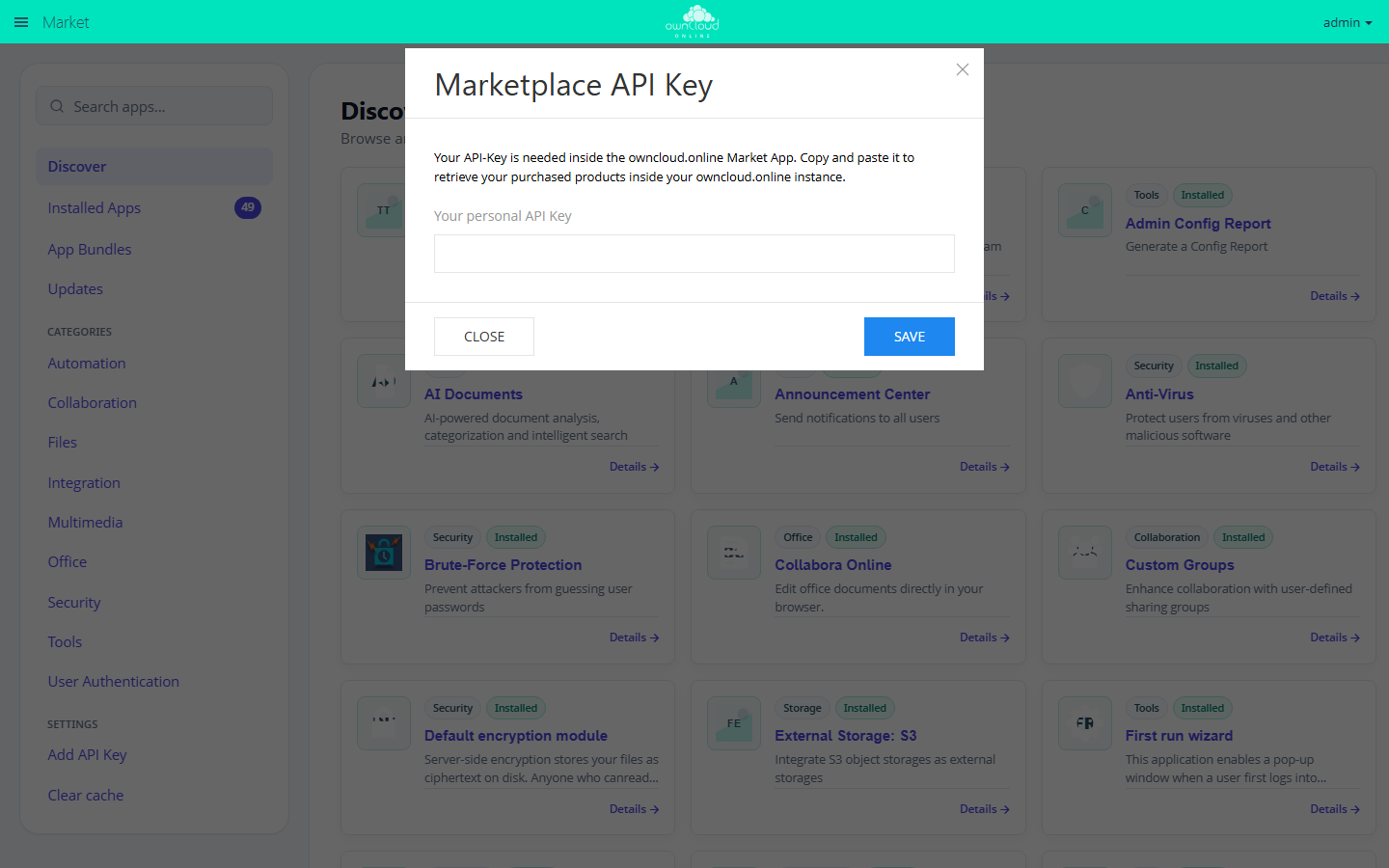
If the Marketplace query fails, the server log gives the exact reason; see Server log and error messages. The full procedure for backups and rollback is described under Backups and updates.
Troubleshooting
| Symptom | Cause | Fix |
|---|---|---|
| “You are accessing the server through an untrusted domain.”, HTTP 400 | New host name missing from trusted_domains |
occ config:system:set trusted_domains 0 --value=cloud.example.com; the check does not apply to occ, so the command still runs |
“Your Data directory is invalid” in the browser, “Environment not properly prepared.” with occ |
.ocdata is missing: hidden files were skipped during the copy or not moved when the data path changed, or datadirectory points to a wrong path |
Check datadirectory; transfer the data directory again with tar or rsync -a |
| “Your Data directory must be an absolute path” | datadirectory entered as a relative path |
Set an absolute path in config/config.php |
| “Your Data directory is readable by other users” | Permissions too open, and the web server user cannot change them because it does not own the directory | chown -R www-data:www-data and chmod 0770 on the data directory (step 5) |
occ stops with a database error |
dbhost/dbname/dbuser still point to the old server |
Correct the values in config/config.php, then run the command again |
“There are no commands defined in the "files" namespace.” with files:scan |
Maintenance mode is still on, so occ does not load apps |
occ maintenance:mode --off, then run files:scan again |
occ app:enable wnd reports “wnd not found” |
The app's code is not in any app directory | occ market:install wnd; wnd requires an API key, so enter the key first (Marketplace access) |
| Accounts exist but show no files | Stored home paths point to the old data directory | Check occ user:home:list-dirs; use occ user:move-home only while the files are still at the old path, then occ files:scan --all. If the files are already at the new path, see Data directory under a new path |
| Files are on disk but missing in the web interface | The file cache does not know them | occ files:scan --all; add --repair for detached entries |
| App passwords rejected with HTTP 401, TOTP login fails with HTTP 500 “HMAC does not match” | secret/passwordsalt do not come from the old config.php |
Enter the original values; without them, app passwords and TOTP have to be set up again |
| External storage reports login errors | secret differs because config.php was generated anew |
Restore the original config.php; otherwise enter the credentials again |
| Logo and login background missing, image request returns HTTP 404 | instanceid changed; the images are under appdata_<old instanceid>/ |
Enter the old instanceid |
| Default look instead of your own branding | The theme app is missing on the new server, or the upgrade disabled it because its code was missing (line “Upgrade: disabled app theme-owncloudonline” in owncloud.log) |
occ market:install theme-owncloudonline (requires an API key), or put the code into an app directory, then occ app:enable theme-owncloudonline and occ upgrade. Its settings are still in the database |
| Footer links to the wrong legal notice | core/legal.imprint_url still holds an old value |
occ config:app:set core legal.imprint_url --value=… or occ config:app:delete core legal.imprint_url |
occ app:enable <app> fails after the import |
Tables from a test installation sit next to the dump | Import the dump again into an empty database (step 3) |
| Links in emails point to the old server | overwrite.cli.url not updated |
Set the value; the links are generated again at the next cron run |
| Deleted files pile up, no notifications | Cron entry was not set up again | Set up cron on the new server, check occ config:app:get core lastcron |
| “Turn on maintenance mode to use this command.” | maintenance:repair called without maintenance mode |
occ maintenance:mode --on, then run the command again |
| Web interface shows maintenance mode permanently | maintenance is still true |
occ maintenance:mode --off |
| Uploads fail with lock errors | Lock entries from interrupted transfers in the dump (only without memcache.locking) |
occ maintenance:file-locks --cleanup-expired |
occ upgrade stops with “Upgrade is not possible” and lists apps that do not exist on the new server |
The database comes from an older instance with apps whose code is missing on the target. Since 11.0.19, this only stops the upgrade if a path in apps_paths is not readable |
Through 11.0.18: occ app:disable <app> for each app (the command also works in the upgrade state), then run occ upgrade again. Since 11.0.19: make the path readable (mount, permissions, apps_paths), then run occ upgrade again |
occ upgrade stops with “Upgrade is not possible” and lists apps whose folders exist |
Old app versions from the copied apps-external are not compatible with the new version, or an app folder has no readable appinfo/info.xml |
Remove the old apps-external and use the fresh one from the package; repair or remove a folder without a readable info.xml; then run occ upgrade again |